
How to Create Barcodes for Shopee Sellers: Fast, Free, A–Z Guide
Trying to create a barcode for your Shopee store but don’t know where to start? Many sellers hit the same wall: the listing is almost complete, then the GTIN/Barcode field shows up empty — because handmade goods, self-produced items, or newly sourced products rarely come with a barcode already printed. Shopee still requires one to approve the listing, and leaving it blank or entering the wrong format means the product gets rejected.
This guide walks you through how to generate a valid Shopee barcode — quickly, for free — and covers the common mistakes that get listings rejected on the first try.
Is a Barcode Required to Sell on Shopee?
Not all products require a barcode to be listed on Shopee. Whether you need one depends on the type of goods you’re selling.
Branded products — such as cosmetics, electronics, or packaged food — typically come with a barcode already printed on the packaging. Shopee recommends entering this code accurately so the system can verify and authenticate the product’s origin. For this category, leaving the barcode field empty can reduce listing visibility and shop credibility.
Self-produced items, handmade goods, or local specialty products usually don’t have an internationally registered barcode. Shopee allows leaving this field blank or using a self-generated internal code for inventory purposes. That said, if you’re selling at scale or plan to expand across multiple channels, setting up barcodes from the start will make inventory management significantly easier down the line.
What Barcode Formats Does Shopee Accept?
Shopee accepts the most widely used barcode formats, including EAN-13, UPC-A, and GTIN. These are standard linear barcodes used across global retail.
EAN-13 is the most common format in Vietnam and across Asia — 13 digits, typically found on supermarket product packaging.
UPC-A is a 12-digit standard, widely used in North American markets.
GTIN (Global Trade Item Number) is an umbrella term covering both EAN and UPC — when Shopee asks for a GTIN, entering your product’s EAN-13 code is correct.
One important note: the barcode Shopee requires is not a QR code. QR codes are 2D formats used for information lookup or payments — they cannot substitute for a product barcode in Shopee’s inventory management system.
If your product doesn’t have a barcode yet, you can generate an internal code for your own inventory management, or register an official GS1 barcode if you plan to sell across multiple channels or export internationally.
How to Create a Barcode for Shopee: Step-by-Step (Free)
There are three common ways to generate a barcode for Shopee products, depending on your scale and needs.
Method 1: Use an Online Barcode Generator
This is the fastest method — no software installation needed, ideal for beginners or anyone who needs to generate a few dozen codes.
Step 1: Go to a free barcode generator such as barcode.tec-it.com, barcodelookup.com, or iCheckQR (barcode version). These tools support all major barcode formats and export high-quality image files.
Step 2: Select the barcode format. For products sold on Shopee Vietnam, choose EAN-13. Enter your chosen number string or let the tool auto-generate one. Note: if entering manually, avoid duplicating barcodes already in circulation.
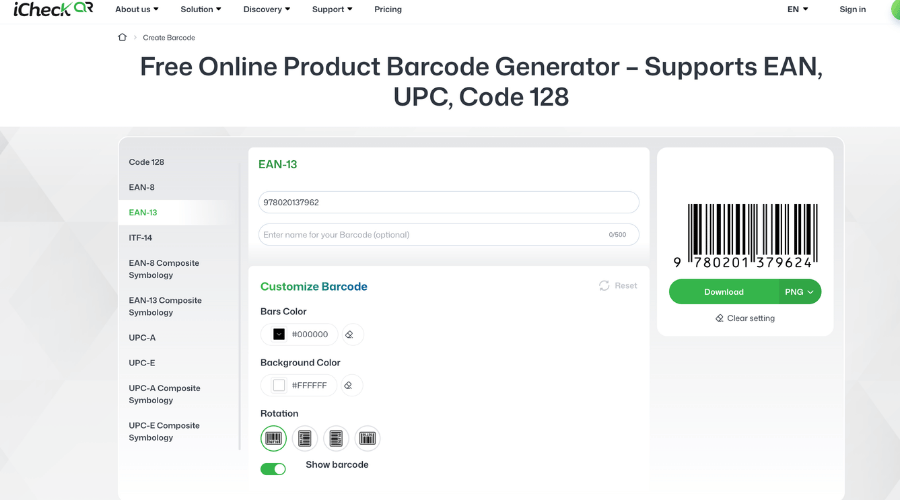 EAN-13 barcode on icheckqr.com/barcode#ean13 helps Shopee identify and manage products more accurately.
Step 3: Click generate, then download the PNG or SVG file. Paste the barcode number into the "GTIN" field in Shopee Seller Center, and print the barcode to stick on packaging if needed.
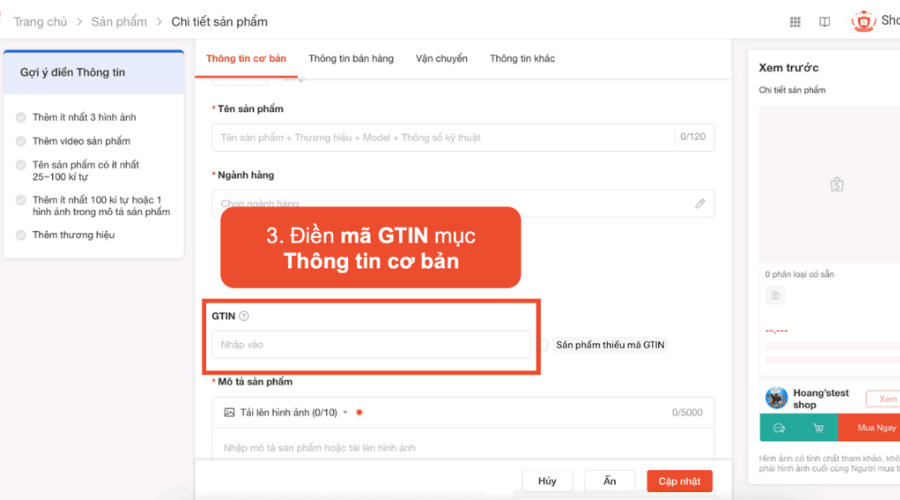 Barcode helps sync inventory and reduce errors when listing products on Shopee. (Source: Shopee Uni)
Method 2: BigSeller + Shopee Integration — Auto-generate Barcodes by SKU
If you manage a large product catalog or already use a sales management platform, BigSeller is a significant time-saver.
Step 1: Sign up for a BigSeller account and connect it to your Shopee store through the channel integration settings.
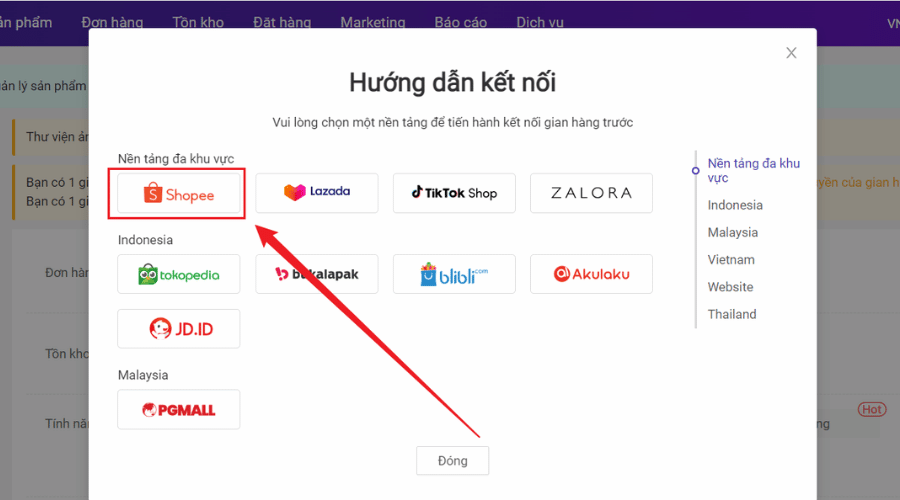 BigSeller supports automatic barcode generation, making it well-suited for shops managing large inventories and operating across multiple sales channels. (Source: BigSeller)
Step 2: When adding products or restocking inventory, BigSeller can automatically generate a barcode for each item. These codes can then be converted into barcodes and synced back to Shopee.
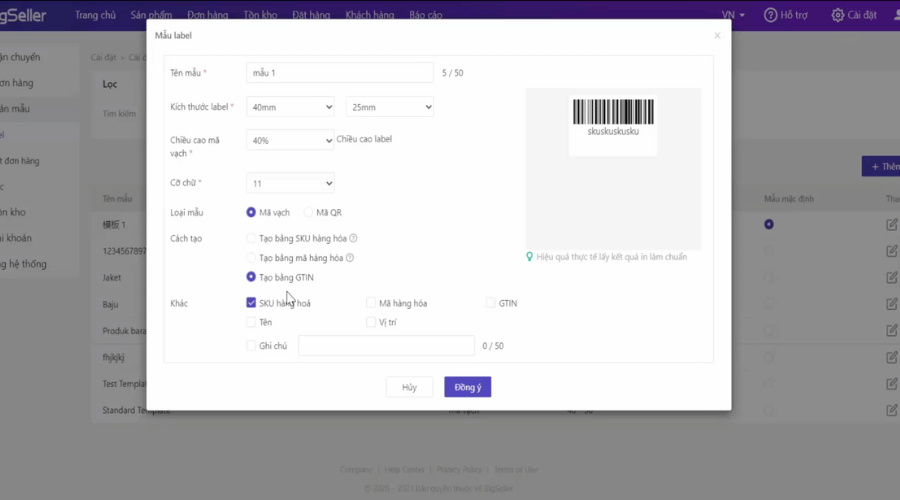 BigSeller lets shop owners set up barcodes for Shopee products all within one platform. (Source: BigSeller)
Step 3: Export barcode label files in bulk by batch, print them out, and stick them on your products. The entire process — from generating codes to printing labels — can be done in minutes, even for catalogs with hundreds of products.
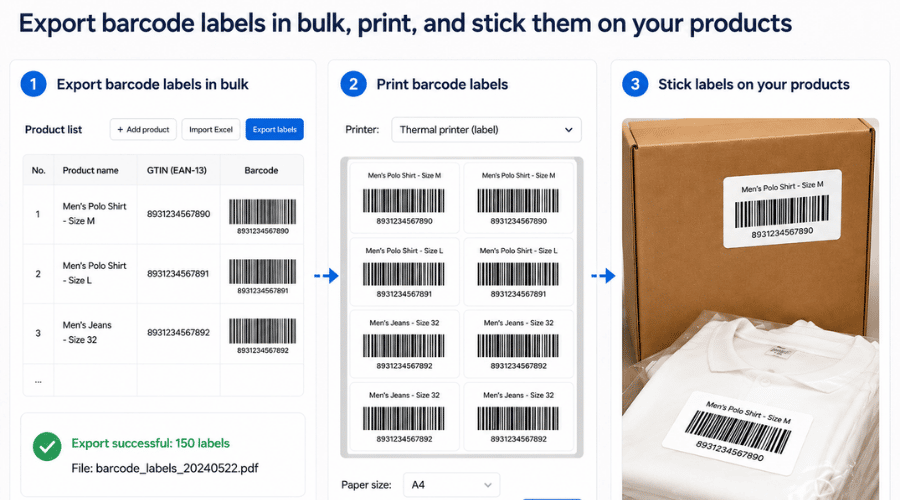 Bulk exporting and printing barcode labels helps Shopee shops manage hundreds of products with synchronized barcodes.
Method 3: Excel + Barcode Font — No Additional Software Needed
This method suits anyone who wants full control over their data without relying on third-party tools.
Step 1: Download and install a free barcode font — the most widely used options are Code 39 or Code 128 — search Google for "free barcode font". Install it like any regular font on your computer.
Step 2: Open Excel, enter your SKU numbers or product codes in column A. In column B, use the formula to add the start and end characters required by Code 39: ="*"&A1&"*".
Step 3: Select column B and change the font to the barcode font you just installed. The numbers will automatically render as a linear barcode. You can then print directly from Excel or take a screenshot to use elsewhere.
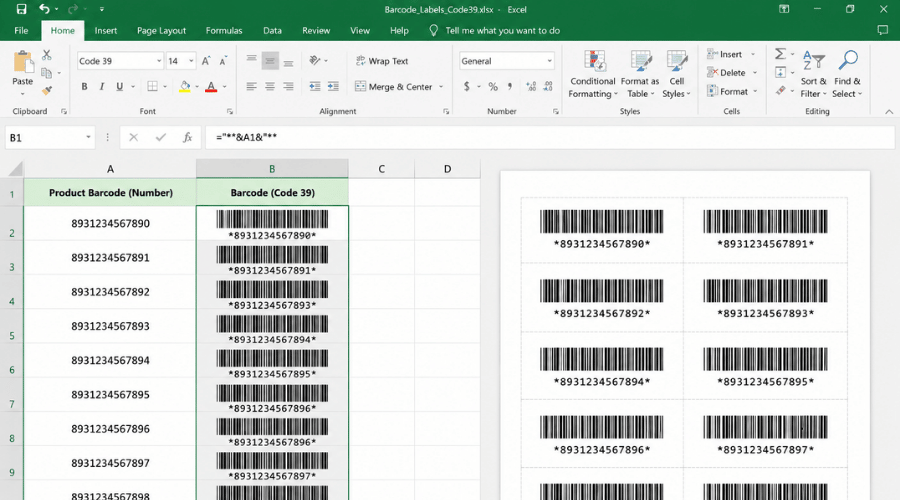 Generating product barcodes in Excel using a Code 39 font allows you to print barcodes directly from your data sheet and manage product information with greater flexibility.
Can You List Products on Shopee Without a Barcode?
Yes. Shopee does not require a barcode for all product types, and you can create and publish listings normally with the GTIN field left blank.
That said, operating without barcodes creates real limitations over time. Inventory management becomes increasingly complex as your catalog grows — tracking stock levels, inbound and outbound movements, and reconciling orders is difficult without a clear identifier for each product. If you want to sell across platforms like Shopee, TikTok Shop, or Lazada simultaneously, syncing inventory becomes nearly impossible without a consistent barcode or SKU system.
For small-batch handmade or self-produced items, skipping this step is perfectly acceptable. But if you’re building a brand or planning to scale, setting up barcodes from the start will save a significant amount of work later on.
Common Mistakes When Creating Barcodes for Shopee
Shopee Says the Barcode Is Invalid
This usually happens when the barcode format is entered incorrectly. Each barcode standard has strict digit requirements: EAN-13 must be exactly 13 digits, UPC-A must be exactly 12. If you’re one digit over or under, Shopee will reject it immediately.
Additionally, EAN-13 includes a check digit at the end calculated by a specific algorithm. If you enter a random number sequence without computing the correct check digit, the code will also be flagged as invalid. Most online barcode generators handle this automatically — just enter the first 12 digits and the tool will fill in the 13th.
Barcode Generated But Won’t Scan
The most common cause is a blurry or low-resolution printout. Barcodes need to be printed at a minimum of 300 DPI for a scanner to read them accurately. Enlarging a low-resolution PNG before printing causes the bars to break up, making them unreadable.
Fix: download an SVG instead of a PNG from the barcode generator — SVG is a vector format that stays sharp at any size. Also make sure the quiet zone (the white space around the barcode) is wide enough — at least 3 to 4mm on each side.
Duplicate Barcode Conflict
If you assign a random number that happens to match a registered EAN-13 from another brand, it can cause confusion when scanning or looking up products. To avoid this, use internal codes starting with numbers in the "200" to "299" range — this range is reserved for internal use under international convention and does not overlap with registered commercial barcodes.
Self-Generated vs. GS1 Official Barcodes: What’s the Difference?
This is a point many sellers confuse. Both self-generated barcodes and official GS1 codes can be used on Shopee, but their purpose and scope are entirely different.
If you’re only selling on Shopee or a few domestic e-commerce platforms, a self-generated barcode is sufficient. If you’re building a brand, planning to get products into supermarkets, or exporting, registering a GS1 code is a worthwhile investment — it’s the only format recognized and verified by global retail systems.
FAQ
Does Shopee Verify Barcodes?
Shopee checks the format of the barcode when you enter it into the system. However, Shopee does not verify whether the code is registered with GS1 — meaning a self-generated internal code will be accepted as long as the format is correct.
What Barcode Should I Use for Handmade Products?
For handmade goods, you can use a self-created internal code in EAN-13 or Code 128 format. GS1 registration is not required. Just ensure the code follows the correct format and is unique across your product catalog.
Can Free Barcodes Be Used Long-Term?
Absolutely. Self-generated barcodes have no expiry date. As long as you maintain a mapping record between the barcode and the corresponding product — in an Excel file or inventory management software — they can be used indefinitely at no cost.
Can I Generate Barcodes in Bulk?
Yes. Tools like barcode.tec-it.com support batch input and bulk export. Sales management platforms like BigSeller or Sapo also offer bulk barcode generation and label printing by batch — suitable when you need to process hundreds to thousands of product codes.
Create a Shopee Barcode for Free in 30 Seconds
No software to install, no paid subscription needed. Just visit an online barcode generator, select the EAN-13 format, enter your product number, download the file, and paste the code into Shopee Seller Center.
If you need bulk generation or want to sync with your inventory management system, BigSeller is the most efficient option — it supports high-quality PNG and SVG export, bulk creation by SKU, and direct Shopee integration with no manual steps required.