
How to Create Barcodes for Packaged Food — From GS1 Registration to Print-Ready Labels
Product is ready, packaging looks great — but when it comes to barcodes, the questions start piling up. Which type do you need? Is GS1 registration mandatory? Can you just generate one online for free? These are the practical questions that manufacturers and brands expanding their distribution channels face every day, yet rarely find clear answers to.
This guide walks you through how to create barcodes for packaged food step by step — from choosing the right barcode type and registering with GS1, to printing labels correctly — applicable whether you're a small seller or an FMCG brand scaling distribution.
What Is a Barcode for Packaged Food?
A barcode on food packaging is a machine-readable encoding system that stores product information — name, origin, production batch, expiry date — replacing manual data entry at checkout counters, warehouses, and throughout the supply chain.
From a legal standpoint, not every product is required to carry a barcode. However, if you want to enter supermarkets, convenience store chains, or major e-commerce platforms like Shopee Mall or Lazada LazMall, a valid EAN-13 barcode is non-negotiable.
Common Barcode Types for Packaged Food
Different use cases call for different barcode standards. Here's a quick comparison:
For packaged food, EAN-13 barcode is mandatory for supermarket distribution or export — requiring GS1 registration with 893 barcode, the prefix reserved for Vietnamese products. EAN-8 applies when packaging is too small for EAN-13. QR Code suits origin tracing and marketing but won't work at POS. Code 128 is for internal warehouse management only.
Why Does Getting the Barcode Right Matter?
Using the wrong barcode — or generating one incorrectly — creates real operational problems:
Rejected by supermarkets and retail chains that require verifiable product identification
Ineligible for Shopee Mall, Lazada LazMall, or other official retail channels without a valid GTIN
Traceability failures when quality incidents occur
Inventory discrepancies from inconsistent inbound/outbound scanning
Export barriers due to unrecognized international barcode standards
On the flip side, a correctly implemented barcode system enables seamless entry into modern distribution, automated inventory management, and easier market expansion.
How to Create Barcodes — By Tool and Scale
1. Word or Excel
Best for internal labels or quick prototyping — no cost, no extra software beyond a free barcode font (Code 128 or Code 39). Note: suitable for internal use only, not for supermarket POS.
Download and install a Code 128 font → restart Word
Type the SKU number → select it → change font to "Code 128"
Set font size to 48–72pt → test print → scan to verify
If this is your first time working with barcodes and you want to start without any dedicated software, you can create a barcode directly in Word from font installation to finished label in just a few steps.
2. Free Online Tools — Quick, One-Off Generation
Best for small sellers, sole traders, or small producers with no immediate need to enter supermarkets. No account needed, no installation — done in 10–15 minutes.
Popular international tools like tec-it.com and free-barcode-generator work well for generating individual codes. For a more localized interface with broader format support, iCheckQR supports EAN-13 and exports in PNG, JPG, WEBP, or PDF — covering food barcode creation needs with color and layout customization, while the other two tools are largely limited to basic black-and-white output.
How to use iCheckQR:
Go to icheckqr.com/vi/barcode → select barcode type (EAN-13)
Enter your GTIN string in the "Enter Barcode" field → click Generate Barcode
Customize color, orientation, toggle digit display below the barcode if needed
Click Download → choose PNG, WEBP, or PDF
Scan with a phone to verify before mass printing
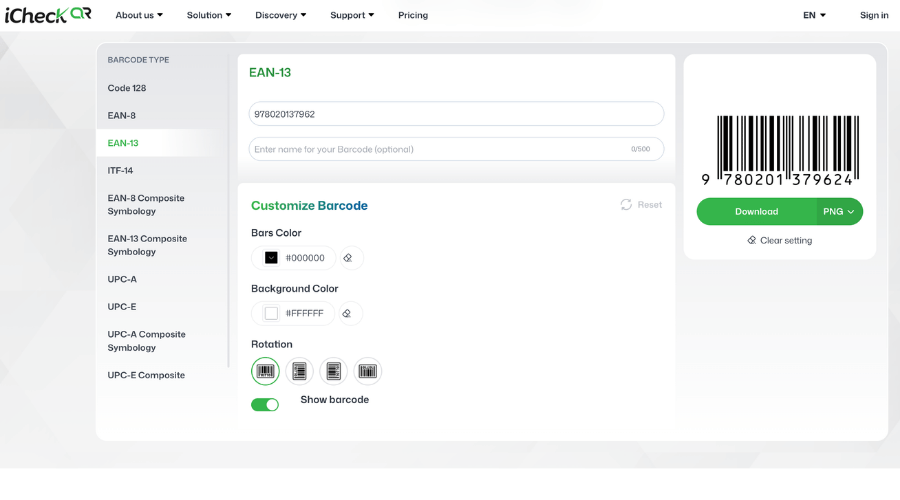 Online barcode generators are a good fit for testing new products before scaling distribution.
3. POS & Inventory Management Software
Best for food brands scaling distribution and needing inventory management alongside barcode creation and label printing. Sapo stands out for multi-branch management and e-commerce platform integration; KiotViet is popular with retail stores and small F&B chains. Both support barcode generation, label printing, and inventory sync.
Steps on Sapo:
Products → enter GTIN in the "Barcode" field → Save
Warehouse → Print Labels → select label template → print
Receive stock by scanning the barcode — inventory updates automatically
4. Professional Solutions for Large-Scale Production
Best for enterprises that need high-volume label printing integrated with ERP or WMS systems. BarTender and NiceLabel both support automated barcode generation, label printing, and product data management.
NiceLabel workflow:
Design a template in NiceLabel Designer: drag in fields for product name, GTIN, batch, manufacturing date, expiry date
Connect a data source from ERP, Excel/CSV, or SQL — data auto-populates per production run
Trigger print job → NiceLabel renders GS1-compliant barcode and sends directly to printer
Track print history in Control Center: logs label count, printer, operator, and batch
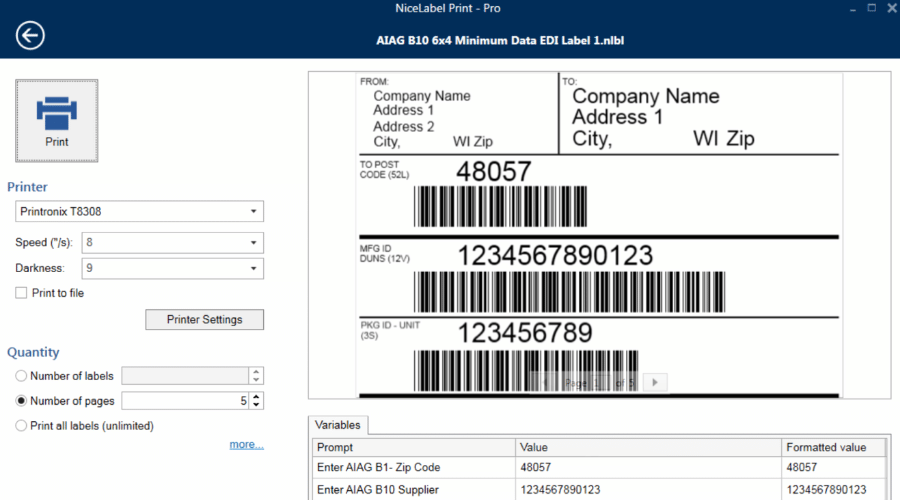 Enterprise barcode systems for packaged food automate large-scale label printing. (Source: NiceLabel)
5-Step Implementation Process
Step 1 — Identify the right barcode type for your target distribution channel.
Retail/supermarket/export → EAN-13. Direct online sales/internal inventory → Code 128 or QR Code.
Step 2 — Register a GS1 company prefix if you need EAN-13.
Apply via dvc.gov.vn. Registration fee: VND 1,000,000. Processing time: 3–5 business days.
Step 3 — Generate your barcode image using the right tool for your scale.
Export as a high-resolution PNG or SVG file.
Step 4 — Print labels to specification.
Standard size: 26.26mm × 37.29mm. Black bars on white background. Place on a flat surface — avoid folded edges or curved areas.
Step 5 — Scan-test the entire label batch before applying to products.
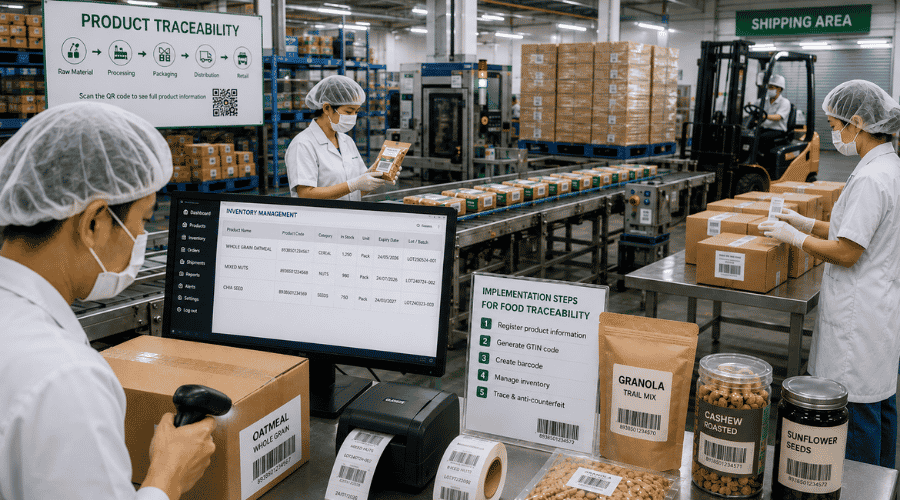 A synchronized barcode system ensures full product traceability across the entire operational chain.
Common Mistakes to Avoid
Printing the barcode too small — supermarket scanners cannot read it
Placing the barcode on curved surfaces or folded packaging edges
Using QR Code instead of EAN-13 when trying to enter supermarket POS systems
Skipping checksum validation — discovering errors only after printing the entire batch
Using the same GTIN for different pack sizes of the same SKU (single unit / 6-pack / 24-unit case) — a serious catalog management error
FAQ
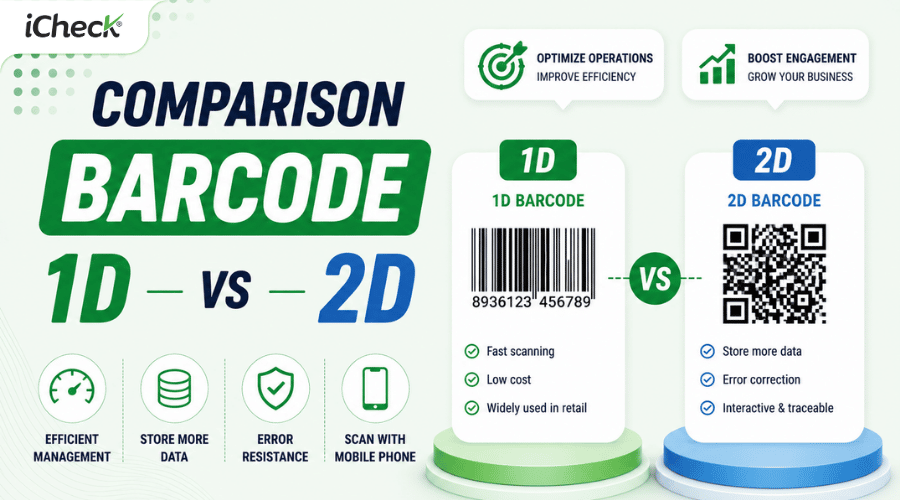
How are 1D and 2D barcodes different?
1D barcodes read in one direction; 2D barcodes read in two directions, store more data, and support digital interaction.
Can 2D barcodes fully replace 1D barcodes?
Not yet. 1D remains well-suited for retail and logistics; 2D adds traceability, anti-counterfeiting, marketing, and payment capabilities.
When should you use a 1D barcode vs. a 2D barcode?
1D barcodes are best for product management, inventory control, and POS checkout. 2D barcodes are better when you need to store more data or connect users to digital content in a single scan.
1D and 2D barcodes serve different purposes rather than replacing each other. 1D suits retail and operational management; 2D suits traceability, anti-counterfeiting, and digital interaction. Depending on the use case, businesses can use either type independently or combine both for maximum efficiency.