Alle kostenlosen QR-Codes

Wählen Sie aus über 40 verschiedenen QR-Codes. Einfach und schnell QR-Codes für alle Bedürfnisse erstellen

6 erweiterte QR-Codes

Umfassende professionelle Lösung für Unternehmen.

Erweiterter QR-Code mit hoher Datenspeicherkapazität, vielfältiger Landingpage-Bibliothek, flexiblen Inhaltupdates nach der Erstellung und weiteren überlegenen Funktionen.
Product

Produkt

Pro

Product

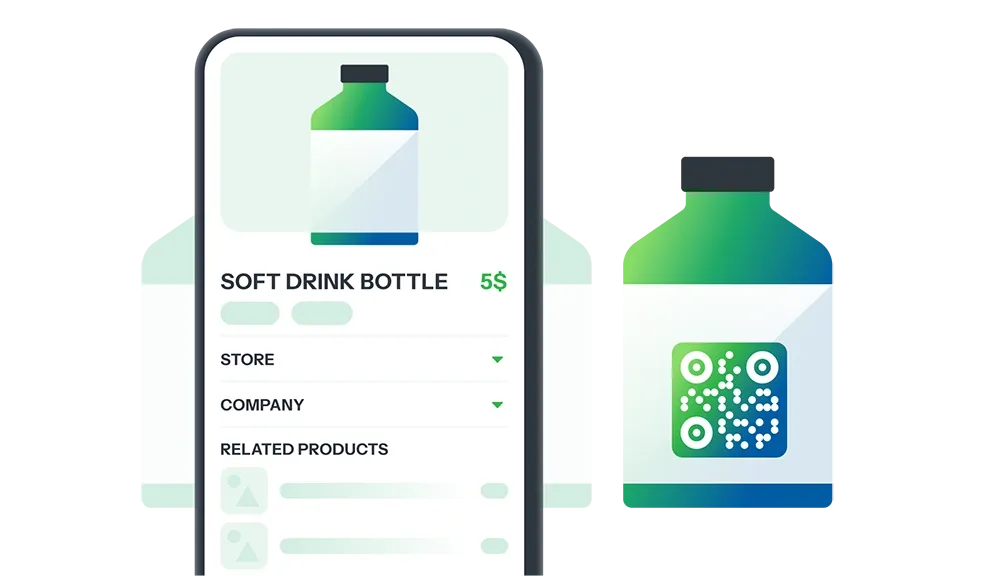
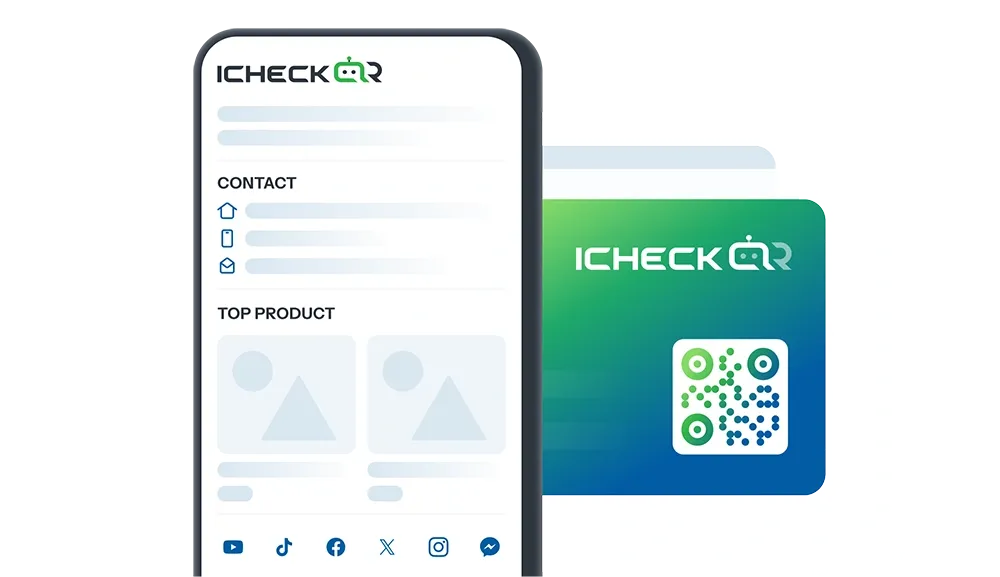
Verwandeln Sie jede Produktverpackung in einen einzigartigen Kontaktpunkt

Kunden anziehen und Vertrauen aufbauen mit einem QR-Code, der Produktinformationen, Herkunft, Vorteile und Promotionen teilt – alles mit einem einzigen Scan.

QR-Code erstellen
ProductProdukt DEMO
Company

Unternehmen

Pro

Company

Stellen Sie Ihr Unternehmen professioneller vor

Verwenden Sie den QR-Code, um wichtige Details zu teilen – rechtliche Informationen, Produkte/Dienstleistungen, Vision & Mission, Erfolge, Kontaktinformationen

QR-Code erstellen
CompanyUnternehmen DEMO
Store

Geschäft

Pro

Store

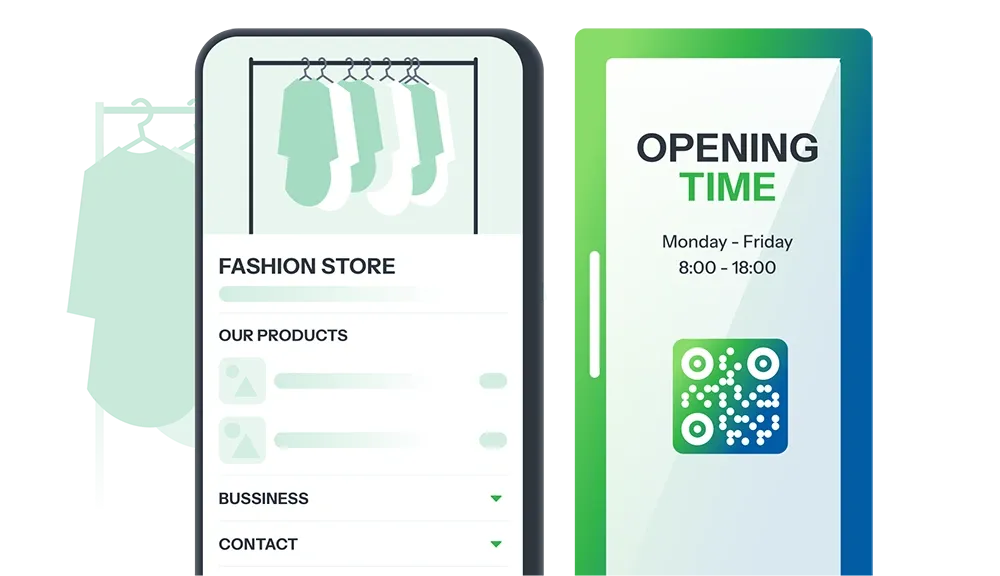
Präsentieren Sie Ihr Geschäft nahtlos und effektiv

QR-Code teilt Geschäftsinformationen: Kontaktinformationen, Produkt-/Dienstleistungsinformationen, Versandrichtlinien, Promotionen.

QR-Code erstellen
StoreGeschäft DEMO
Personal

Persönlich

Pro

Personal

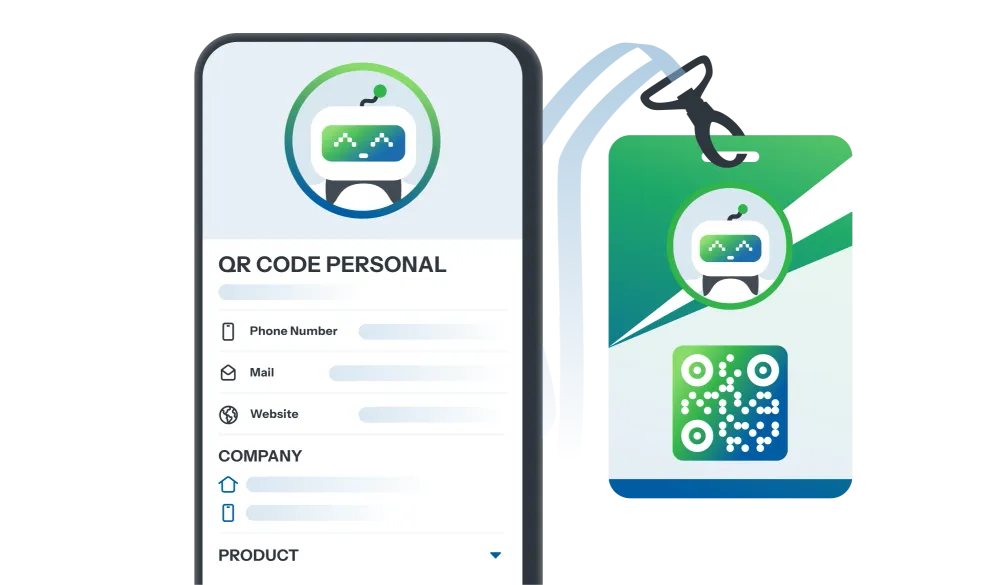
Bauen Sie ein professionelles persönliches Branding auf

QR-Code teilt Ihre persönlichen Informationen: Kontaktinformationen, Beruf, Leistungen, kreative Inhalte.

QR-Code erstellen
PersonalPersönlich DEMO
Event

Veranstaltung

Pro

Event

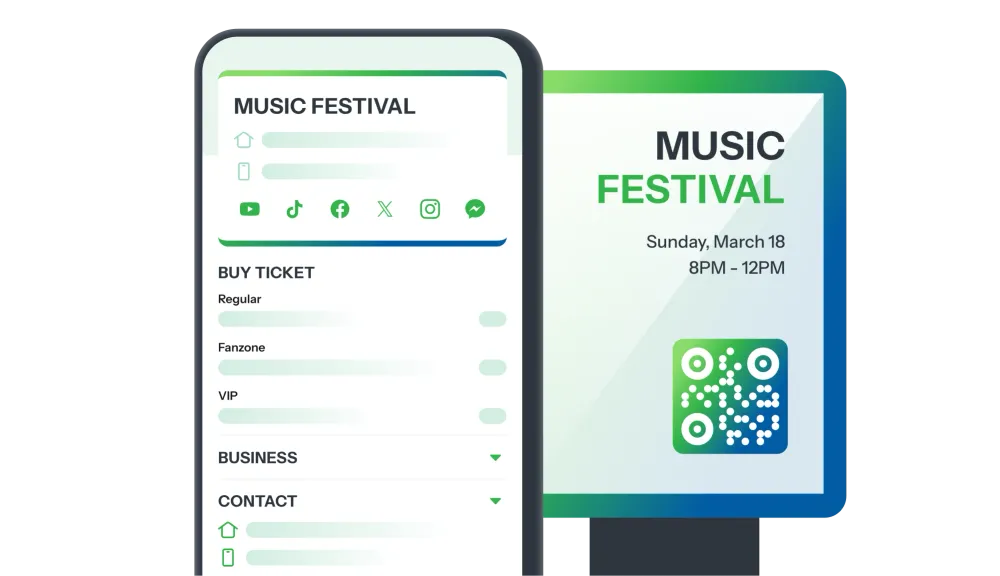
Präsentieren Sie Ihr Event professioneller

Eindruck machen mit einem QR-Code, der Eventdetails teilt: Zeitplan, Beschreibung, Ort, einfache Anmeldung.

QR-Code erstellen

EventVeranstaltung DEMO
Survey

Umfrage

Pro

Survey

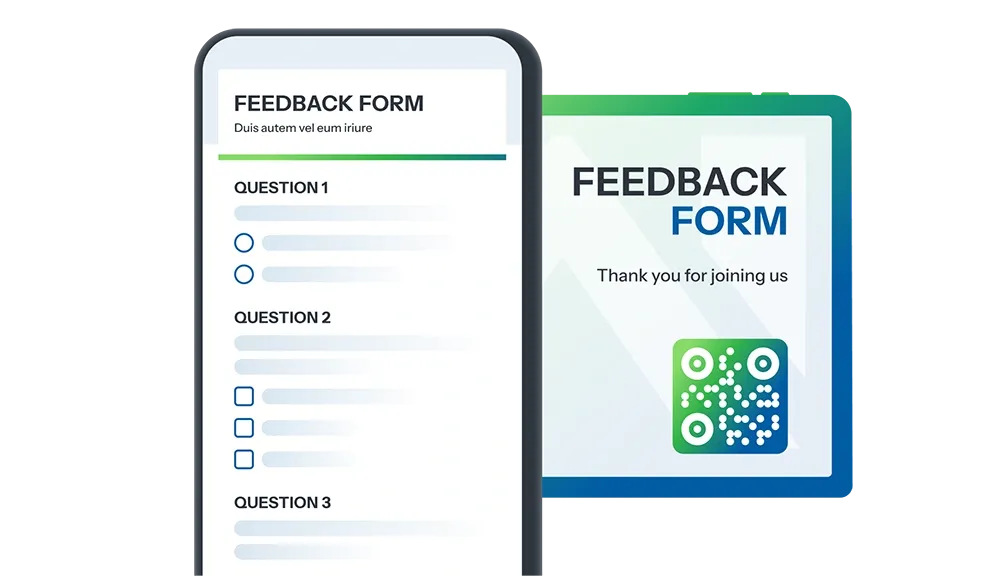
Das Sammeln von Feedback war noch nie so einfach!

QR-Code teilt Kundenbefragungen, Event-Feedback, Dienstleistungsbewertungen, Marktforschung und mehr.

QR-Code erstellen
SurveyUmfrage DEMO

QR Code kostenlos online erstellen – Einfach & individuell

Der QR Code ist heute die Brücke zwischen der realen und der digitalen Welt. Ob Website-Aufruf, WiFi-Zugang, Dokumenten-Sharing oder kontaktloses Bezahlen – alles ist mit einem einzigen Scan möglich.

Mit iCheckQR kannst du QR Codes kostenlos online erstellen, sicher, schnell und für alle Anwendungsfälle – von privat bis geschäftlich.

Beliebte Arten von QR Codes, die du mit iCheckQR kostenlos erstellen kannst

1. QR Code für URL / Links

Wandle jede Website oder jeden Link in einen QR Code um: Landing Pages, Social Media, Promotions.

  • https://icheckqr.com → QR Code
  • TikTok Shop Link → QR Code
  • Produkt-Landingpage → QR Code

2. WiFi QR Code – Verbindung ohne Passwort-Eingabe

Scannen statt Tippen: Gäste können sich direkt verbinden. Ideal für Cafés, Hotels, Events.

Dokumenten-QR Code – PDF, Google Docs, Word, Excel

Teile Verträge, Menüs, Lebensläufe oder Berichte schnell als QR Code, ohne Dateien separat zu senden.

QR Code für Visitenkarten (vCard)

Digitalisiere deine Visitenkarte: Telefonnummer, E-Mail, Adresse – mit einem Scan speicherbar.

QR Codes für Social Media

Anleitung: QR Code online erstellen

  1. Datenart wählen (URL, WiFi, PDF, vCard, E-Mail, Google Docs...)
  2. Benötigte Informationen eingeben
  3. Design anpassen: Farben, Logo, Rahmen, Muster
  4. QR Code generieren und herunterladen (PNG, JPEG, PDF, SVG…)

Warum iCheckQR der beste QR Code Generator ist

  • Kostenlos & unbegrenzt: Unendlich viele QR Codes erstellen
  • Werbefrei: Saubere, benutzerfreundliche Oberfläche
  • Dynamische & statische QR Codes: Flexible Bearbeitung möglich
  • Individuelles Design: Logos, Farben, Rahmen
  • Tracking & Analyse (für dynamische Codes): Scans nach Ort, Zeit, Gerät verfolgen
  • Sicher & international standardisiert (ISO/IEC 18004)

Sicherheit & Vertrauen mit iCheck

iCheck ist ein führender Anbieter in Vietnam für Produktauthentifizierung, Fälschungsschutz und Digitalisierung. Alle Daten werden sicher in der Cloud gespeichert – keine unzulässige Nutzung für Werbung.

Mehr als 25.000 Unternehmen vertrauen iCheck, darunter Vinamilk, DHG Pharma, Sơn Hà, Hanvet u.v.m.

Häufig gestellte Fragen (FAQ)

1. Ist der QR Code Generator kostenlos?

Ja, du kannst unbegrenzt viele QR Codes kostenlos erstellen.

2. Laufen QR Codes irgendwann ab?

Nein, statische QR Codes sind dauerhaft gültig.

3. Kann ich QR Codes nachträglich bearbeiten?

Ja, mit dynamischen QR Codes kannst du Links auch nach dem Druck ändern.

👉 Wenn du einen kostenlosen, sicheren und einfach zu bedienenden QR Code Generator suchst, ist iCheckQR die perfekte Wahl.

Jetzt ausprobieren: iCheckQR

Mehr anzeigen
Verwandte Blogs
Alle anzeigen
https://assets.icheck.vn/image/2025/app/10/16/33258238ed514769bc718ba04648ce60.jpg
6 Simple and Easy Ways to Create a Zalo QR Code
6 Simple and Easy Ways to Create a Zalo QR CodeDo you want to create a Zalo QR Code to add friends, invite members to a group, share documents, or promote your business’s Zalo Official Account (OA)? A Zalo QR Code is exactly the tool you need to get it all done quickly and effortlessly. Let’s explore with iCheckQR 6 detailed, easy, and completely free ways to create your own Zalo QR Code below.1. Overview of the Zalo QR CodeA Zalo QR Code is a unique identifier created for each Zalo account — whether it’s a personal account, group, or Zalo Official Account (OA). When someone scans this code, they can instantly add friends, send messages, share documents, or join a Zalo group without having to manually enter a phone number.For businesses, the Zalo QR Code is an effective marketing tool — it can be printed on packaging, posters, or standees, or shared on social media so that customers can easily access your OA, follow updates, products, and promotions.2. 6 Simple and Effective Ways to Create a Zalo QR CodeCreate a Personal Zalo QR Code EasilyDo you want to add friends, chat, or share your personal Zalo account within seconds? Below is how to get your own Zalo QR Code quickly, simply, and completely free. With just a few steps, you’ll have your personal Zalo QR Code ready to share with friends, partners, or customers.Steps to follow:Step 1: Open the Zalo app → tap the QR code icon on the right side of the screen.Step 2: Select “My QR Code” to display your personal QR.Step 3: After customizing the title and color, tap “Share” or “Save.”Just a few simple steps, and you’ll have your own Zalo QR Code ready to use.Create a Zalo Group QR Code QuicklyA Zalo group QR Code is the easiest way to add members to a chat group, study group, or sales group without sending manual invite links. Users only need to scan the code to join immediately — saving time and adding professionalism when managing a community.Steps to follow:Step 1: Open the Zalo group you want to share.Step 2: Tap the menu icon (☰).Step 3: Select “Group Link.”Step 4: Tap “Copy,” “Share,” or “Save QR Code” to send it to others.With this method, you can get your group’s Zalo QR Code anytime, anywhere — allowing others to connect instantly, much faster than entering a phone number.Create a Zalo QR Code for Documents AccuratelyInstead of sending files manually, turn your documents into a convenient QR code in just a few seconds. Below is a detailed guide on how to create a Zalo QR code for documents quickly and accurately.Steps to follow:Step 1: Visit qr.zalo.me.Step 2: Paste the document link you want to generate a QR code for into the “Enter website link” box.Step 3: Customize your QR code, then click “Download” or “Copy.”If you want to create a more accurate and branded QR code for your documents, try iCheckQR — a tool that allows you to customize colors, add your logo, and download your QR code in high-quality PNG or PDF formats.You can create QR codes for various types of documents directly on iCheckQR, including: PDF QR Code – Easily share PDF files such as reports, manuals, or study materials. File QR Code – Upload and share any type of file with just one scan. PPTX QR Code – Turn your PowerPoint presentation into an accessible online link. Google Sheets QR Code – Conveniently share spreadsheets or online data. Google Forms QR Code – Instantly share surveys or collect responses with ease. Google Docs QR Code – Share documents online so others can view or download them easily.Create a Zalo QR Code on Desktop ConvenientlyWorking on a computer and want to create a Zalo QR Code quickly without using your phone? Zalo Web provides a direct QR creation tool, helping you easily share website links or personal information with just a few clicks — perfect for office workers, marketers, or businesses.Steps to follow:Step 1: Visit qr.zalo.me.Step 2: Paste the website link you want to generate a QR code for into the “Enter website link” box.Step 3: Customize your QR code, then click “Download” or “Copy.”Additionally, you can visit the QR code generator for links by iCheckQR to create Zalo QR codes on desktop easily, with advanced customization options such as adding logos, colors, and branded borders.Create a Zalo QR Code by Phone Number EasilyThis is the fastest way to generate a Zalo QR Code using your phone number — allowing others to add or contact you with a single scan, without memorizing or typing your number.It’s ideal for online sellers or anyone who frequently communicates via Zalo.Steps to follow:Step 1: Visit https://icheckqr.com/vi/qrcode/Phone.Step 2: Enter your phone number.Step 3: Customize your QR’s color, logo, and frame, then click “Create QR Code.”Create a Zalo OA (Official Account) QR Code for BusinessesFor businesses, stores, or brands, creating a Zalo OA QR Code is an essential step in marketing campaigns. The QR Code helps customers easily access your OA page, follow products, and receive promotions — especially effective when printed on packaging, standees, or social media posts.Steps to follow:Step 1: Open Zalo OA Manager (on web or app).Step 2: Select “OA Information” → “OA QR Code.”Step 3: The QR code will appear — download it or add your logo before printing.3. Common Errors & How to Fix ThemError 1: Scanning the Zalo QR code doesn’t display information.Recreate the QR code with higher resolution or take a clearer photo under good lighting.Error 2: Zalo group QR code is no longer valid.The group was deleted or the invite link was changed. Go back to the group → select “Group QR Code” to generate a new one.Error 3: QR code created by phone number doesn’t link to the Zalo account.Double-check the phone number before creating. The error may be due to incorrect syntax or an unregistered Zalo number.Error 4: QR code looks broken when printed or shared online.Download the QR code from iCheckQR in PNG or PDF format and avoid resizing it too small.4. FAQIs creating a Zalo QR Code free?Yes. You can create a Zalo QR Code for free directly on the Zalo app or through tools like iCheckQR.Do Zalo QR Codes expire?No. Zalo personal, group, or OA QR Codes have no expiration date and remain active as long as the account exists.Can I change the content of a Zalo QR Code after it’s created?Not with a static QR Code. If you want to edit the link without generating a new code, use a dynamic QR on iCheckQR.Can I manage multiple Zalo QR Codes at once?Yes. With Zalo OA or professional QR creation tools, you can create and store multiple QR Codes for easy management.ConclusionNow you know 6 quick and easy ways to create a Zalo QR Code — for personal accounts, Zalo groups, documents, OA pages, or even by phone number and desktop. Each method helps you connect, communicate, and promote more efficiently and professionally.Visit iCheckQR today to create professional, secure, and easy-to-use Zalo QR Codes for your personal or business needs!
https://assets.icheck.vn/image/2025/app/5/22/060b763be4552fb1fafd821827dff79f.jpg
Instructions for creating QR code for Vietcombank bank account
Vietcombank QR code is a modern utility that helps users make money transfers quickly, accurately and safely.with just one scan. Instead of having to manually enter the account number, recipient name and transfer content, the QR code automatically encodes all the necessary information,minimize errors. This article iCheckQR will provide detailed instructions on creating QR codes on the VCB Digibank application for individuals, and for work using support tools like VietQR, helping you easily share encryption and receive money. Important notes when using QR codes and how to resolve errors will also be mentioned in the article.1. How to create QR code on VCB Digibank application for individualsStep 1 – Log in to VCB Digibank applicationEnterUsername and password, or useFace ID/fingerprintif activated.Click “Login” to access the main interface.Note: Check stable Internet connection before logging in.Step 2 – Access the “QR Service” functionFrom the home screen, select"Utilities"or drag the horizontal menu to find the item“QR Service”Click on the QR icon to start generating the code.Step 3 – Select “My QR Code” and enter informationSelect feature“My QR Code”.Enteramountneed to move (if want to fix),transfer content(optional).Check the information entered.You can leave the content blank if you want the sender to fill it in when paying.Step 4 – Generate and save QR codeAfter filling in the information, press the button“Generate QR code”.The QR code will appear on the screen immediately.Select “Save to device”, sharevia Zalo, Messenger or print to paste at the payment point.Note: Make sure the QR code is not blurred or broken when printed.2. How to create QR code on VCB DigiBiz for businessStep 1 – Log in to VCB DigiBizAccess the application VCB DigiBiz on mobile device or web browser.Enter Username and password, then select "Log in".Can be authenticated via token or Smart OTPdepending on business configuration.Step 2 – Go to the “Utilities” tab and select “Generate QR Code”After logging in, select the tab"Utilities"on the main menu bar.Click on the item “Generate QR code”to access the functionStep 3 – Enter information and generate QR codeEnter amount to be paid (can be left blank if you want the payer to enter it proactively).Enter transfer content (eg: “Pay Order #123”).Confirm the information, then select “Generate QR code”.Note:The clearer the information, the less mistakes the sender makes.QR codes are generated according to standards VietQR, compatible with many banks.Step 4 – Download or share the QR codeAfter successfully generating the code, the system displays the QR code.Press “Download” to save the photo to your device or select "Share" via email, Zalo, Messenger,...Businesses can print QR codes to place at the cash register or insert into invoices.3. Create Vietcombank QR code using support tools outside the appIn addition to using the VCB Digibank or VCB DigiBiz application, users can also create QR codes for Vietcombank transfers through external support tools. Below is a comparison of the 3 most popular tools today:ToolsDescribe Advantage DisadvantagesVCB QR Generator (online)Official QR code generator from Vietcombank, enter account number and informationSimple, reliable, exclusively for VCB accountsOnly support VietcombankQRCode MonkeyInternational platform supports QR code generation for multiple purposes, with logo customizationHighly customizable, add your business logoNot specific to bank transfersVietQR (by NAPAS, supports many banks)Standard tool from NAPAS, supports generating QR codes for multi-bank transfersVietQR standard, supports many banksInterface is a bit technical for beginnersIllustration photo of creating Vietcombank QR code with VietQR4. How to use QR code to receive moneyShare QR codeAfter creating a QR code on the banking app or via the VietQR tool, you can Save QR code as image.Share this QR code via apps like:ZaloFacebook MessengerViberEmailOr Print and post at the checkout counter(for business households)Receive money via QR codeThe sender only needs to:Open a banking app that supports QR scanning (most do).Click on“Scan QR code” or “Transfer money via QR code”.Point your camera at the QR code you shared.Confirm the content, enter the amount (if the QR code is not available), then transfer.Benefit:No worries about entering the wrong account number.Save time.Increase professionalism when receiving money from customers or partners.5. Notes when using Vietcombank QR codeDo not share QR codes publicly:If it contains the amount or transfer content.Do not use QR codes from unknown sources:Make sure you generate the QR code from the VCB Digibank or VCB DigiBiz app itself, or from the official VietQR page.Always update VCB Digibank application: To ensure the QR code features work stably and security is updated regularly.QR code image security:If you use it to receive recurring payments. Avoid storing QR codes on insecure platforms like public Google Drive, social networks..Warning when users share information6. Frequently Asked Questions (FAQ)Can Vietcombank QR code be used multiple times?Yes. If you generate a QR code based on your account number (without the amount attached), the code can be usedmany timesto receive money from others.Can I create a Vietcombank QR code on my computer?Currently, Vietcombankdoes not support creating QR codes directly on the VCB Digibank web platformHowever, businesses useVCB DigiBiz (web version)You can log in and generate QR codes right on your computer atUtilities > Generate QR code.Does Vietcombank QR code expire?Static QR Code(no amount attached) will not expire and can be used forever.Dynamic QR Code(with a specific amount or content attached) usually hasshort shelf life, only valid for 1 session or a few hours depending on the bank's systemReferences:Vietcombank. (2022).Instructions for creating codes and transferring money using QR on VCB Digibank application. https://portal.vietcombank.com.vn/content/personal/KhoAnh/20221130_HDSD%20VCB%20DIGIBANK/Tao%20ma%20va%20chuyen%20tien%20bang%20QR.pdf
https://assets.icheck.vn/image/2025/app/5/22/e42cce674c5a05b1cabc0aa6a9030361.jpg
Instructions for creating QR codes for MB Bank bank accounts simply
In today's digital age, the trend of cashless payments is increasingly popular. MB Bank is one of the leading banks in supporting customers to create QR codes for quick and secure payments. This article iCheckQR will provide detailed instructions on how to create QR codes for MB Bank accounts suitable for personal and business needs.1. What is MB Bank QR code? What types are there?MB Bank QR Code is a two-dimensional barcode (QR - Quick Response) provided by MB Bank to encode payment information such as: Recipient account number, amount to be transferred (if predetermined), specific transaction content.Users just need to scan the code with a banking application (such as MB Bank, Vietcombank, VietinBank...) to make a transfer. Fast – accurate – no manual entry required.MB Bank QR Code ClassificationQR code typeIntended useSuitable ObjectFeaturesQR code by account numberShare receiving accountIndividualFlexible sharing, self-filling money, contentTransaction-specific QR codesRequest to transfer correct amount/contentPersonal sales, serviceUniform transaction, available information and amount, contentQR code for business householdsAccept cashless payments at the counterBusiness household, shopRevenue transaction management, system linkageIllustration of MB Bank codes2. Benefits of using MB Bank QR codeConvenient and fast in transactions:No need to manually enter account number, amount or transfer content. Reduce manual operations, save time. Limit errors.Enhanced information security:Encrypt account information, limit account number leakage when sharing. Limit sending to the wrong person, wrong contentIn line with the trend of cashless payments:Supported by most major banks and e-wallets (MB Bank, Vietcombank, MoMo, ZaloPay…). Optimize payment experience for both individuals and businesses.Easily manage and track transactions:All QR code transactions are recorded in the MB Bank app. Transaction history can be extracted by date, by specific QR code.3. Conditions for creating MB Bank QR codeHave an account at MB Bank.The account is a personal account or a business household account issued by MB Bank.Registered to use e-banking service on MB Bank application.Registered to use e-banking service on MB Bank application.MB Bank application login information is required (user/password or login with Face ID).Fully enabled money transfer, scan/generate QR code.If you have not registered for eBanking, you can quickly register on the app or at an MB Bank branch.4. Detailed instructions on how to create MB Bank QR code4.1 Generate QR code by account numberStep 1: Log inMB Bank application.Step 2: Select "Scan QR code" on the main interface.Step 3: Select "VietQR Management".Step 4: Select "Generate QR code by account".Step 5: A QR code will be generated, you cansave or sharethis codeSteps to create QR code by account number4.2 Generate QR codes for specific transactionsStep 1: Log inMB Bank application.Step 2: Select "Scan QR code" on the main interface.Step 3: Select "VietQR Management".Step 4: Select "Generate QR code for each transaction"Enter information such as amount, content, then select“Generate QR code”.Step 5: Then click Save information to successfully create MB Bank QR code for specific transaction.Steps to create QR code for specific transaction4.3 Generate QR codes for business paymentsStep 1: Login MB Bank application.Step 2: Click the icon"Pay "on the selection toolbar “VietQR Management”Step 3: Select the option “Generate QR code for business”Step 4: Fill in information business and registration.Enter information including:Business nameTax code (if any)Business addressContact phone numberEmail (if required)Confirm and complete registrationThe generated QR code will carry the full legal identity of the business household.Step 5: A QR code will be generated, you can save or share this codeSteps to create QR code for business payment5. How to save and share MB Bank QR codeInstructions on how to save QR codes to your device.After successfully generating the QR code, the app will display the options:“Download” or “Save image”Click to save the QR code tophone photo albumQR codes are saved asPNG or JPG image, can be reused at any timeHow to share QR codes across different platforms.In the QR code management section, select:“Share” > choose platform like:Zalo – share via message or groupFacebook – send via Messenger or post on FanpageEmail – send attached files to customersTelegram, Viber, Google Drive, v.v.MB Bank app allows direct sharing without leaving the app.Note when printing QR codes for use at checkout.Codes should be printed at high resolution (300 dpi or higher) to ensure easy scanningDo not stick QR codes on curved, reflective surfaces (like glass jars, bright screens)Print attached Account name or business name below code for added reliabilityNo blurring or distortion of proportions of QR codeShould be printed on white or light colored background, avoid dark backgrounds or backgrounds with busy patterns6.Notes when using MB Bank QR codeCheck information before sharing QR code: Make sure the account number, amount (if any), and content are correct before sending the QR code to others.Protect personal information when using QR codes: Do not share QR codes publicly on social media if they contain sensitive information such as amount, transfer content or full name.Update MB Bank app regularly: Helps ensure QR code generation and scanning functions work smoothly, limiting technical errors in transactions.Illustration of MB Bank warning when using the app7. Frequently asked questions about MB Bank QR codeCan MB Bank QR code be used for other banks? Have. MB Bank support VietQR standard interbank, so the code can be scanned by apps from many other banks such as Vietcombank, BIDV, Techcombank, etc.Is there a fee to create an MB Bank QR code?Are not. MB Bank currently100% freewhen creating and using QR codes via the app.Does MB Bank QR code have an expiration date?Account number code: No deadline.Code with specific amount: May have short duration if set (depending on batch created or transaction purpose).Is it possible to generate multiple QR codes for the same account?Absolutely possible.You can: Create multiple codes with different content (transaction, amount, etc.)8. ConcludeUsage MB Bank QR code is a solution Modern, secure and convenientfor both individuals and businesses. You can generate free code, flexible sharing, and fast payment with just a few taps on your phone.If you are an MB Bank user, please Apply the above instructions immediately to create your own QR code, improve the efficiency of cashless transactions!
https://assets.icheck.vn/image/2025/app/5/22/4b0eeeafae1589f69e6e7d566bf46609.jpg
Quick and Easy Guide to Creating a BIDV Bank Account QR Code
The BIDV QR code generation process has become a popular search term in today’s era of digital payments. With just a single scan, you can pay for utilities, receive transfers, or even withdraw cash from ATMs. But how do you create a BIDV QR code accurately, securely, and in just a few steps?In this article, iCheckQR will provide a complete, A-to-Z guide: from definitions and benefits to step-by-step instructions on how to generate a BIDV QR code via both the mobile app and the website, along with clear illustrations that even beginners can follow with ease.1. What Is a BIDV QR Code?DefinitionA BIDV QR code is a type of 2D barcode issued by the Bank for Investment and Development of Vietnam (BIDV). This code contains account details such as account number, account holder name, and may include a transaction amount or description.Applications in BankingThe BIDV QR code is widely used across various banking services, offering numerous benefits:Quick transfers: Create a QR code with your account info for others to scan and send money—no need to manually enter details.Bill payments: Pay utility bills (electricity, water, internet, etc.) by scanning a QR code on the invoice using the BIDV SmartBanking app.ATM withdrawals: Some ATMs support QR-based withdrawals, enabling cardless transactions.In-store payments: Pay at any retailer that supports QR code payments by scanning the code at checkout.2. Benefits of Using BIDV QR CodesSave Time on TransactionsNo more manual data entry—just scan and go. Creating a BIDV QR code lets you transfer money or pay bills in seconds.Minimize Input ErrorsScanning a QR code reduces the risk of input mistakes, such as entering the wrong account number or recipient name. With a QR code, your transactions become more accurate and reliable.Enhanced Security and ConvenienceQR codes help safeguard your account information by minimizing manual input and reducing the risk of exposing sensitive data. With BIDV’s QR code solution, you can enjoy secure and seamless payments in one scan.3. How to Create a BIDV QR Code on the BIDV SmartBanking AppHere is a detailed step-by-step guide to generating a BIDV QR code using the BIDV SmartBanking app:Step 1: Log InOpen the BIDV SmartBanking app on your smartphone and log in with your username and password.Step 2: Select “Scan QR”From the home screen, tap on “Scan QR”, then tap “Create QR” to begin generating your personalized code.Step 3: Enter Transaction DetailsWant your QR code linked to a specific payment? Just enter the desired amount and transaction description. The system will automatically generate a QR code based on your inputs.Step 4: Save or Share Your QR CodeYou can save the QR code to your photo gallery or share it via Zalo, Messenger, or any app of your choice.4. How to Generate a BIDV QR Code via the Official WebsiteCreate a BIDV QR Code via bidv.com.vnOpen your browser and go to: bidv.com.vnYou’ll see two options: “One-time QR” and “Batch QR”.Select the appropriate option:One-time QR: Enter details like account holder name, BIDV account number, branch, store name/address (optional), and customized account name.Batch QR: Upload an Excel file with your QR data. Notes:Works best with Chrome on desktop.File must be in .xlsx format using the provided template.Limited to 50 QR codes per batch (only the first 50 rows are processed).Output is a .zip file with image files of each QR code. Generation time may vary (up to 5 minutes).Agree to the terms and conditions and click “Generate QR Code”Choose a QR template, right-click or tap and hold the QR image, then save it to your device.If using batch creation, download the .zip file, extract it, and use the QR codes for printing, sharing, or storage.Create a BIDV QR Code Using WikiciVisit https://wikici.comFrom the homepage, go to “Online Tools” → “QR Code Generator”.Select BIDV - BIDV from the list of supported banksEnter your account information and choose a QR code templateClick “Generate QR Code”Download your generated QR codeCreate a BIDV QR Code Using VietQRVisit https://vietqr.netLook for “VietQR Code Generator” on the homepage.Enter the required information (Receiving bank, Account number, Account holder name), and tick “I agree to the terms and conditions”.Click “Generate Code”Finally, choose to “Print QR” or “Save Image”5. Notes When Using BIDV QR CodesTo ensure secure and effective transactions, keep these important tips in mind:Double-check information before sharing: Always verify account number, amount, and content before sending your QR code to others.Do not share publicly: Avoid posting QR codes on public platforms or social media to prevent unauthorized use or fraud.Update your app regularly: Always use the latest version of BIDV SmartBanking to benefit from the newest features and enhanced security.6. FAQs About BIDV QR Code CreationIs there a fee to generate a BIDV QR code?No. Creating a QR code through BIDV SmartBanking or the official website is completely free.Do BIDV QR codes expire?No. Once created, BIDV QR codes do not have an expiration date and can be reused indefinitely.How can I print my BIDV QR code?After generating a QR code via the BIDV app, save the image and print it using a connected phone or computer printer.ConclusionUsing a BIDV QR code significantly shortens transaction time, enhances security, and minimizes errors. With the comprehensive instructions in this article, you can generate and use your QR code effortlessly—whether via app or website, for personal use or business.Start using your BIDV QR code today to enjoy smarter, faster, and more convenient banking in every transaction.References:BIDV. (2023, December 21). How to create a free and easy bank account QR code. https://bidv.com.vn/bidv/bidv-blog/bao-mat/tao-ma-qr-ngan-hang