

How to Create Warehouse Barcodes Effectively — From Generation to Real-World Implementation
Creating warehouse barcodes isn't overly complicated — but if done wrong from the start, even a 200-SKU warehouse can end up spending half a day on stocktakes, with staff constantly mixing up codes and inventory records diverging from reality. This guide walks you through every step of creating and deploying warehouse barcodes, applicable right away whether your warehouse is small or mid-sized, without needing to invest in expensive software from the get-go.
What Is Barcode-Based Warehouse Management?
Barcode-based warehouse management is a system that attaches numeric codes to each product or storage location, paired with a scanner to automatically update inbound, outbound, and stock figures — eliminating manual entry or spreadsheet updates.
Every time goods arrive, staff scan the code — the system records it instantly. Every outbound shipment gets scanned again — inventory automatically decrements. Periodic stocktakes only require scanning each shelf, with no manual counting or ledger reconciliation. All inbound, outbound, and stock data is stored centrally, retrievable by date, batch, or responsible staff member.
Benefits of Barcode-Based Warehouse Management
Faster and more accurate stocktaking: Scanner-based stocktaking is roughly 3–5 times faster than manual counting, while also reducing entry errors or missed items in warehouses with many SKUs.
Automated goods-in and goods-out: Every scan is automatically recorded by the system, enabling more consistent warehouse operations that don't rely on staff memory.
Multi-channel inventory synchronization: For sellers operating across multiple platforms, barcodes enable real-time inventory updates instead of manually adjusting each sales channel.
Easy product history traceability: Lot tracking, receipt dates, and outbound history can all be retrieved faster — especially critical in food, cosmetics, and pharmaceutical industries.
Lower warehouse operating costs: Reduced stocktake time, minimized inventory shrinkage, and the ability for a single staff member to process more orders within the same timeframe.
Tools and Solutions for Generating Warehouse Barcodes
Depending on scale and requirements, different tools are available — from completely free to paid, from single-item generation to bulk export.
Excel / Google Sheets (Free, Bulk Generation)
Google Sheets allows you to generate barcodes in bulk from an existing SKU list using the IMAGE() function combined with a barcode rendering API — no software installation required. Simply copy the formula down the sheet to create hundreds of barcodes in seconds.
Excel also supports batch barcode generation through add-ins that can render barcodes directly in cells or export them as image files. Both support Code 128 and EAN-13, making them suitable for small to medium warehouses that prefer managing inventory through spreadsheets at minimal cost.
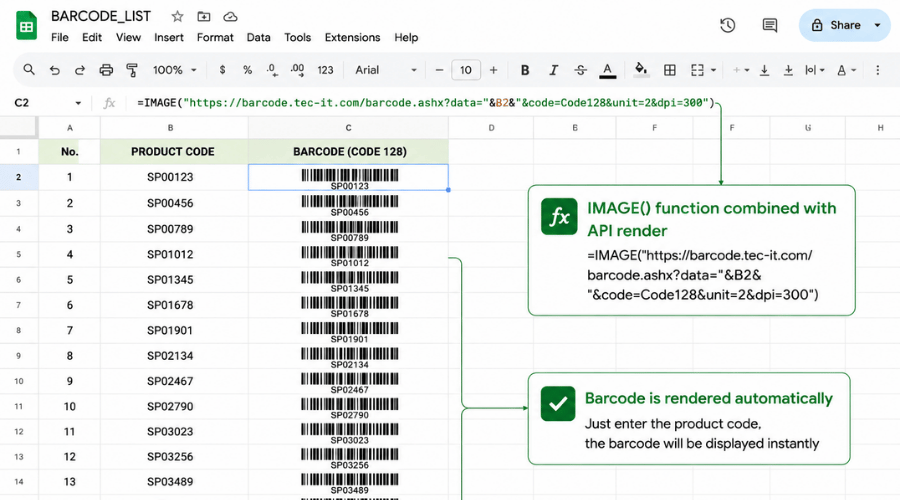 Bulk warehouse barcode generation in Google Sheets using the IMAGE function combined with an auto-render API from an existing SKU list
Free Online Barcode Generators (Single and Bulk)
This category is ideal when you need to generate barcodes quickly without installing software. Simply open a browser, enter your SKU, and download the barcode image for printing.
Tools like free-barcode-generator.net and tec-it.com support single barcode generation with PNG export, making them suitable for small warehouses or occasional barcode creation. However, most require creating each barcode manually.
With barcode tool iCheckQR barcode generator addresses this limitation. Beyond single-code generation directly in the browser, iCheckQR supports bulk creation from a CSV file — upload your SKU list, the system renders everything and exports a compressed file to your device in one go. It fully supports the three most common warehouse barcode standards: Code 128, QR code, and EAN-13. Both PNG and SVG export are available — SVG retains sharp lines at any size, ideal when printing large labels for cartons or storage shelves.
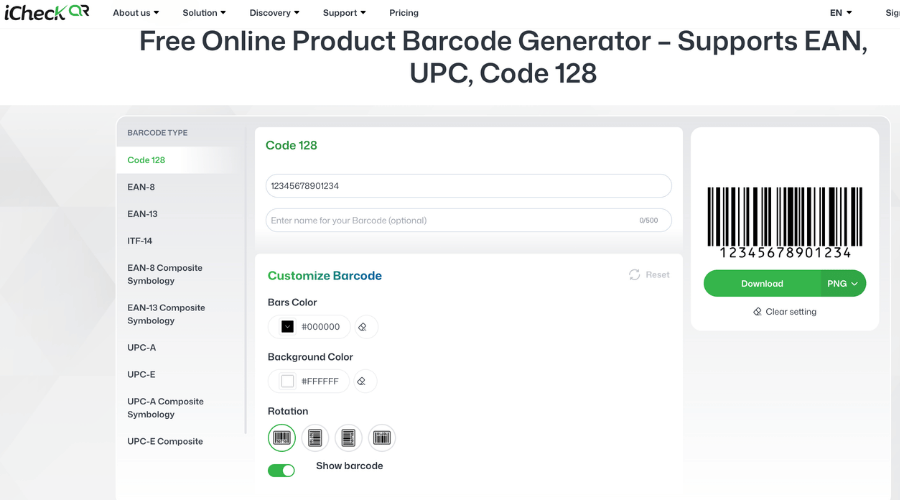 iCheckQR's free warehouse barcode tool supports Code 128, QR code, and EAN-13 export in PNG and SVG formats directly in the browser
Suitable for warehouses with a few dozen to a few hundred SKUs that want fast processing without relying on paid software.
Warehouse Management Software with Integrated Barcode Creation
Software such as Sapo and KiotViet allows businesses to create, print, and manage barcode labels directly inside the inventory system. The entire workflow — from receiving goods and printing labels to stock scanning — is handled in one place, with inventory data updated automatically after each scan.
This setup works best for multi-channel sellers or growing warehouses that need centralized inventory management and more stable day-to-day operations.
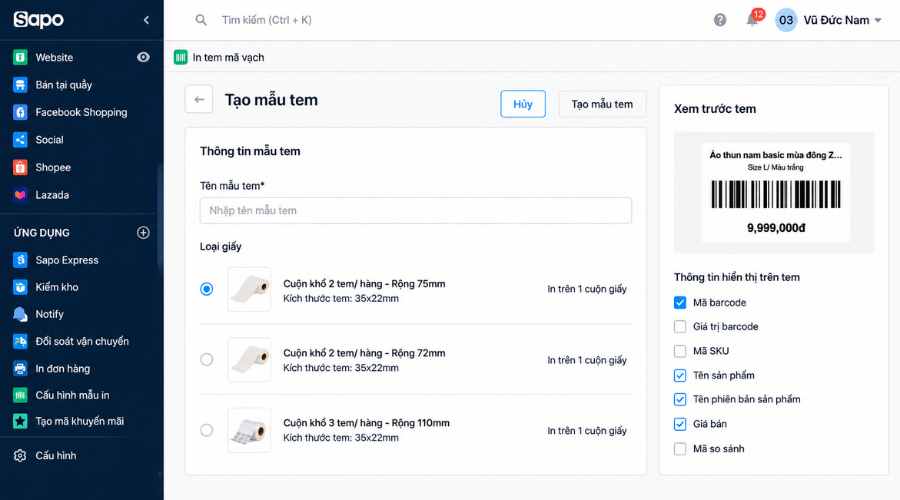 The integrated barcode label printing feature in Sapo warehouse management software enables label creation and printing directly from the product list (Source: Sapo)
Dedicated Bulk Barcode Generation Software
Zint is a free, open-source tool that can import SKU lists from CSV files and generate barcode images in bulk. It supports more than 50 barcode formats, making it suitable for warehouses with diverse labeling needs.
Bartender and NiceLabel are paid solutions designed for high-volume operations, allowing direct printing from spreadsheets to thermal label printers without manual export steps.
These tools are commonly used by manufacturers, private-label brands, and logistics operators running continuous label-printing workflows.
Which Tool Should You Choose?
New shop owners, few SKUs, cost optimization → use [iCheckQR's free barcode tool], generate individually or in bulk from CSV, no installation required.
Multi-channel sellers, warehouse of 20–200 SKUs, sync required → Google Sheets with a render API is the low-budget option; upgrade to Sapo or KiotViet when more structured inventory management is needed.
Manufacturers, high-volume label printing every day → Zint (free) or Bartender/NiceLabel (paid) for direct bulk printing to thermal label printers.
Barcode Warehouse Management Workflow from A to Z
A functioning warehouse barcode system requires the following five steps, carried out in order:
Step 1 — Build Your SKU System: Before creating any barcodes, you need a clean SKU list with no duplicates and no special characters. This is the foundation of the entire system.
Step 2 — Generate Barcodes: Use an appropriately scaled tool to generate barcode images from your existing SKU list.
Step 3 — Print and Apply Labels: Print labels on a suitable printer and affix them in the correct position on products or shelving according to a consistent standard across the entire warehouse.
Step 4 — Scan Goods In and Out: Each time goods arrive or leave, staff scan the code — the system updates figures automatically instead of manually.
Step 5 — Periodic Scanner-Based Stocktaking: Use a scanner to go through each shelf and reconcile physical stock against system data. Discrepancies are caught immediately rather than discovered at month-end.
Step-by-Step Detailed Guide to Creating Warehouse Barcodes
Step 1 — Build a Clear SKU Structure
Your SKU format should reflect product type or variants, such as AO-NAM-XL-001 or LOA-BT-001. Avoid spaces and special characters, and check for duplicate SKUs before printing labels to prevent inventory confusion later.
Step 2 — Choose the Right Barcode Format
Code 128 is ideal for internal inventory because it supports both letters and numbers without registration. QR codes work better when you need to store links or additional product information. EAN-13 is commonly used for retail and marketplace listings.
Step 3 — Generate and Export Barcodes
You can generate individual barcodes on tools like tec-it.com or iCheckQR and export them as PNG or SVG files. For bulk creation, Google Sheets can automatically render barcode images using the IMAGE() function combined with a barcode API.
Step 4 — Print and Apply Labels
Small warehouses can print labels using standard laser printers and sticker paper, while higher-volume operations should use thermal label printers such as Zebra or Brother. Labels should be large enough for scanners to read easily and placed consistently across all products.
Step 5 — Connect to Inventory Management Tools
Small warehouses can manage stock with Google Sheets and a USB barcode scanner. As SKU counts and order volume grow, software like Sapo or KiotViet helps automate stock tracking, goods-in/out operations, and inventory reporting in real time.
Common Mistakes When Self-Implementing Warehouse Barcodes
Duplicate SKUs.
This typically occurs when multiple people create SKUs without a shared convention. The result: the scanner correctly reads the barcode, but the software can't tell which item is being received or dispatched. The fix is to check for duplicates using COUNTIF before printing labels.
Labels printed too small for the scanner to read.
Labels smaller than the minimum size, printed on a low-resolution inkjet printer, or with faded ink will all cause scanner failures. Always test-print one label and scan it in practice before printing in bulk.
Using QR codes when the scanner is 1D-only.
Standard barcode scanners only read 1D barcodes like Code 128. QR codes require a 2D scanner or a smartphone camera. If your warehouse uses ordinary handheld laser scanners, do not use QR codes.
No standard procedure, staff scanning at the wrong stage.
Having scanners and labels in place but no clear guidance on when to scan, where to scan, and whether it's inbound or outbound — staff will each improvise their own approach. A concise procedure document posted in the goods-in/goods-out area is essential.
FAQ
Can warehouse barcodes be created using a smartphone app?
Yes. You can use the Barcode Generator app or generate directly on a website like tec-it.com from your phone. For bulk generation or printing, a computer is recommended.
How do you print KiotViet barcode labels on a computer and smartphone?
Computer: go to Products → Print Labels → select label template and printer.
Smartphone: open the KiotViet app → Print Labels → connect to a Bluetooth or Wi-Fi printer.
What standards are needed for warehouse barcode creation?
The three most common standards:
Code 128 — used for internal warehouses, no registration required, readable by most scanners.
QR Code — used when more information needs to be stored in a single code or when scanning by smartphone.
EAN-13 — used when products are sold at official retail and require GS1 code registration.
Most internal warehouses only need Code 128 — straightforward and incurring no registration costs.
In summary, a warehouse barcode system doesn't require significant upfront investment to get started. Use free barcode generation tool from iCheckQR to generate and export labels today — no installation, no account needed.