جميع رموز الاستجابة السريعة المجانية

اختر رمز QR من بين أكثر من 40 نوعًا متنوعًا. إنشاء رموز بسهولة ويسر لكل احتياجاتك

٦ رموز استجابة سريعة متقدمة

حل شامل ومحترف للأعمال.

رمز QR متقدم بسعة بيانات عالية، مكتبة صفحات هبوط متنوعة، تحديثات محتوى مرنة بعد الإنشاء، وميزات متميزة أخرى.
Product

منتج

Pro

Product

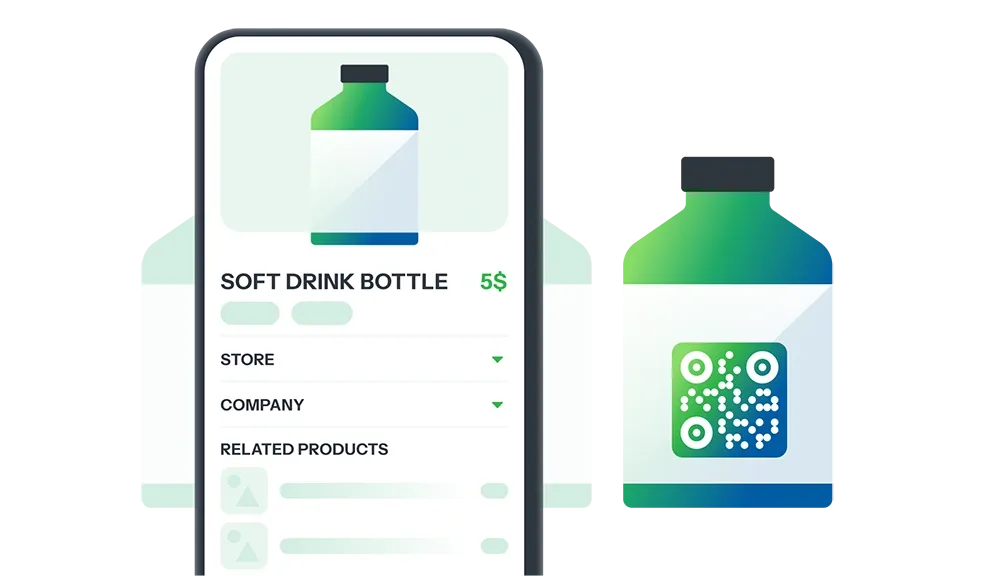
حول كل تغليف منتج إلى نقطة تلامس فريدة

جذب العملاء وبناء الثقة باستخدام رمز QR الذي يشارك تفاصيل المنتج، المنشأ، الفوائد، والعروض الترويجية—كل ذلك بمسحة واحدة.

إنشاء رمز الاستجابة السريعة

Productمنتج DEMO
Company

شركة

Pro

Company

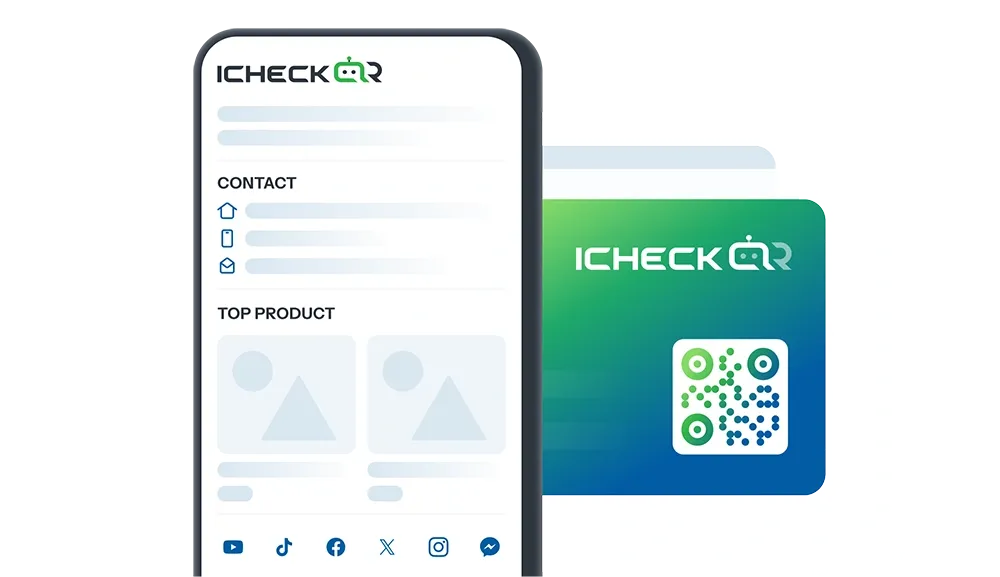
عرض شركتك بشكل أكثر احترافية

استخدم رمز QR لمشاركة التفاصيل الأساسية—المعلومات القانونية، المنتجات/الخدمات، الرؤية والمهمة، الإنجازات، معلومات الاتصال

إنشاء رمز الاستجابة السريعة

Companyشركة DEMO
Store

متجر

Pro

Store

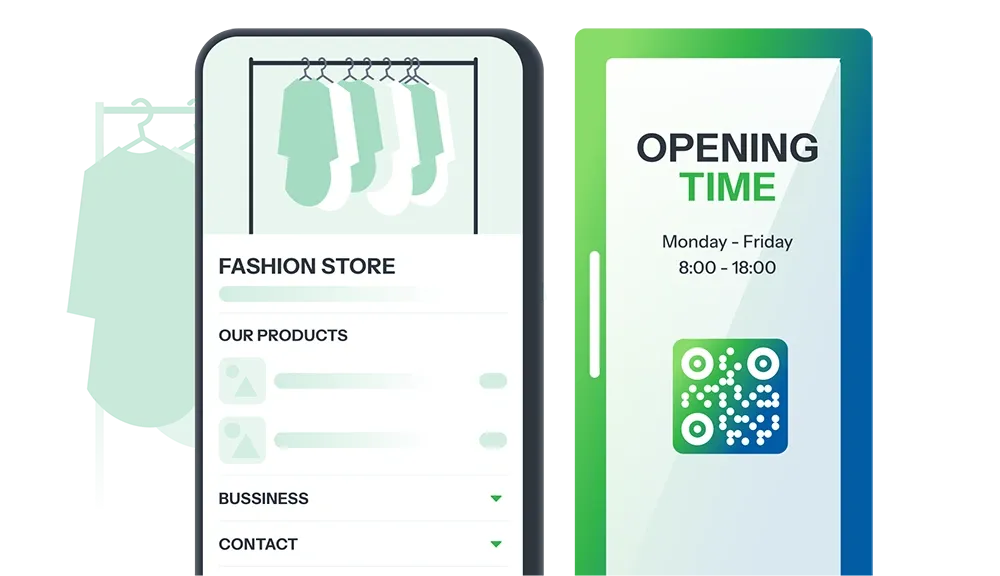
عرض متجرك بشكل سلس وفعال

رمز QR يشارك معلومات المتجر: تفاصيل الاتصال، معلومات المنتج/الخدمة، سياسات الشحن، العروض الترويجية.

إنشاء رمز الاستجابة السريعة

Storeمتجر DEMO
Personal

شخصي

Pro

Personal

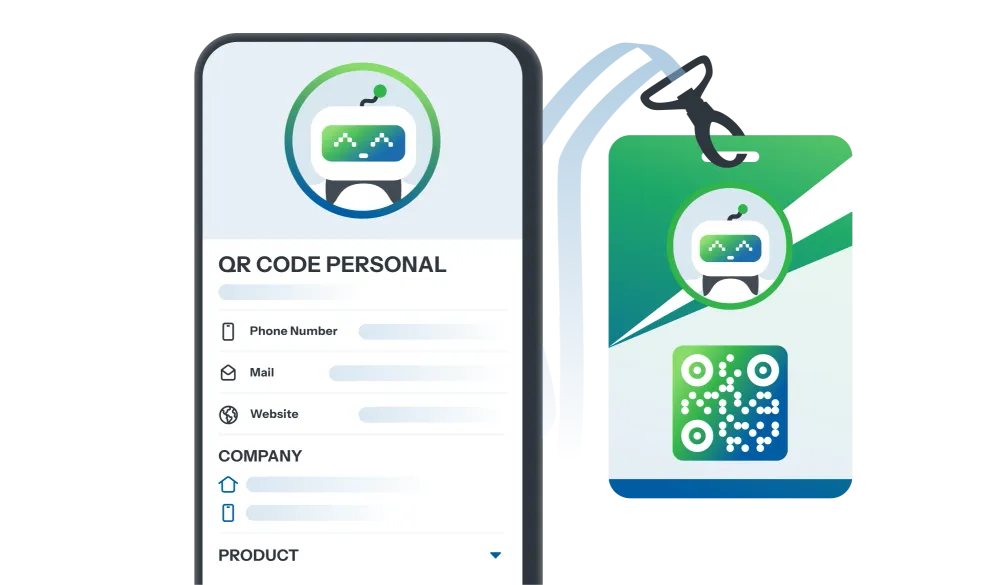
بناء علامتك الشخصية المهنية

رمز QR يشارك معلوماتك الشخصية: تفاصيل الاتصال، المهنة، الإنجازات، المحتوى الإبداعي.

إنشاء رمز الاستجابة السريعة

Personalشخصي DEMO
Event

حدث

Pro

Event

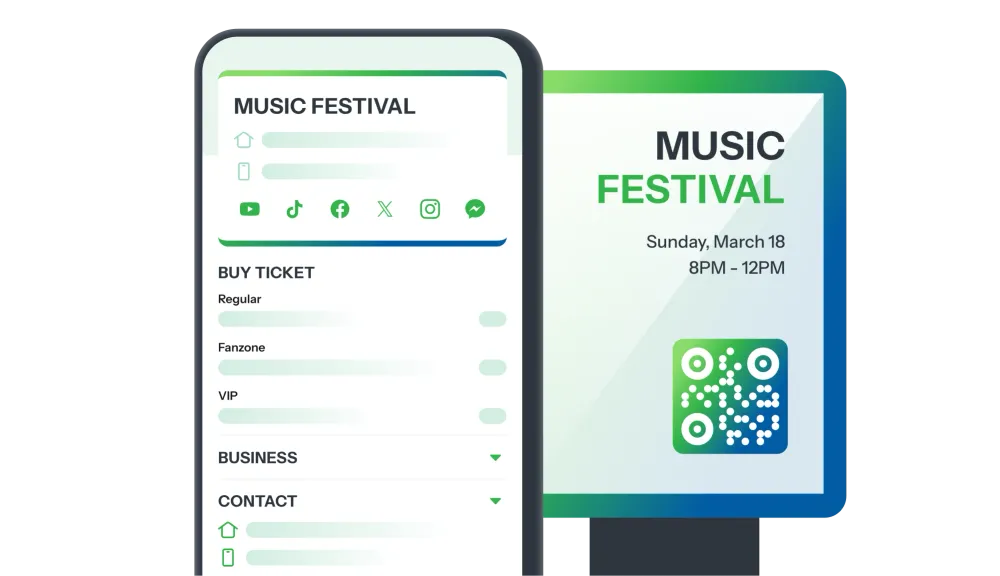
قدم حدثك بشكل أكثر احترافية

ترك انطباعًا باستخدام رمز QR يشارك تفاصيل الحدث: الجدول الزمني، الوصف، الموقع، التسجيل السهل.

إنشاء رمز الاستجابة السريعة

Eventحدث DEMO
Survey

استبيان

Pro

Survey

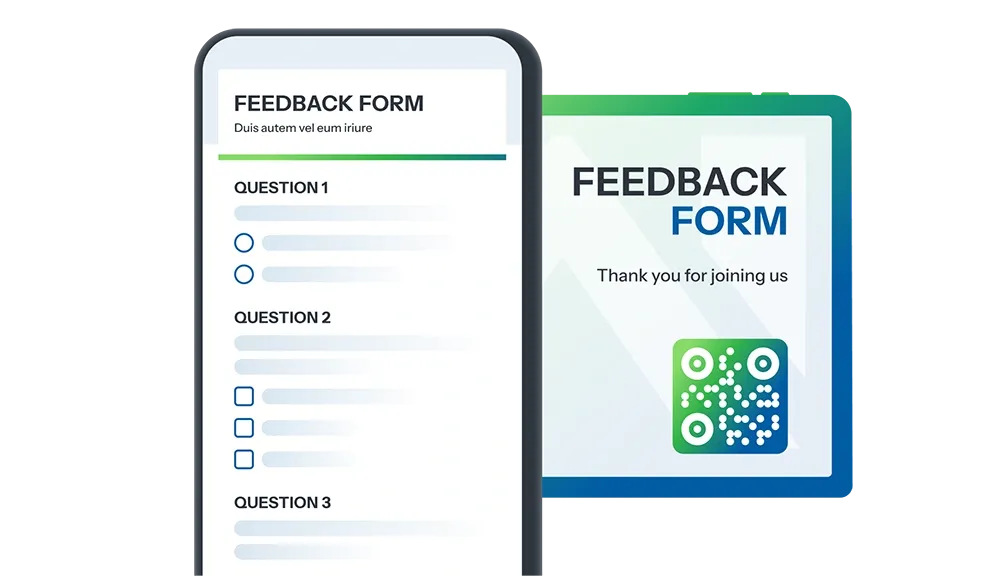
جمع التعليقات لم يكن أبدًا بهذه السهولة!

رمز QR يشارك استطلاعات العملاء، التعليقات على الأحداث، مراجعات الخدمة، البحث السوقي، والمزيد.

إنشاء رمز الاستجابة السريعة

Surveyاستبيان DEMO

إنشاء رمز QR مجاني عبر الإنترنت – سريع وقابل للتخصيص

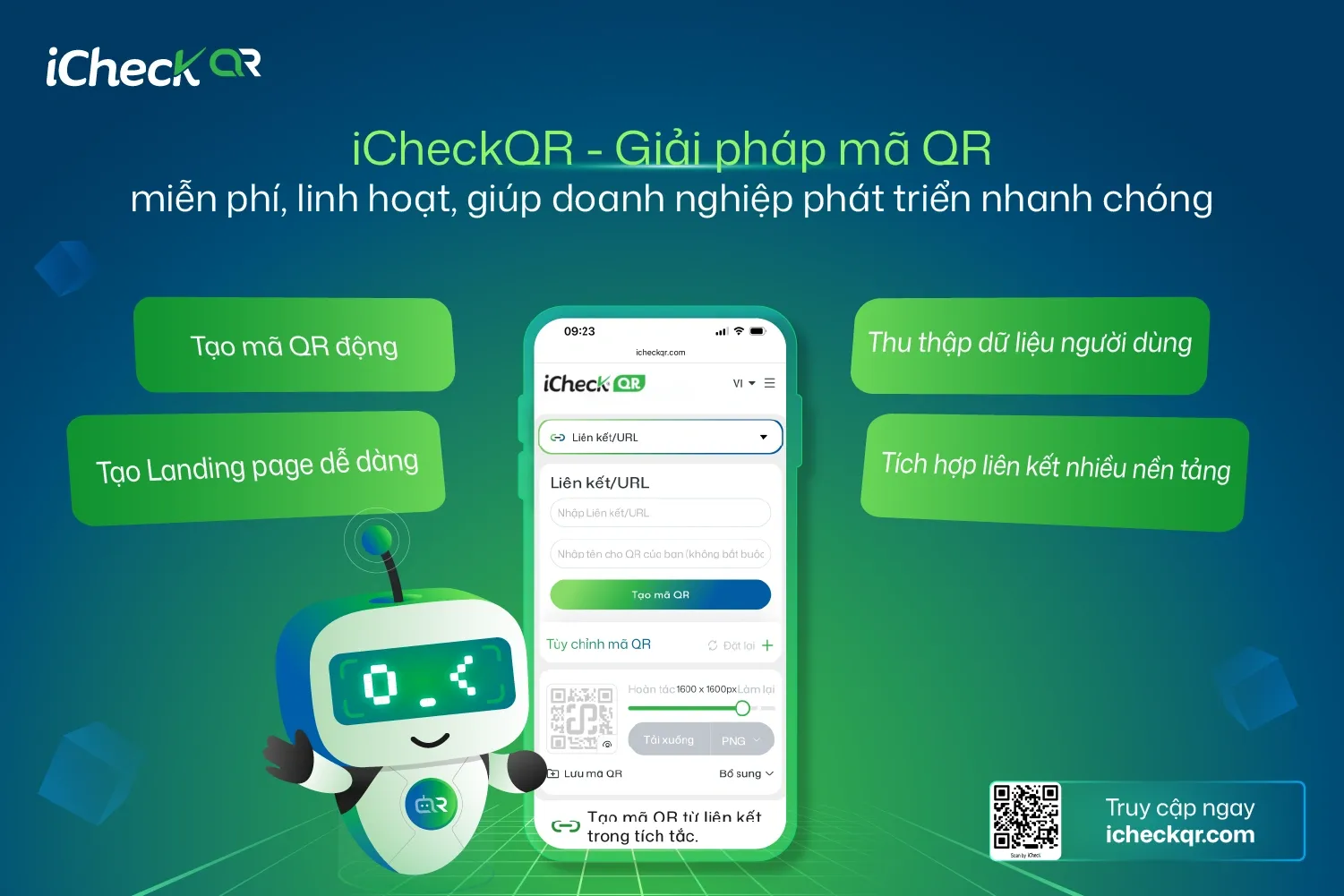
أصبح رمز الاستجابة السريعة (QR) أداة أساسية تربط العالم الواقعي بالعالم الرقمي. سواءً للدخول إلى موقع إلكتروني، مشاركة شبكة WiFi، إرسال مستندات، أو حتى الدفع الإلكتروني – كل ذلك يتم من خلال مسح رمز QR واحد فقط. مع iCheckQR، ستحصل على مولد رموز QR مجاني عبر الإنترنت، سهل الاستخدام وآمن، يناسب جميع الأفراد والشركات.

أنواع رموز QR التي يمكنك إنشاؤها مجانًا باستخدام iCheckQR

إنشاء رمز QR للرابط (URL)

حوّل أي رابط إلى رمز QR وشاركه بسهولة: المواقع الإلكترونية، صفحات الهبوط، وسائل التواصل الاجتماعي أو العروض الترويجية.

  • https://icheckqr.com → رمز QR
  • متجر TikTok → رمز QR
  • صفحة منتج جديد → رمز QR

إنشاء رمز QR لشبكة WiFi

اتصال فوري بالشبكة دون الحاجة إلى كتابة كلمة المرور. مثالي للمقاهي، الفنادق، قاعات الاجتماعات والفعاليات.

إنشاء رمز QR للمستندات والملفات

شارك ملفات PDF، Google Docs، Word أو Excel بشكل آمن وسريع عبر رمز QR.

رمز QR لبطاقات العمل (vCard)

استبدل بطاقات العمل الورقية بـ بطاقة عمل رقمية عبر رمز QR – حفظ الأرقام والبريد والموقع الجغرافي بنقرة واحدة.

رمز QR لوسائل التواصل الاجتماعي

أنشئ رموز QR لحساباتك على: Facebook، Instagram، TikTok، Zalo OA، Shopee، Lazada والمزيد.

خطوات إنشاء رمز QR

  1. اختر نوع البيانات (رابط، WiFi، مستند، بطاقة عمل…)
  2. أدخل المعلومات المطلوبة
  3. خصّص التصميم: الألوان، الشعار، الإطار
  4. اضغط "إنشاء رمز QR" وحمّل الملف (PNG، JPEG، PDF، SVG…)

لماذا iCheckQR هو أفضل مولد رمز الاستجابة السريعة؟

  • إنشاء رمز QR مجاني وغير محدود
  • واجهة نظيفة وخالية من الإعلانات
  • دعم رموز QR الديناميكية والثابتة
  • تصميم مخصص بالكامل (ألوان، شعارات، إطارات)
  • إحصائيات متقدمة للمسح (Dynamic QR)
  • آمن وموثوق – معتمد من أكثر من 25,000 شركة

الأمان والشفافية مع iCheck

تُعد iCheck رائدة في فيتنام بمجال التحقق من المنتجات، مكافحة التزوير ورقمنة الأعمال. بياناتك مخزنة على السحابة بأمان تام، دون أي مشاركة غير مصرّح بها.

الأسئلة الشائعة (FAQ)

هل مولد رمز QR مجاني؟

نعم، يمكنك إنشاء عدد غير محدود من رموز QR مجانًا.

هل تنتهي صلاحية رموز QR الخاصة بي؟

لا، جميع الرموز الثابتة دائمة مدى الحياة.

هل يمكن تعديل رمز QR بعد إنشائه؟

نعم، عبر رموز QR الديناميكية يمكنك تحديث الرابط حتى بعد الطباعة.

إذا كنت تبحث عن مولد رمز QR مجاني عبر الإنترنت، آمن وسهل الاستخدام، فإن iCheckQR هو خيارك المثالي . جرّبه الآن: https://icheckqr.com/ar/qrcode

إظهار المزيد
المدونات ذات الصلة
عرض الكل
https://assets.icheck.vn/image/2025/app/10/16/33258238ed514769bc718ba04648ce60.jpg
6 Simple and Easy Ways to Create a Zalo QR Code
6 Simple and Easy Ways to Create a Zalo QR CodeDo you want to create a Zalo QR Code to add friends, invite members to a group, share documents, or promote your business’s Zalo Official Account (OA)? A Zalo QR Code is exactly the tool you need to get it all done quickly and effortlessly. Let’s explore with iCheckQR 6 detailed, easy, and completely free ways to create your own Zalo QR Code below.1. Overview of the Zalo QR CodeA Zalo QR Code is a unique identifier created for each Zalo account — whether it’s a personal account, group, or Zalo Official Account (OA). When someone scans this code, they can instantly add friends, send messages, share documents, or join a Zalo group without having to manually enter a phone number.For businesses, the Zalo QR Code is an effective marketing tool — it can be printed on packaging, posters, or standees, or shared on social media so that customers can easily access your OA, follow updates, products, and promotions.2. 6 Simple and Effective Ways to Create a Zalo QR CodeCreate a Personal Zalo QR Code EasilyDo you want to add friends, chat, or share your personal Zalo account within seconds? Below is how to get your own Zalo QR Code quickly, simply, and completely free. With just a few steps, you’ll have your personal Zalo QR Code ready to share with friends, partners, or customers.Steps to follow:Step 1: Open the Zalo app → tap the QR code icon on the right side of the screen.Step 2: Select “My QR Code” to display your personal QR.Step 3: After customizing the title and color, tap “Share” or “Save.”Just a few simple steps, and you’ll have your own Zalo QR Code ready to use.Create a Zalo Group QR Code QuicklyA Zalo group QR Code is the easiest way to add members to a chat group, study group, or sales group without sending manual invite links. Users only need to scan the code to join immediately — saving time and adding professionalism when managing a community.Steps to follow:Step 1: Open the Zalo group you want to share.Step 2: Tap the menu icon (☰).Step 3: Select “Group Link.”Step 4: Tap “Copy,” “Share,” or “Save QR Code” to send it to others.With this method, you can get your group’s Zalo QR Code anytime, anywhere — allowing others to connect instantly, much faster than entering a phone number.Create a Zalo QR Code for Documents AccuratelyInstead of sending files manually, turn your documents into a convenient QR code in just a few seconds. Below is a detailed guide on how to create a Zalo QR code for documents quickly and accurately.Steps to follow:Step 1: Visit qr.zalo.me.Step 2: Paste the document link you want to generate a QR code for into the “Enter website link” box.Step 3: Customize your QR code, then click “Download” or “Copy.”If you want to create a more accurate and branded QR code for your documents, try iCheckQR — a tool that allows you to customize colors, add your logo, and download your QR code in high-quality PNG or PDF formats.You can create QR codes for various types of documents directly on iCheckQR, including: PDF QR Code – Easily share PDF files such as reports, manuals, or study materials. File QR Code – Upload and share any type of file with just one scan. PPTX QR Code – Turn your PowerPoint presentation into an accessible online link. Google Sheets QR Code – Conveniently share spreadsheets or online data. Google Forms QR Code – Instantly share surveys or collect responses with ease. Google Docs QR Code – Share documents online so others can view or download them easily.Create a Zalo QR Code on Desktop ConvenientlyWorking on a computer and want to create a Zalo QR Code quickly without using your phone? Zalo Web provides a direct QR creation tool, helping you easily share website links or personal information with just a few clicks — perfect for office workers, marketers, or businesses.Steps to follow:Step 1: Visit qr.zalo.me.Step 2: Paste the website link you want to generate a QR code for into the “Enter website link” box.Step 3: Customize your QR code, then click “Download” or “Copy.”Additionally, you can visit the QR code generator for links by iCheckQR to create Zalo QR codes on desktop easily, with advanced customization options such as adding logos, colors, and branded borders.Create a Zalo QR Code by Phone Number EasilyThis is the fastest way to generate a Zalo QR Code using your phone number — allowing others to add or contact you with a single scan, without memorizing or typing your number.It’s ideal for online sellers or anyone who frequently communicates via Zalo.Steps to follow:Step 1: Visit https://icheckqr.com/vi/qrcode/Phone.Step 2: Enter your phone number.Step 3: Customize your QR’s color, logo, and frame, then click “Create QR Code.”Create a Zalo OA (Official Account) QR Code for BusinessesFor businesses, stores, or brands, creating a Zalo OA QR Code is an essential step in marketing campaigns. The QR Code helps customers easily access your OA page, follow products, and receive promotions — especially effective when printed on packaging, standees, or social media posts.Steps to follow:Step 1: Open Zalo OA Manager (on web or app).Step 2: Select “OA Information” → “OA QR Code.”Step 3: The QR code will appear — download it or add your logo before printing.3. Common Errors & How to Fix ThemError 1: Scanning the Zalo QR code doesn’t display information.Recreate the QR code with higher resolution or take a clearer photo under good lighting.Error 2: Zalo group QR code is no longer valid.The group was deleted or the invite link was changed. Go back to the group → select “Group QR Code” to generate a new one.Error 3: QR code created by phone number doesn’t link to the Zalo account.Double-check the phone number before creating. The error may be due to incorrect syntax or an unregistered Zalo number.Error 4: QR code looks broken when printed or shared online.Download the QR code from iCheckQR in PNG or PDF format and avoid resizing it too small.4. FAQIs creating a Zalo QR Code free?Yes. You can create a Zalo QR Code for free directly on the Zalo app or through tools like iCheckQR.Do Zalo QR Codes expire?No. Zalo personal, group, or OA QR Codes have no expiration date and remain active as long as the account exists.Can I change the content of a Zalo QR Code after it’s created?Not with a static QR Code. If you want to edit the link without generating a new code, use a dynamic QR on iCheckQR.Can I manage multiple Zalo QR Codes at once?Yes. With Zalo OA or professional QR creation tools, you can create and store multiple QR Codes for easy management.ConclusionNow you know 6 quick and easy ways to create a Zalo QR Code — for personal accounts, Zalo groups, documents, OA pages, or even by phone number and desktop. Each method helps you connect, communicate, and promote more efficiently and professionally.Visit iCheckQR today to create professional, secure, and easy-to-use Zalo QR Codes for your personal or business needs!
https://assets.icheck.vn/image/2025/app/7/16/83376f6d1ed05f00ef4fed5e868d3066.jpg
How to Generate QR Codes for Word Documents for Free
Want to share Word files with just one scan? The simplest way is to create QR codes for Word documents (OneDrive, Google Drive...) or embed content directly into the QR code using a tool like iCheckQR. No account required, no advertising, used for slides, internal documents, Zalo, email...1. Benefits & Outstanding Applications of QR Code GenerationWord document?Outstanding benefits:Share quickly: Simply scan the code to access the document instantly – no need for emails or cumbersome logins.Save time and effort: Especially useful in meetings, classrooms, crowded events.High professionalism: QR codes can be inserted into slides, posters, forms or printed documents to create a modern impression.Easy to use for both creator and recipient: Suitable for all subjects from students to office workers.Flexible: Can generate QR codes that lead to Word files in the cloud, contain text excerpts, or download forms.Practical application:FieldPractical applicationTeaching – LearningTeachers share outlines, Word documents; students submit assignments using QR codesOffice – businessShare internal forms, workflows, training materialsMarketing – eventsPrint QR code containing product introduction, Word brochure on banner, standeeAdministration - organizationSend notifications, administrative documents, sample files via QR code on bulletin boardIndividualAttach QR codes to CVs, cover letters or relevant Word documentsIllustration of sharing Word documents via QR code2. Methods to generate QR codes for Word documentsUse free online toolsOnline platforms help you generate QR codes from Word documents quickly,no software required and Most are freeSome popular tools:ToolsUpload Word fileCreate linking wordsCustomize QRDynamic QR CodeiCheckQR✔️✔️✔️✔️ (with upgrade)QRCode Monkey✖️ (link-only)✔️✔️✖️QR TIGER✖️ (link-only)✔️✔️✔️ (register)ME-QR✔️✔️✔️ (limit)✔️ (have account)Advantages and disadvantages of this methodAdvantage:Free, easy to use, no registration requiredSupport professional QR code interface customizationGenerate both static and dynamic QR codesLimit:File size limit (depending on platform)Some advanced features require a paid accountInstructions for creating QR codes for Word documents using iCheckQRAccess toiCheckQR file QR code generation link: https://icheckqr.com/qrcode/File1 .Login / Register helps you save QR code generation historyPress the button“Download Word file from computer”.Select the presentation file format.docxneed to shareWait a few seconds for the system to load and process.QR Code Naming - Easier Code ManagementNote: iCheckQR supports files with a maximum capacity of about 10 MB in free version.You can customize QR codes to add a personal touch or brand:Color: choose color code, background color to match brand identity or slide content.Frame: add borders with messages like “Scan to download file”, “Lecture here”… to increase interaction rate.Logo: upload company, organization, school logo and place it in the middle of the QR codePress the button“Generate QR code”.Wait for the system to process → the QR code will be displayed in a few seconds.Press “Download”to save to your computer. You can choose PNG format (common) or SVG (for high quality printing).Use your phone (camera or QR code scanning app like Zalo, Google Lens...) to scan the code you just created.Make sure the PPTX file opens correctly, without errors or permission requests.Using Add-ins for WordQR4Officeis a free utility certified by Microsoft, supporting Word, Excel and PowerPoint users to quickly create QR codes from URL, text, email or phone number link. QR4Office does not generate codes from Word files directly, but you can enter a link to the file (on OneDrive, Google Drive...) to generate a QR code leading to the document.How to install and use QR4Office in WordOpen Word → select tab Insert (String)Press Get Add-insSearch keywords“QR4Office”→ ClickAddto installOpen the utility in My Add-ins→ QR4Office will appear on the right sideEnter a link to a Word document (for example, a OneDrive or Google Drive link)Custom: Code color, code size, error correction levelPress Insert→ The QR code will be inserted directly into the documentAdvantageIntegrate directly in Word, no need to open browserSimple interface, easy to use, suitable for non-technical peopleBasic customizations like color, size are possible.LimitInternet connection required to install and use the utilityGenerate QR codes from links or text only, does not support direct file downloadDoes not support dynamic QR codes or advanced designs (borders, logos...)3. Generate QR code from Word document stored in the cloudOne of the most effective and popular ways to generate QR codes for Word documents is to store the file on cloud services like Google Drive, OneDrive or Dropbox, then generate a QR code from the sharing link. This is especially useful when you want to share documents that can be updated, tracked, and have access control.3.1 Instructions for uploading Word documents to hosting servicesWith Google DriveAccesshttps://drive.google.comPress “New” → “Upload File”Select a Word file (.doc or .docx) from your computerWith OneDriveAccesshttps://onedrive.live.comPress “Upload”→ select “File”Select the Word document to archiveWith DropboxAccesshttps://www.dropbox.comPress “Upload”→ select Files from computerOr drag and drop Word files into the browser window.3.2 How to get public share linkAfter uploading, you need to create share link can be made public to generate QR code:Google Drive:Right click on the file → select "Share"Press “Anyone with the link can view”Press “Copy link”OneDrive:Right click on the file → select "Share"Select “Anyone with a link”, enable permissions "See"Press “Copy link”Dropbox:Click the “Share” icon next to the fileCreate link → click “Copy link”3.3 Generate QR code from link using online toolAfter having a public sharing link, you use tools like: iCheckQR, QR TIGER, ME-QR, QRCode MonkeySteps:Access the QR code generatorSelect QR code type →paste document linkCustomize the QR code interface (color, frame, logo…) if you wantPress “Generate QR code”→ download QR code to insert into document or printNote on access and securityDouble check sharing permissions: If set incorrectly, the person scanning the code may get the error “Document not accessible”.Do not share files containing sensitive information publicly.For secure content, select access“only people with specific emails” and Avoid using public QR codes.If you need to edit the file later while keeping the QR code intact, use Dynamic QR code from tools like iCheckQR, ME-QR or QR TIGER (with account).4. Generate QR codes containing content from Word documentsIn addition to generating a QR code that leads to a document download link, you can alsoGenerate QR codes that contain text content directlyfrom Word file. This is a quick method, no need to save the file to the cloud, suitable for sharingbrief informationsuch as quotes, instructions, short notices, excerpts from text…Instructions for implementationOpen Word document →copy the text to share(e.g. 1–3 sentences, announcement paragraph, quote)Access text QR code generator tools like: iCheckQR,QRCode Monkey, QR TIGERSelect QR code type:Text / TextPaste content into the input boxCustomize color, border, logo (if desired)Press “Generate QR code”→ download to usePractical applicationUse casesShared content exampleTeacher - studentExcerpts of theory, lessons, notes Administration - noticeShort regulations, departmental guidelinesMarketing - eventsSlogan, promotion, discount codePersonal - mediaInvitation, thank you, product usage instructionsNotes on useCharacter limit: Each QR code can only contain words200–500 characters(depending on the tool). For very long text, convert tolink or upload file.Display on phone: Line breaks should be reasonable, and the content should be clear and concise to ensureeasy to read on small screen.Content updates are not supported.: If you need to edit it later, you have to generate a new code (unless you use a platform that supports dynamic text QR – which is quite rare).5. Notes when creating and using QR codes for Word documentsTest scan before sharing: Ensure the code works on multiple devices, leads to the correct link, and does not require inconvenient logins.Easy to scan design: Prioritize high contrast colors, avoid logos that are too large or codes that are too elaborate if printed small.Ensuring access: Documents on OneDrive, Google Drive should be set to public or shared with the right audience.Dynamic QR codes should be used.: If you need to edit the link later without having to recreate a new code, use dynamic QR codes from tools like iCheckQR, ME-QR…6. Frequently Asked Questions (FAQ)Is it possible to generate QR codes for Word documents for free?→ Have.You can use tools like iCheckQR, ME-QR, QRCode Monkey without an account.How to edit the content of a QR code after it has been created?Only dynamic QR codes can have their content edited. Static QR codes cannot be changed after they are created.How many characters can a QR code hold?→ About 300–1000 characters depending on the tool. If it contains long text, it should be converted to link format.ConcludeGenerate QR code for Word documentnot only a convenient technological solution but alsoan effective bridge between the creator and the receiver of information. Whether you are a teacher, office worker, marketer or individual user, sharing Word documents via QR code will help youSave time, improve professionalism and optimize reader experience.Depending on your needs, you can choose the right method: from free online tools like iCheckQR, QRCode Monkey, to built-in integration in Microsoft Word or generating QR codes from documents stored in the cloud. With a little attention to security, formatting and testing before sharing, you canTurn a regular Word file into something convenient, accessible, and personal or corporate.
https://assets.icheck.vn/image/2025/app/5/22/e42cce674c5a05b1cabc0aa6a9030361.jpg
Instructions for creating QR codes for MB Bank bank accounts simply
In today's digital age, the trend of cashless payments is increasingly popular. MB Bank is one of the leading banks in supporting customers to create QR codes for quick and secure payments. This article iCheckQR will provide detailed instructions on how to create QR codes for MB Bank accounts suitable for personal and business needs.1. What is MB Bank QR code? What types are there?MB Bank QR Code is a two-dimensional barcode (QR - Quick Response) provided by MB Bank to encode payment information such as: Recipient account number, amount to be transferred (if predetermined), specific transaction content.Users just need to scan the code with a banking application (such as MB Bank, Vietcombank, VietinBank...) to make a transfer. Fast – accurate – no manual entry required.MB Bank QR Code ClassificationQR code typeIntended useSuitable ObjectFeaturesQR code by account numberShare receiving accountIndividualFlexible sharing, self-filling money, contentTransaction-specific QR codesRequest to transfer correct amount/contentPersonal sales, serviceUniform transaction, available information and amount, contentQR code for business householdsAccept cashless payments at the counterBusiness household, shopRevenue transaction management, system linkageIllustration of MB Bank codes2. Benefits of using MB Bank QR codeConvenient and fast in transactions:No need to manually enter account number, amount or transfer content. Reduce manual operations, save time. Limit errors.Enhanced information security:Encrypt account information, limit account number leakage when sharing. Limit sending to the wrong person, wrong contentIn line with the trend of cashless payments:Supported by most major banks and e-wallets (MB Bank, Vietcombank, MoMo, ZaloPay…). Optimize payment experience for both individuals and businesses.Easily manage and track transactions:All QR code transactions are recorded in the MB Bank app. Transaction history can be extracted by date, by specific QR code.3. Conditions for creating MB Bank QR codeHave an account at MB Bank.The account is a personal account or a business household account issued by MB Bank.Registered to use e-banking service on MB Bank application.Registered to use e-banking service on MB Bank application.MB Bank application login information is required (user/password or login with Face ID).Fully enabled money transfer, scan/generate QR code.If you have not registered for eBanking, you can quickly register on the app or at an MB Bank branch.4. Detailed instructions on how to create MB Bank QR code4.1 Generate QR code by account numberStep 1: Log inMB Bank application.Step 2: Select "Scan QR code" on the main interface.Step 3: Select "VietQR Management".Step 4: Select "Generate QR code by account".Step 5: A QR code will be generated, you cansave or sharethis codeSteps to create QR code by account number4.2 Generate QR codes for specific transactionsStep 1: Log inMB Bank application.Step 2: Select "Scan QR code" on the main interface.Step 3: Select "VietQR Management".Step 4: Select "Generate QR code for each transaction"Enter information such as amount, content, then select“Generate QR code”.Step 5: Then click Save information to successfully create MB Bank QR code for specific transaction.Steps to create QR code for specific transaction4.3 Generate QR codes for business paymentsStep 1: Login MB Bank application.Step 2: Click the icon"Pay "on the selection toolbar “VietQR Management”Step 3: Select the option “Generate QR code for business”Step 4: Fill in information business and registration.Enter information including:Business nameTax code (if any)Business addressContact phone numberEmail (if required)Confirm and complete registrationThe generated QR code will carry the full legal identity of the business household.Step 5: A QR code will be generated, you can save or share this codeSteps to create QR code for business payment5. How to save and share MB Bank QR codeInstructions on how to save QR codes to your device.After successfully generating the QR code, the app will display the options:“Download” or “Save image”Click to save the QR code tophone photo albumQR codes are saved asPNG or JPG image, can be reused at any timeHow to share QR codes across different platforms.In the QR code management section, select:“Share” > choose platform like:Zalo – share via message or groupFacebook – send via Messenger or post on FanpageEmail – send attached files to customersTelegram, Viber, Google Drive, v.v.MB Bank app allows direct sharing without leaving the app.Note when printing QR codes for use at checkout.Codes should be printed at high resolution (300 dpi or higher) to ensure easy scanningDo not stick QR codes on curved, reflective surfaces (like glass jars, bright screens)Print attached Account name or business name below code for added reliabilityNo blurring or distortion of proportions of QR codeShould be printed on white or light colored background, avoid dark backgrounds or backgrounds with busy patterns6.Notes when using MB Bank QR codeCheck information before sharing QR code: Make sure the account number, amount (if any), and content are correct before sending the QR code to others.Protect personal information when using QR codes: Do not share QR codes publicly on social media if they contain sensitive information such as amount, transfer content or full name.Update MB Bank app regularly: Helps ensure QR code generation and scanning functions work smoothly, limiting technical errors in transactions.Illustration of MB Bank warning when using the app7. Frequently asked questions about MB Bank QR codeCan MB Bank QR code be used for other banks? Have. MB Bank support VietQR standard interbank, so the code can be scanned by apps from many other banks such as Vietcombank, BIDV, Techcombank, etc.Is there a fee to create an MB Bank QR code?Are not. MB Bank currently100% freewhen creating and using QR codes via the app.Does MB Bank QR code have an expiration date?Account number code: No deadline.Code with specific amount: May have short duration if set (depending on batch created or transaction purpose).Is it possible to generate multiple QR codes for the same account?Absolutely possible.You can: Create multiple codes with different content (transaction, amount, etc.)8. ConcludeUsage MB Bank QR code is a solution Modern, secure and convenientfor both individuals and businesses. You can generate free code, flexible sharing, and fast payment with just a few taps on your phone.If you are an MB Bank user, please Apply the above instructions immediately to create your own QR code, improve the efficiency of cashless transactions!
https://assets.icheck.vn/image/2025/app/5/20/955e705c615a6e88e6e34ab1d767372b.jpg
3 Ways to Create a Bank QR Code Quickly, Easily, and Safely
Do you want to receive money instantly without having to type your bank account number manually? Creating a bank QR code is the most convenient, safe, and fast solution.In this article, you’ll find the 3 most common ways to create a bank QR code: using the national-standard VietQR system, generating a QR code directly within your banking app, and creating a QR code through e-wallets like MoMo, VNPay, or ZaloPay.Additionally, iCheckQR provides detailed instructions for creating QR codes for BIDV, VietinBank, Agribank, and Vietcombank, explains the differences between QR types, and highlights important security tips to help you receive money safely and avoid unwanted risks.1. Why Should You Create a Bank QR Code?Creating a bank QR code offers practical benefits that make receiving money faster, safer, and more convenient.Fast: The sender simply scans the QR code — no need to type your account number.Highly accurate: It reduces the risk of entering the wrong account number.Secure: Your personal information is better protected.In addition, QR codes help you manage daily transactions more easily, making them especially useful for small businesses, online sellers, or anyone who wants to share payment details in a more professional way.2. How to Create a Bank QR Code Using VietQRVietQR is a national QR code standard developed by NAPAS and Vietnamese banks, supporting more than 40 banks across the country. You only need to enter your account number, and the system automatically generates a QR code so others can scan and transfer money instantly without manually entering any account details.VietQR is widely preferred because it is fast, standardized, and accurate — ideal for individuals and merchants who want secure transfers.Steps to create a bank QR code:Step 1: Visit https://vietqr.netStep 2: Select your bank, enter your account number and account holder name.Step 3: Agree to the terms and click “Create QR” (you can also add a logo, content, or a fixed amount).Step 4: Download the QR code to your device.3. How to Create a Bank QR Code Directly in Banking AppsBesides VietQR, you can generate a QR code right inside your bank’s official mobile app. This method is secure because it uses your bank’s own system — ideal for personal use, daily transactions, or fixed payment QR codes.3.1. How to Create a QR Code in Most Banking AppsFollow these steps:Step 1: Open your banking app.Step 2: Select QR or Receive money via QR.Step 3: Choose the receiving account.Step 4: The app displays your QR code → save or share it.The process is similar across banks, though each app may place features in slightly different locations.3.2. How to Create a QR Code in Popular Banking AppsBelow are quick instructions for the four most common banks: BIDV, VietinBank, Agribank, and Vietcombank.BIDVGo to Scan QR → Create QR, then enter the required information.Save or share the QR code.For more features, benefits, and detailed guides, check the article How to Create a BIDV Bank QR Code.VietinBankSelect QR Pay → Personal QR → Enter required details.Save or share your QR code.For detailed step-by-step instructions with illustrations, check How to Create a VietinBank Bank QR Code.AgribankOpen MyQR → Enter required information.Tap Create QR → Save or share.For a more comprehensive illustrated guide, see the Agribank QR instructions.VietcombankGo to QR Services → My QR Code → Enter details.Select Create QR, then save or use your code.These are just the basic steps. For more details, refer to the article How to Create a Vietcombank Bank QR Code.4. How to Create a Bank QR Code Using E-WalletsBesides banking apps, you can also create QR codes through e-wallets like MoMo, ZaloPay, or VNPay.However, QR codes from e-wallets are different from VietQR — they only work within the e-wallet’s own ecosystem and cannot receive bank transfers. These are internal payment QR codes.4.1. MoMoOpen MoMo → Receive Money via QR.Select a fixed amount (optional) → MoMo generates the QR code → share it.4.2. VNPayOpen VNPay → QR Pay → Receive Money.Enter account information and amount (optional) → VNPay generates the QR code for saving or sharing.4.3. ZaloPayOpen ZaloPay → Receive Money → QR.Choose an amount if needed → create QR → send it to the payer.Note: E-wallet QR codes cannot replace VietQR — they are only useful when both parties use the same e-wallet.Overall, e-wallet QR codes work best for in-app payments, but if you need to receive money into your bank account, VietQR remains the most flexible and reliable option.5. Important Security Tips When Creating Bank QR CodesTo stay safe when using bank QR codes, keep these precautions in mind:Do not share QR codes publicly if they include a fixed amount.Never enter passwords or personal details when scanning unknown QR codes.Only create bank QR codes through verified apps or websites like the official VietQR platform.Double-check your account information before sharing your QR code.ConclusionCreating a bank QR code makes receiving money faster, more convenient, and more secure, while reducing the risk of entering incorrect account numbers. This guide has shown you the three most common methods: using the VietQR national standard, generating QR codes via banking apps, and using e-wallets for internal payments.To create a bank QR code easily, quickly, and safely, try iCheckQR — compatible with all banks, free from ads, and simple to share with anyone.