
How to Generate Barcodes in Bulk from Excel Quickly for Hundreds of Products
Generating barcodes in bulk from Excel is a fast and convenient method that's easy to use for online shop owners or when a warehouse holds hundreds of SKUs, since creating each barcode manually is no longer feasible.
This article walks you through every step in detail, from preparing your data to exporting a print-ready file.
What Is Bulk Barcode Generation?
Bulk barcode generation is the process of automatically creating multiple barcodes at once from an existing data list — instead of creating each code individually.
With Excel, you just need to prepare a list of product codes, install a barcode font, and apply a formula — the entire barcode column will be generated automatically within seconds.
What Do You Need to Prepare Before Generating Barcodes in Bulk?
An Excel File Containing Product Data
The minimum required structure:
Note: the barcode column must be formatted as Text, not Number — if left as Number, Excel will automatically strip leading zeros or round off 13-digit codes.
Choosing the Right Barcode Type
Before generating in bulk, you need to know how to identify the common types of barcodes that best suit your sales channel today.
EAN-13 — the most common standard for retail consumer goods in Vietnam
Code 128 — more flexible, used in warehousing and logistics
Code 39 — simple, suitable for internal management
QR Code — when you need to encode more information
How to Generate Barcodes in Bulk in Excel — Step-by-Step Guide
This method uses a free barcode font installed into Excel. Once the font is installed, each data cell will automatically display as a scannable barcode — no plugin and no complex formulas required.
Step 1 - Download and Install the Barcode Font
The most popular free fonts: Code 128 or Free 3 of 9 (for Code 39).
Steps:
Download the font from dafont.com or fonts2u.com — search for "Code 128" or "Free 3 of 9"
Unzip the .zip file you downloaded
Right-click the .ttf file → select Install (Windows) or Install Font (Mac)
Reopen Excel after installing — the new font will appear in the font list
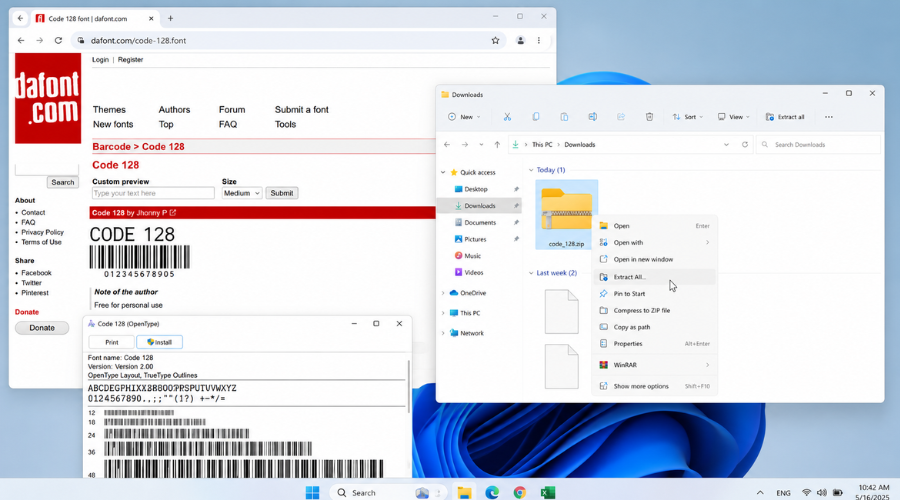 Download and install the Code 128 or Code 39 barcode font on Windows before generating barcodes in bulk in Excel.
Step 2 - Prepare a Correctly Structured Data File
Open Excel and create a data table with at least 2 columns: SKU/product code and barcode.
Steps:
Select the entire column containing the barcode
Right-click → Format Cells → select Text → OK
This is an important step: if the format is General or Number, Excel will automatically process the digit string and corrupt the code — especially for 13-digit EAN-13 codes.
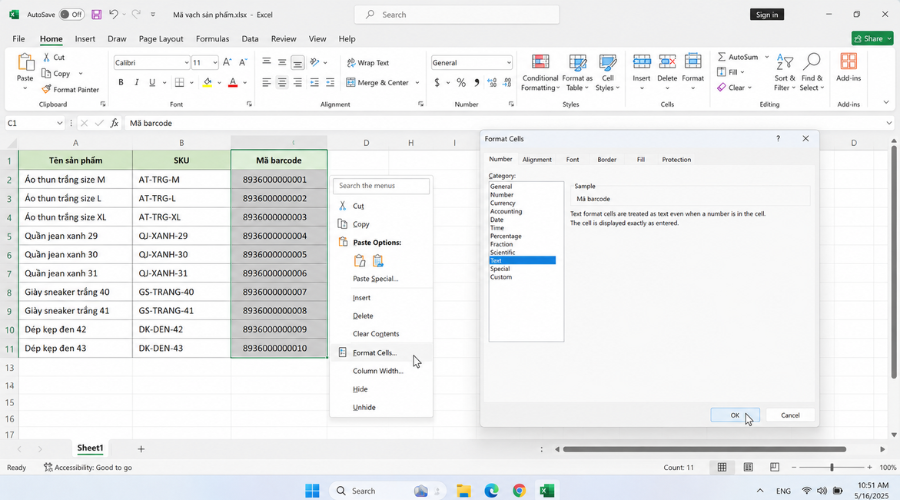 Format the barcode column as Text in Excel to avoid losing leading zeros or corrupting the barcode data.
Step 3 - Create a Formula Column to Encode the Barcode
Barcode fonts require input data in a specific format — you can't apply the font directly to the raw code. Start and stop characters need to be added.
For Code 39, the encoding formula is simple: ="*"&B2&"*"
Where B2 is the cell containing the product code. The * symbol is the mandatory start/stop character for Code 39.
Steps:
Create a new column named "Barcode"
Enter the formula ="*"&B2&"*" into the first cell
Press Enter → drag the formula down through the entire list
For Code 128, a more complex formula is needed to calculate the checksum — you can download a ready-made Excel template with the formula from grandzebu.net.
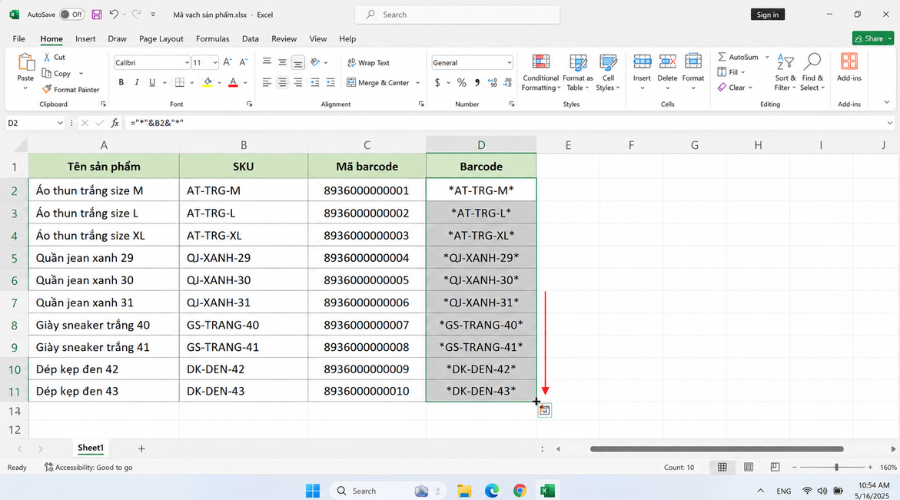 Create a Barcode column and apply the Code 39 encoding formula to automatically generate barcode data for the entire product list.
Step 4 - Apply the Barcode Font to the Barcode Column
This is the step that turns the text data into an actual barcode image.
Steps:
Select the entire Barcode column you just created
Go to the font box in the top-left corner → type the name of the font you installed (e.g., "Free 3 of 9" or "Code128")
Adjust the font size — usually between 36–48pt so the barcode is large enough to scan
As soon as the font is applied, the Barcode column will turn from text into a visual barcode image. Hundreds of codes are generated at once — no extra steps needed for each row.
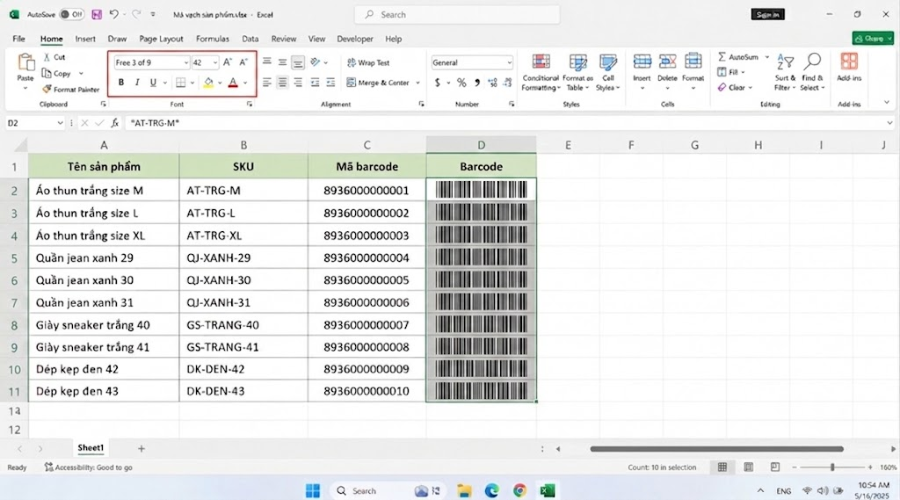 Apply the barcode font to the Barcode column in Excel to turn text data into a scannable barcode.
Step 5 - Check the Barcode Before Exporting
Before printing, you need to confirm the barcode reads correctly.
Steps:
Use a barcode scanning app on your phone (Barcode Scanner, QR & Barcode Scanner)
Test-scan 3–5 random codes from the list
Compare the scanned result with the original data in the SKU column
If your barcode doesn't scan: check the font size (increase it), make sure the background is white with enough contrast, and re-verify that the encoding formula follows the correct format.
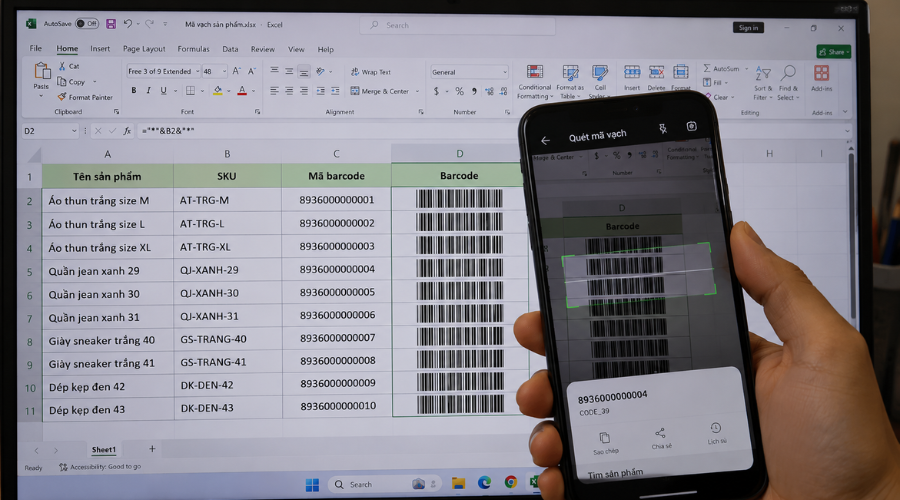 Check the barcode using a scanning app on your phone to confirm the data displays correctly before printing in bulk.
Step 6 - Export and Print Barcodes in Bulk
Method 1 - Print Directly from Excel:
Select the range containing the barcode column
File → Print → Print Selection
Use A4 sticker paper or a dedicated label printer (Zebra, Xprinter, TSC)
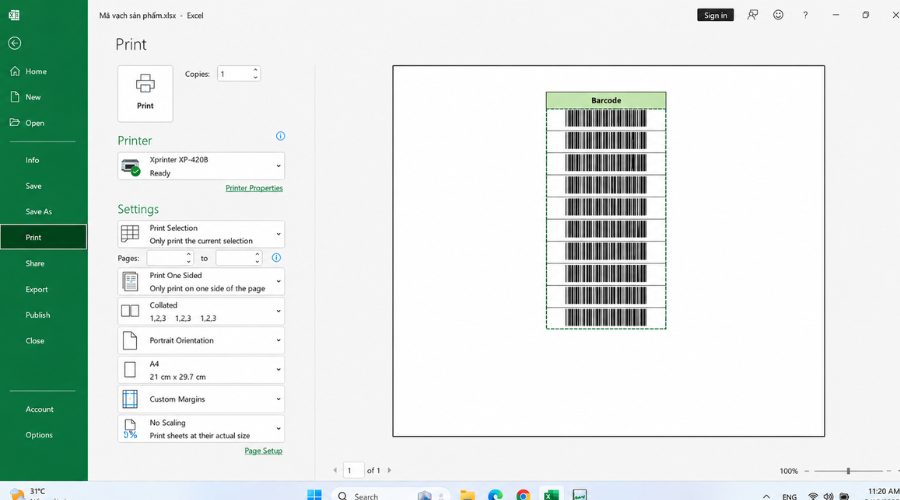 Select the range containing the barcodes and use the Print Selection option to print barcode labels directly from Excel
Method 2 - Export to PDF:
File → Export → Create PDF/XPS
Save the PDF file
Send the file to a print shop if the quantity is large (over 5,000 labels)
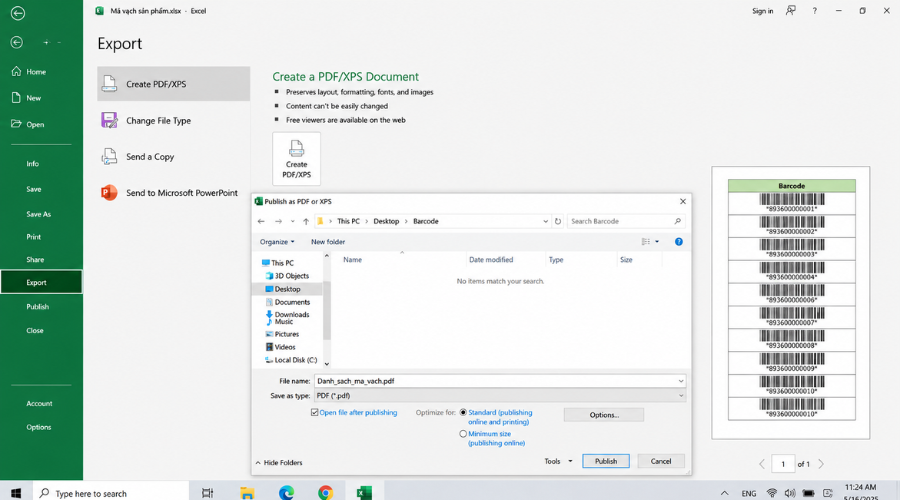 Export the barcode list to PDF for storage or to send to a printer for large-quantity label printing.
Guide to Generating Barcodes in Bulk Online for Free
If you'd rather not install a font, or you need individual PNG/SVG files for each code, online tools are a faster option:
Criteria for choosing a good tool:
Supports direct Excel or CSV upload
No limit on the number of codes generated per batch
Can export to PDF or SVG
Supports multiple code standards (EAN-13, Code 128, QR Code)
Some popular tools:
Tec-IT Barcode Generator — supports batch generation from a text list, multiple export formats
iCheckQR — customizable label layout on request
OnlineLabels Barcode Generator — simple interface, fast PNG/SVG export
BarcodesInc — completely free, suitable for moderate volumes
All of the tools above are easy to use, but if you're looking for a Vietnamese-localized tool that supports Vietnamese, you might consider generating barcodes on iCheckQR.
Common Mistakes When Generating Barcodes in Bulk
Barcode won't scan: font size is too small or the font wasn't installed correctly — increase it to at least 36pt
Code loses its leading zero: the barcode column is set to Number instead of Text
Incorrect encoding formula: missing the * start/stop character for Code 39, or an incorrect checksum for Code 128
Duplicate codes: occur when merging data from multiple sources — use Remove Duplicates in Excel to check beforehand
Tips for Managing Large Volumes of Barcodes Effectively
Maintain a single master Excel file — don't let each department manage its own separate file
Set a consistent SKU naming convention from the start (e.g., TYPE-COLOR-SIZE)
Save barcode files by product group for easy retrieval when reprinting is needed
If you manage more than 500 SKUs, consider inventory management software with built-in barcode support instead of generating batches manually
Frequently Asked Questions
Can I generate 1,000 or 10,000 barcodes at once in Excel?
Absolutely. Once you've installed the font and set up the formula for one row, just drag it down through the entire list — Excel handles thousands of rows in seconds.
Does generating barcodes in bulk in Excel cost anything?
No. Free versions of both the Code 39 and Code 128 barcode fonts are available. You only pay when printing the labels.
Can I generate EAN-13 codes in Excel?
Yes, but it's more complex than Code 39 because EAN-13 requires calculating a check digit with its own formula. The simplest approach is to download a ready-made Excel template with the EAN-13 formula from sources such as grandzebu.net.
Should I use EAN-13 or Code 128?
Use EAN-13 if your products are sold through retail or supermarket channels. Use Code 128 for internal warehouse management or logistics — it's more flexible and easier to generate in Excel.
Can I print the labels right after generating them?
Yes — print directly from Excel using A4 sticker paper, or export to PDF and send it to a print shop for larger quantities.
Do I need to register a barcode number before generating one?
Not if you're only managing internal inventory. If you sell to supermarkets or export your products, you need to register a valid GS1 code before printing it on official packaging.
Conclusion
Generating barcodes in bulk in Excel doesn't require any special software — you just need to install the right font, structure your data correctly, and apply the appropriate encoding formula. If you'd rather skip the setup, iCheckQR supports bulk generation, PDF export, and instant printing without installing anything extra.