
iCheck QR LogoiCheck QR Logo

បង្កើត QR កូដថាមវន្ត មានសុវត្ថិភាព និងឆ្លាតវៃ ជាមួយ iCheckQR
បង្កើតកូដ QR ដោយឥតគិតថ្លៃ

ជ្រើសរើសពីកូដ QR ដែលមានច្រើនជាង ៤០ ប្រភេទ។ ការបង្កើតយ៉ាងសាមញ្ញនិងងាយស្រួលសម្រាប់គ្រប់តម្រូវការ
បង្កើតកូដ QR កម្រិតខ្ពស់

ដំណោះស្រាយជំនាញទូលំទូលាយសម្រាប់អាជីវកម្ម។

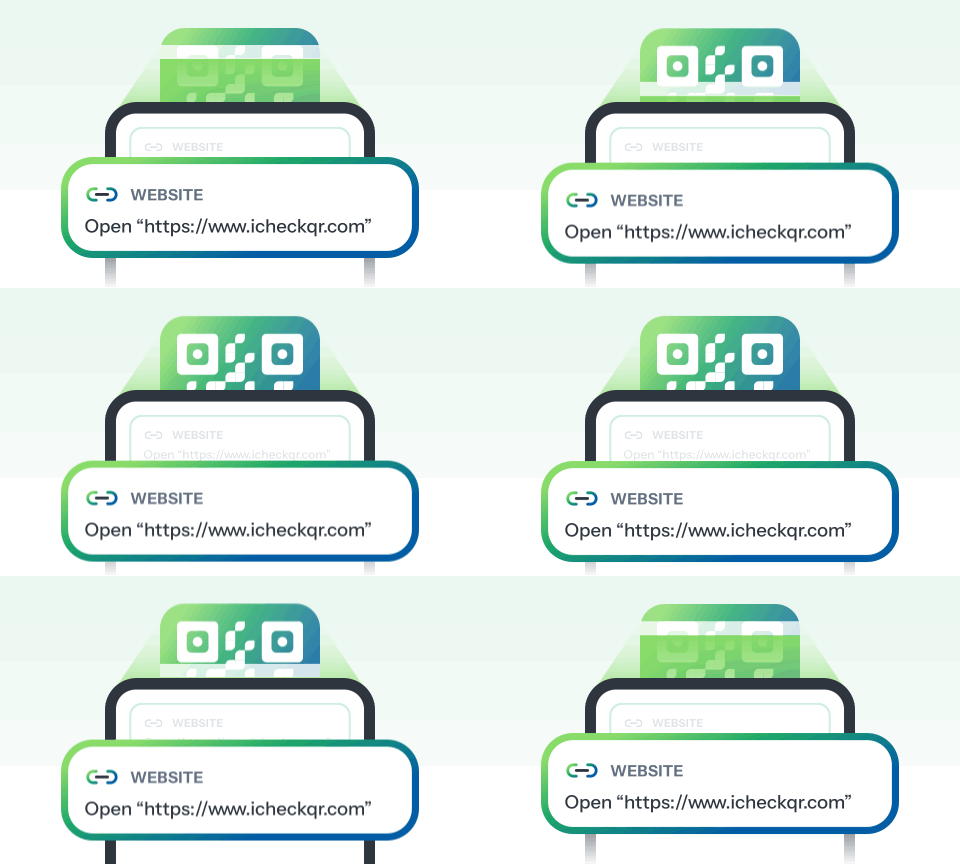
កូដ QR កម្រិតខ្ពស់ដែលមានសមត្ថភាពផ្ទុកទិន្នន័យខ្ពស់ បណ្ណាល័យទំព័រដើមដ៏ច្រើនបែប អាចបន្ទាន់សម័យខ្លឹមសារបន្ទាប់ពីបង្កើត និងលក្ខណៈពិសេសលើសល់ផ្សេងទៀត។
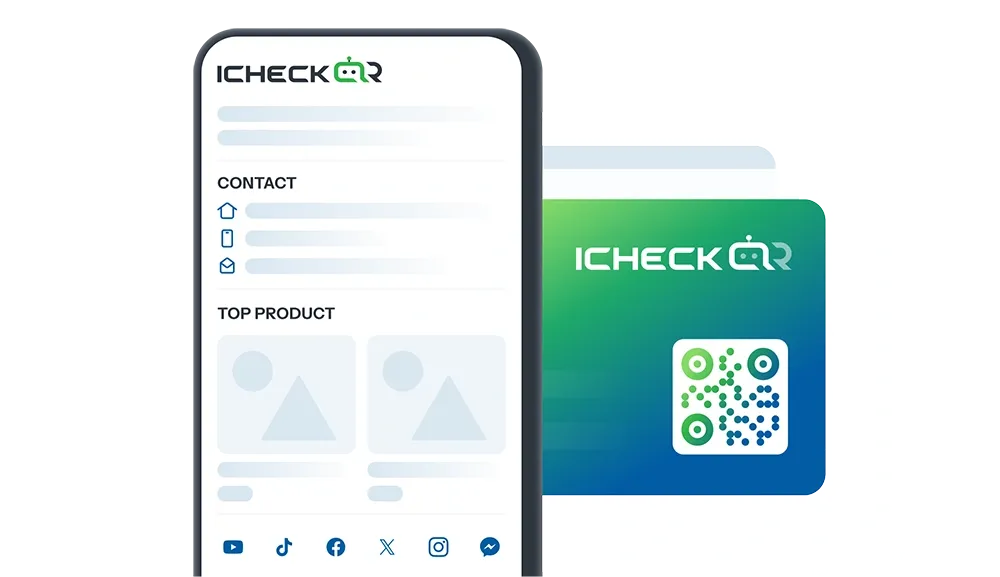
Product

ផលិតផល

Pro

Product

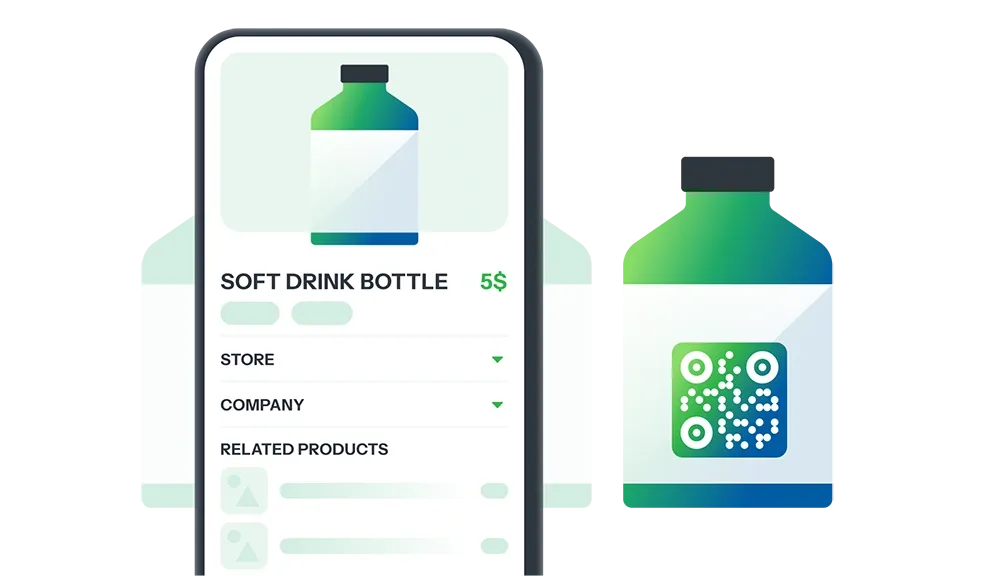
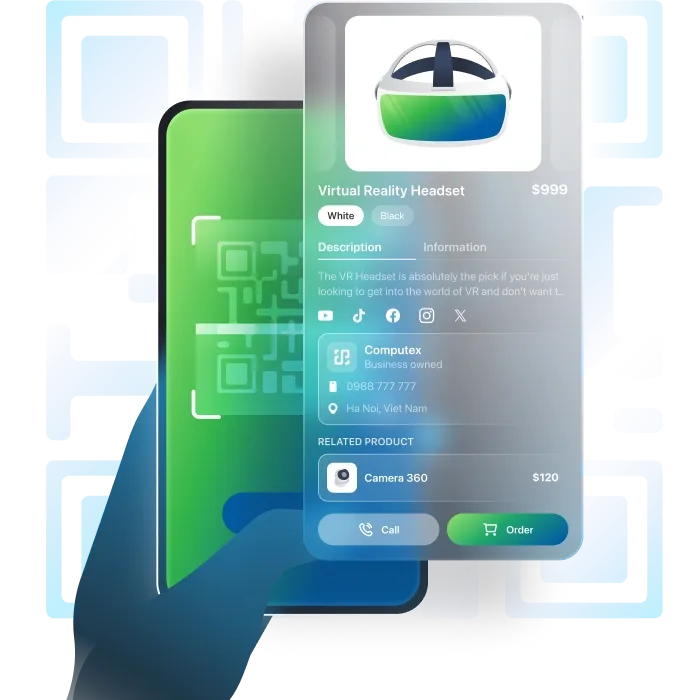
ប្រែកញ្ចប់ផលិតផលទៅជាចំណុចប្រទាក់តែមួយ

ទាក់ទាញអតិថិជន និងបង្កើតទំនុកចិត្តជាមួយកូដ QR ដែលចែករំលែកព័ត៌មានផលិតផលលម្អិត ប្រភពដើម អត្ថប្រយោជន៍ និងកម្មវិធីផ្សព្វផ្សាយ—ទាំងអស់ក្នុងការស្កេនម្ដង។

បង្កើត QR កូដ
Company

ក្រុមហ៊ុន

Pro

Company

ណែនាំអាជីវកម្មរបស់អ្នកយ៉ាងវិជ្ជាជីវៈជាងមុន

ប្រើកូដ QR ដើម្បីចែករំលែកព័ត៌មានចាំបាច់—ព័ត៌មានច្បាប់ ផលិតផល/សេវាកម្ម ទស្សនវិស័យនិងបេសកកម្ម ប្រវត្តិសាស្រ្ត ព័ត៌មានទំនាក់ទំនង។

បង្កើត QR កូដ
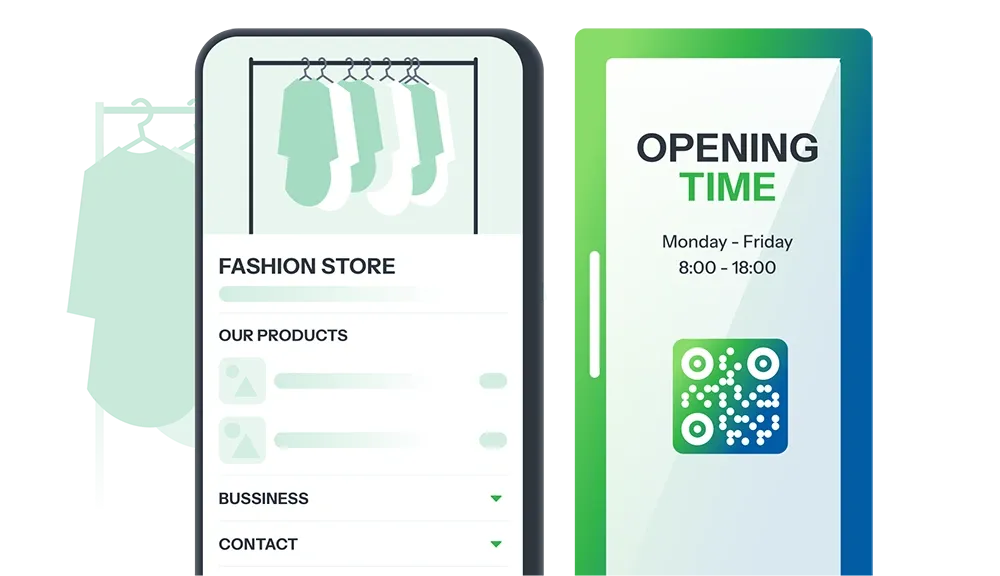
Store

ហាង

Pro

Store

បង្ហាញហាងរបស់អ្នកដោយមានភាពរលូននិងប្រសិទ្ធភាព

កូដ QR ចែករំលែកព័ត៌មានហាង: ព័ត៌មានទំនាក់ទំនង ព័ត៌មានផលិតផល/សេវាកម្ម គោលការណ៍ដឹកជញ្ជូន កម្មវិធីផ្សព្វផ្សាយ។

បង្កើត QR កូដ
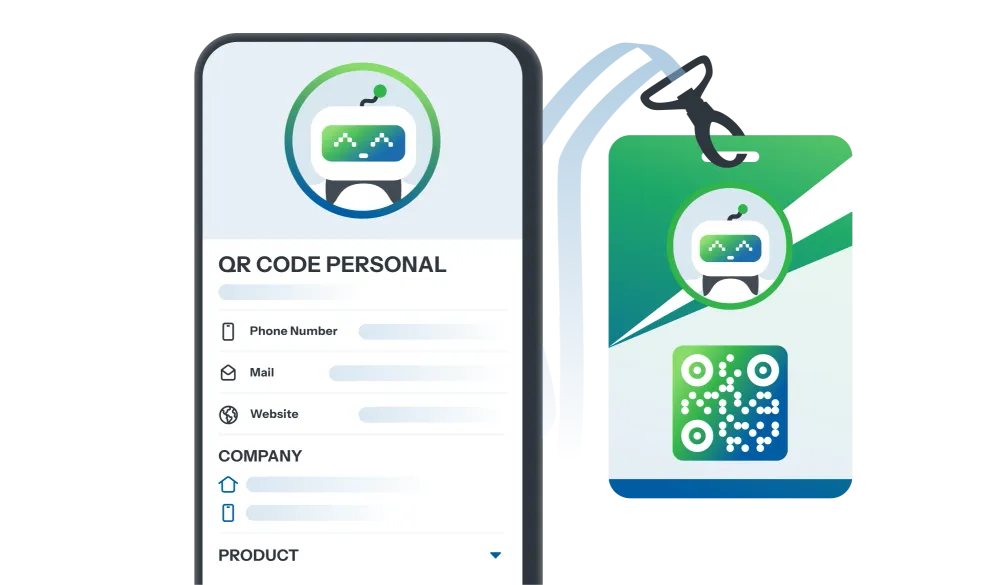
Personal

ផ្ទាល់ខ្លួន

Pro

Personal

បង្កើតម៉ាកសញ្ញាផ្ទាល់ខ្លួនដោយវិជ្ជាជីវៈ

កូដ QR ចែករំលែកព័ត៌មានផ្ទាល់ខ្លួនរបស់អ្នក៖ ព័ត៌មានទំនាក់ទំនង អាជីព ប្រវត្តិសាស្រ្ត មាតិកាច្នៃប្រឌិត។

បង្កើត QR កូដ
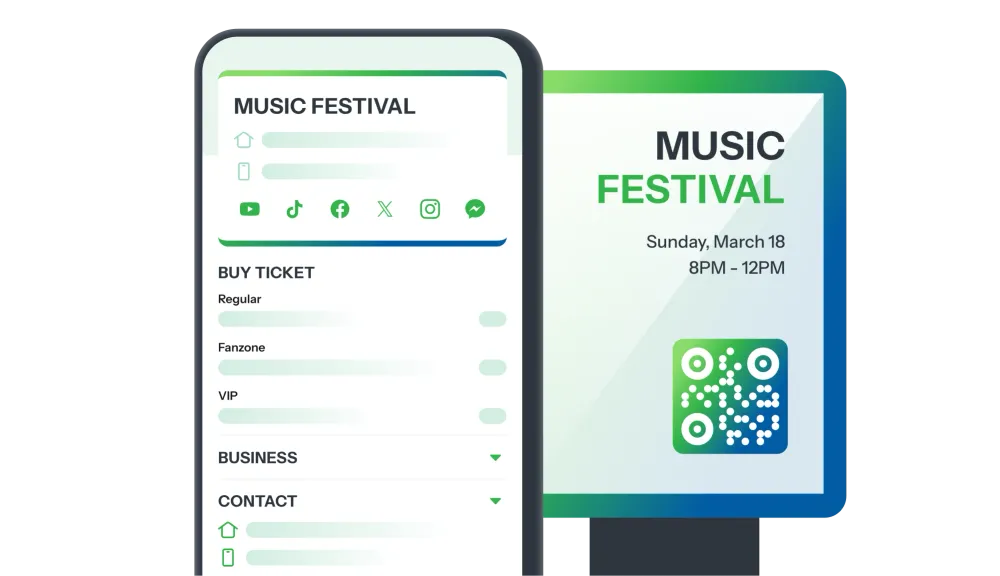
Event

ព្រឹត្តិការណ៍

Pro

Event

ណែនាំព្រឹត្តិការណ៍របស់អ្នកយ៉ាងវិជ្ជាជីវៈជាងមុន

បង្កើតការចាប់អារម្មណ៍ជាមួយកូដ QR ដែលចែករំលែកព័ត៌មានលម្អិតព្រឹត្តិការណ៍: ពិធីការនានា ការពិពណ៌នា ទីតាំង ការចុះឈ្មោះដោយងាយ។

បង្កើត QR កូដ
Survey

ការស្ទង់មតិ

Pro

Survey

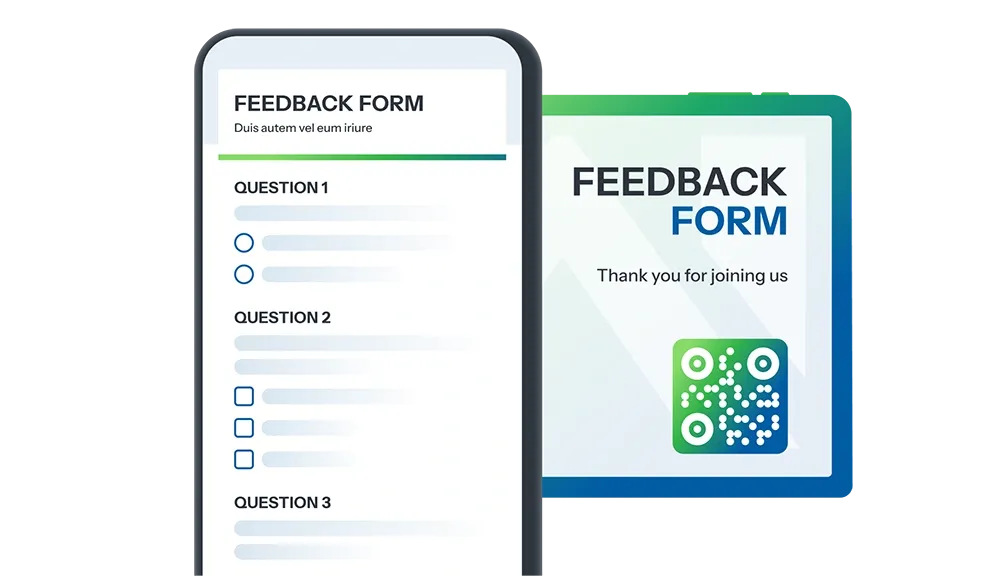
ការប្រមូលមតិយោបល់មិនដែលងាយស្រួលយ៉ាងនេះទេ!

កូដ QR ចែករំលែកការស្ទង់មតិអតិថិជន មតិយោបល់ព្រឹត្តិការណ៍ ការវាយតម្លៃសេវាកម្ម ការស្រាវជ្រាវទីផ្សារ ល។

បង្កើត QR កូដ
Game

ធ្វើអោយវាជារបស់អ្នក

ទីផ្សារ Minigame

រុករកបណ្ណាល័យហ្គេមតូចដ៏សម្បូរបែប ដែលបានអាប់ដេតជាប្រចាំ ដែលមានការពិតប្រាកដខ្ពស់សម្រាប់គ្រប់វិស័យ។

ប្រែក្លាយយុទ្ធនាការរបស់អ្នកទៅជាកន្លែងលេងហ្គេមដ៏រីករាយដើម្បីជំរុញការប្រព្រឹត្តិទំនាក់ទំនងនិងទាក់ទាញអតិថិជនជាមុនីយ៍។

រកមើល
Layout

ធ្វើអោយវាជារបស់អ្នក

ទីផ្សារចុះចត

រុករកបណ្ណាល័យព័ត៌មានបឋមការពារដ៏ច្រើនបែប ដែលអាចកែតម្រូវបាន ដែលបានបង្កើនលក្ខណៈពិសេសសម្រាប់គ្រប់វិស័យ។

ជ្រើសរើសការរចនាដ៏ល្អឥតខ្ចោះសម្រាប់គោលបំណងផ្សាយពាណិជ្ជកម្មនិងជំនួញរបស់អ្នក រួចបង្កើតកូដ QR ភ្លាមៗ។

រកមើល
អ្នកប្រើប្រាស់លាននាក់នៅទូទាំងពិភពលោកជឿជាក់លើបច្ចេកវិទ្យា QR កូដរបស់យើង
0M+

QR កូដ ត្រូវបានបង្កើតរួចរាល់

0+

ការប្រើប្រាស់ QR កូដ ទូទាំងពិភពលោក

0K+

ការវាយតម្លៃ

ស្វែងយល់ពីមុខងារអស្ចារ្យរបស់យើង

គ្រប់អ្វីដែលក្រុមរបស់អ្នកកំពុងស្វែងរក។

ភាពបត់បែនពិសេសរបស់ iCheckQR អាចបំពេញតម្រូវការកូដ QR ទាំងអស់របស់អ្នក។ យើងមិនដែលឈប់ប្រឹងប្រែងដើម្បីបំរើអ្នកបានល្អប្រសើរទេ។

វិភាគកូដ QR

តើអ្នកធ្លាប់ស្រមៃថាកូដ QR របស់អ្នកមានប្រសិទ្ធភាពដែរឬទេ?

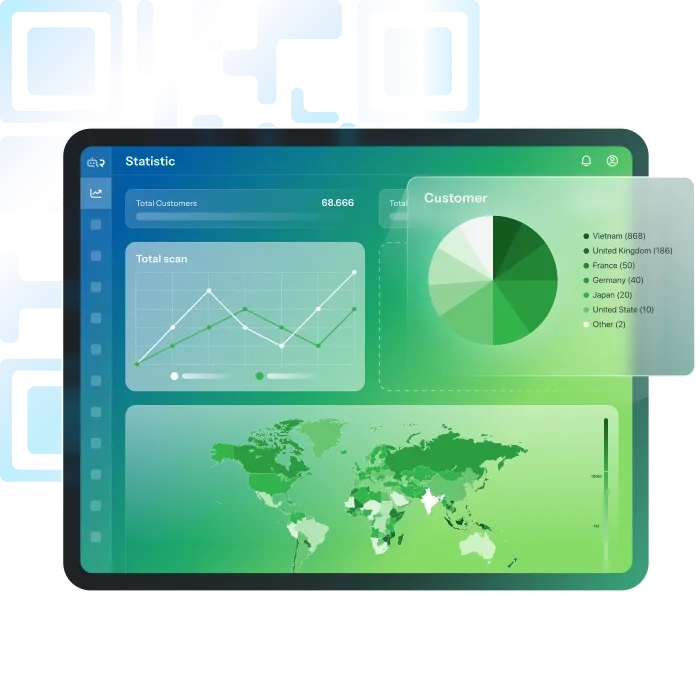
iCheckQR ផ្តល់នូវវិភាគការស្កេនលម្អិត រួមមាន:

  • ចំនួននៃការស្កេន
  • ពេលវេលា និងទីតាំងស្កេន
  • ឧបករណ៍ និងប្រព័ន្ធប្រតិបត្តិការ
  • ការប្រមូលទិន្នន័យអតិថិជន៖ ឈ្មោះ លេខទូរស័ព្ទ អាសយដ្ឋាន ការអាប់ដេតថ្មីៗ

អត្ថប្រយោជន៍៖

  • យល់ដឹងពីការប្រព្រឹត្តិទំនាក់ទំនងនិងឥរិយាបទអតិថិជន
  • វាស់វែង ROI និងបង្កើនយុទ្ធសាស្ត្រអាជីវកម្ម
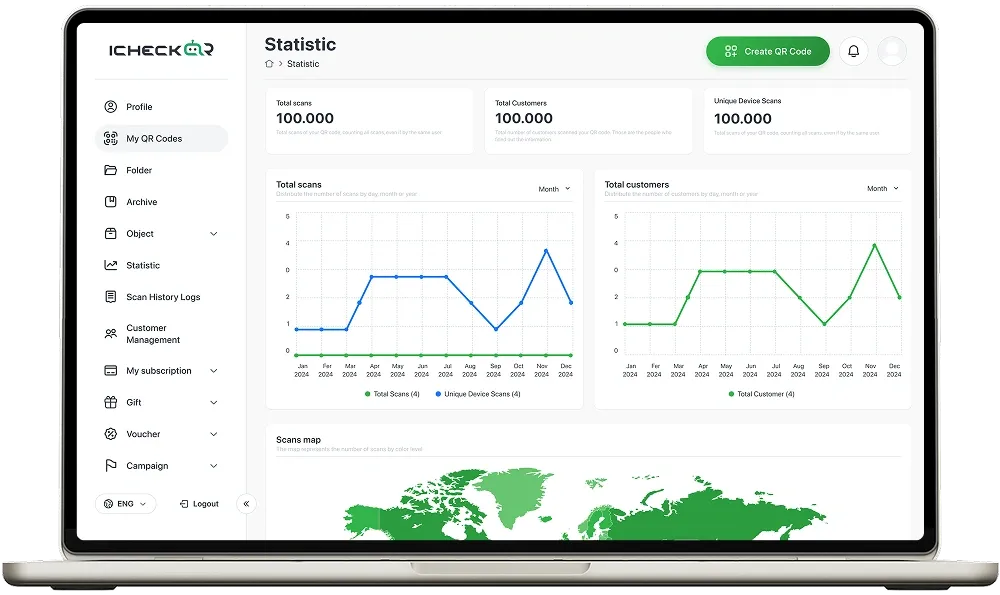
QR Code Analytics

ទុកចិត្តដោយក្រុមការងារគ្រប់ទំហំ

“ពិតជាអស់សំណើចជាមួយនឹងចំណុចប្រទាក់របស់ iCheckQR ដែលជាសេរីភាព។ ការប្ដូរតាមបំណង QR code របស់ខ្ញុំគឺជាការងាយស្រួល។”

Gareth Pronovost

Gareth Pronovost

អ្នកប្រឹក្សាអំពីការបង្កើនប្រសិទ្ធភាព

“កូដ QR ចុងក្រោយពី iCheckQR ស្កេនបានរហ័ស ហើយមើលទៅស្អាតលើសម្ភារៈទីផ្សាររបស់ខ្ញុំ។”

Richard Chamberlain

Richard Chamberlain

ទីប្រឹក្សាអូតូម៉ាទិច

“រហ័ស និងមានប្រសិទ្ធភាព! iCheck បានធ្វើឱ្យការបង្កើត QR កូដក្លាយជាងាយស្រួល និងសាមញ្ញ។”

An R Beevers

An R Beevers

ទីប្រឹក្សាអូតូម៉ាទិច

“ខ្ញុំស្រឡាញ់ជម្រើសរចនាផ្សេងៗលើ iCheckQR! វាជួយឱ្យកូដ QR របស់ខ្ញុំបង្ហាញខ្លួនបានល្អ។”

Emma Ford

Emma Ford

ជំនួយការលក់

“iCheckQR មានតម្លៃសមរម្យ និងមានប្រសិទ្ធភាព។ ល្អសម្រាប់អាជីវកម្មតូចៗដែលត្រូវការដំណោះស្រាយ QR ដោយរហ័ស។”

Robert Powers

Robert Powers

ក្រុមអ្នកកែសម្រួល

“ខ្ញុំមានបញ្ហាក្នុងការទាញយក QR ប៉ុន្តែសេវាអតិថិជនបានជួយយ៉ាងរហ័ស។ គាំទ្រល្អណាស់!”

Charles Pringle

Charles Pringle

អ្នកគូរ

“ពិតជាអស់សំណើចជាមួយនឹងចំណុចប្រទាក់របស់ iCheckQR ដែលជាសេរីភាព។ ការប្ដូរតាមបំណង QR code របស់ខ្ញុំគឺជាការងាយស្រួល។”

Gareth Pronovost

Gareth Pronovost

អ្នកប្រឹក្សាអំពីការបង្កើនប្រសិទ្ធភាព

“កូដ QR ចុងក្រោយពី iCheckQR ស្កេនបានរហ័ស ហើយមើលទៅស្អាតលើសម្ភារៈទីផ្សាររបស់ខ្ញុំ។”

Richard Chamberlain

Richard Chamberlain

ទីប្រឹក្សាអូតូម៉ាទិច

“រហ័ស និងមានប្រសិទ្ធភាព! iCheck បានធ្វើឱ្យការបង្កើត QR កូដក្លាយជាងាយស្រួល និងសាមញ្ញ។”

An R Beevers

An R Beevers

ទីប្រឹក្សាអូតូម៉ាទិច

“ខ្ញុំស្រឡាញ់ជម្រើសរចនាផ្សេងៗលើ iCheckQR! វាជួយឱ្យកូដ QR របស់ខ្ញុំបង្ហាញខ្លួនបានល្អ។”

Emma Ford

Emma Ford

ជំនួយការលក់

“iCheckQR មានតម្លៃសមរម្យ និងមានប្រសិទ្ធភាព។ ល្អសម្រាប់អាជីវកម្មតូចៗដែលត្រូវការដំណោះស្រាយ QR ដោយរហ័ស។”

Robert Powers

Robert Powers

ក្រុមអ្នកកែសម្រួល

“ខ្ញុំមានបញ្ហាក្នុងការទាញយក QR ប៉ុន្តែសេវាអតិថិជនបានជួយយ៉ាងរហ័ស។ គាំទ្រល្អណាស់!”

Charles Pringle

Charles Pringle

អ្នកគូរ

“ពិតជាអស់សំណើចជាមួយនឹងចំណុចប្រទាក់របស់ iCheckQR ដែលជាសេរីភាព។ ការប្ដូរតាមបំណង QR code របស់ខ្ញុំគឺជាការងាយស្រួល។”

Gareth Pronovost

Gareth Pronovost

អ្នកប្រឹក្សាអំពីការបង្កើនប្រសិទ្ធភាព

“កូដ QR ចុងក្រោយពី iCheckQR ស្កេនបានរហ័ស ហើយមើលទៅស្អាតលើសម្ភារៈទីផ្សាររបស់ខ្ញុំ។”

Richard Chamberlain

Richard Chamberlain

ទីប្រឹក្សាអូតូម៉ាទិច

“រហ័ស និងមានប្រសិទ្ធភាព! iCheck បានធ្វើឱ្យការបង្កើត QR កូដក្លាយជាងាយស្រួល និងសាមញ្ញ។”

An R Beevers

An R Beevers

ទីប្រឹក្សាអូតូម៉ាទិច

“ខ្ញុំស្រឡាញ់ជម្រើសរចនាផ្សេងៗលើ iCheckQR! វាជួយឱ្យកូដ QR របស់ខ្ញុំបង្ហាញខ្លួនបានល្អ។”

Emma Ford

Emma Ford

ជំនួយការលក់

“iCheckQR មានតម្លៃសមរម្យ និងមានប្រសិទ្ធភាព។ ល្អសម្រាប់អាជីវកម្មតូចៗដែលត្រូវការដំណោះស្រាយ QR ដោយរហ័ស។”

Robert Powers

Robert Powers

ក្រុមអ្នកកែសម្រួល

“ខ្ញុំមានបញ្ហាក្នុងការទាញយក QR ប៉ុន្តែសេវាអតិថិជនបានជួយយ៉ាងរហ័ស។ គាំទ្រល្អណាស់!”

Charles Pringle

Charles Pringle

អ្នកគូរ

“ពិតជាអស់សំណើចជាមួយនឹងចំណុចប្រទាក់របស់ iCheckQR ដែលជាសេរីភាព។ ការប្ដូរតាមបំណង QR code របស់ខ្ញុំគឺជាការងាយស្រួល។”

Gareth Pronovost

Gareth Pronovost

អ្នកប្រឹក្សាអំពីការបង្កើនប្រសិទ្ធភាព

“កូដ QR ចុងក្រោយពី iCheckQR ស្កេនបានរហ័ស ហើយមើលទៅស្អាតលើសម្ភារៈទីផ្សាររបស់ខ្ញុំ។”

Richard Chamberlain

Richard Chamberlain

ទីប្រឹក្សាអូតូម៉ាទិច

“រហ័ស និងមានប្រសិទ្ធភាព! iCheck បានធ្វើឱ្យការបង្កើត QR កូដក្លាយជាងាយស្រួល និងសាមញ្ញ។”

An R Beevers

An R Beevers

ទីប្រឹក្សាអូតូម៉ាទិច

“ខ្ញុំស្រឡាញ់ជម្រើសរចនាផ្សេងៗលើ iCheckQR! វាជួយឱ្យកូដ QR របស់ខ្ញុំបង្ហាញខ្លួនបានល្អ។”

Emma Ford

Emma Ford

ជំនួយការលក់

“iCheckQR មានតម្លៃសមរម្យ និងមានប្រសិទ្ធភាព។ ល្អសម្រាប់អាជីវកម្មតូចៗដែលត្រូវការដំណោះស្រាយ QR ដោយរហ័ស។”

Robert Powers

Robert Powers

ក្រុមអ្នកកែសម្រួល

“ខ្ញុំមានបញ្ហាក្នុងការទាញយក QR ប៉ុន្តែសេវាអតិថិជនបានជួយយ៉ាងរហ័ស។ គាំទ្រល្អណាស់!”

Charles Pringle

Charles Pringle

អ្នកគូរ

“ពិតជាអស់សំណើចជាមួយនឹងចំណុចប្រទាក់របស់ iCheckQR ដែលជាសេរីភាព។ ការប្ដូរតាមបំណង QR code របស់ខ្ញុំគឺជាការងាយស្រួល។”

Gareth Pronovost

Gareth Pronovost

អ្នកប្រឹក្សាអំពីការបង្កើនប្រសិទ្ធភាព

“កូដ QR ចុងក្រោយពី iCheckQR ស្កេនបានរហ័ស ហើយមើលទៅស្អាតលើសម្ភារៈទីផ្សាររបស់ខ្ញុំ។”

Richard Chamberlain

Richard Chamberlain

ទីប្រឹក្សាអូតូម៉ាទិច

“រហ័ស និងមានប្រសិទ្ធភាព! iCheck បានធ្វើឱ្យការបង្កើត QR កូដក្លាយជាងាយស្រួល និងសាមញ្ញ។”

An R Beevers

An R Beevers

ទីប្រឹក្សាអូតូម៉ាទិច

“ខ្ញុំស្រឡាញ់ជម្រើសរចនាផ្សេងៗលើ iCheckQR! វាជួយឱ្យកូដ QR របស់ខ្ញុំបង្ហាញខ្លួនបានល្អ។”

Emma Ford

Emma Ford

ជំនួយការលក់

“iCheckQR មានតម្លៃសមរម្យ និងមានប្រសិទ្ធភាព។ ល្អសម្រាប់អាជីវកម្មតូចៗដែលត្រូវការដំណោះស្រាយ QR ដោយរហ័ស។”

Robert Powers

Robert Powers

ក្រុមអ្នកកែសម្រួល

“ខ្ញុំមានបញ្ហាក្នុងការទាញយក QR ប៉ុន្តែសេវាអតិថិជនបានជួយយ៉ាងរហ័ស។ គាំទ្រល្អណាស់!”

Charles Pringle

Charles Pringle

អ្នកគូរ

“ងាយស្រួល និងបត់បែន។ ងាយស្រួលក្នុងការបង្កើត QR កូដយ៉ាងរហ័ស។ វាជាឧបករណ៍មានតម្លៃសម្រាប់ទាំងបុគ្គល និងអាជីវកម្ម។”

Markus Müller

Markus Müller

អ្នកបកប្រែ

“វេទិកានេះអនុញ្ញាតឱ្យមានការប្ដូរតាមបំណងខ្ពស់ ដែលអនុញ្ញាតឱ្យអ្នកប្រើបង្កើត QR កូដដែលសមរម្យនឹងរចនាបថម៉ាករបស់ពួកគេ។”

Nora Ingalls

Nora Ingalls

សេវាអតិថិជន

“គាំទ្រប្រភេទ QR កូដជាច្រើន រួមទាំង URL, ព័ត៌មានទំនាក់ទំនង និងការតភ្ជាប់ WiFi។”

Linda Pronovost

Linda Pronovost

នាយកធនាគារ

“ជាមួយផែនការចំណាយសមរម្យរបស់ខ្លួន iCheckQR ផ្តល់តម្លៃល្អសម្រាប់អាជីវកម្មតូចៗ។”

Henry Halley

Henry Halley

អ្នករចនាផ្នែក UX/UI

“QR កូដត្រូវបានបង្កើតជាគុណភាពខ្ពស់ ដើម្បីធានាថាអាចស្កេនបានយ៉ាងងាយស្រួល។”

Paul McKellen

Paul McKellen

គ្រូបង្រៀន

“សេវាអតិថិជនឆាប់រហ័ស និងមានប្រសិទ្ធភាព ដោះស្រាយបញ្ហាបានយ៉ាងមានប្រសិទ្ធភាព។”

Sara Bartholomew

Sara Bartholomew

អ្នករៀបចំព្រឹត្តិការណ៍

“ងាយស្រួល និងបត់បែន។ ងាយស្រួលក្នុងការបង្កើត QR កូដយ៉ាងរហ័ស។ វាជាឧបករណ៍មានតម្លៃសម្រាប់ទាំងបុគ្គល និងអាជីវកម្ម។”

Markus Müller

Markus Müller

អ្នកបកប្រែ

“វេទិកានេះអនុញ្ញាតឱ្យមានការប្ដូរតាមបំណងខ្ពស់ ដែលអនុញ្ញាតឱ្យអ្នកប្រើបង្កើត QR កូដដែលសមរម្យនឹងរចនាបថម៉ាករបស់ពួកគេ។”

Nora Ingalls

Nora Ingalls

សេវាអតិថិជន

“គាំទ្រប្រភេទ QR កូដជាច្រើន រួមទាំង URL, ព័ត៌មានទំនាក់ទំនង និងការតភ្ជាប់ WiFi។”

Linda Pronovost

Linda Pronovost

នាយកធនាគារ

“ជាមួយផែនការចំណាយសមរម្យរបស់ខ្លួន iCheckQR ផ្តល់តម្លៃល្អសម្រាប់អាជីវកម្មតូចៗ។”

Henry Halley

Henry Halley

អ្នករចនាផ្នែក UX/UI

“QR កូដត្រូវបានបង្កើតជាគុណភាពខ្ពស់ ដើម្បីធានាថាអាចស្កេនបានយ៉ាងងាយស្រួល។”

Paul McKellen

Paul McKellen

គ្រូបង្រៀន

“សេវាអតិថិជនឆាប់រហ័ស និងមានប្រសិទ្ធភាព ដោះស្រាយបញ្ហាបានយ៉ាងមានប្រសិទ្ធភាព។”

Sara Bartholomew

Sara Bartholomew

អ្នករៀបចំព្រឹត្តិការណ៍
“ងាយស្រួល និងបត់បែន។ ងាយស្រួលក្នុងការបង្កើត QR កូដយ៉ាងរហ័ស។ វាជាឧបករណ៍មានតម្លៃសម្រាប់ទាំងបុគ្គល និងអាជីវកម្ម។”

Markus Müller

Markus Müller

អ្នកបកប្រែ

“វេទិកានេះអនុញ្ញាតឱ្យមានការប្ដូរតាមបំណងខ្ពស់ ដែលអនុញ្ញាតឱ្យអ្នកប្រើបង្កើត QR កូដដែលសមរម្យនឹងរចនាបថម៉ាករបស់ពួកគេ។”

Nora Ingalls

Nora Ingalls

សេវាអតិថិជន

“គាំទ្រប្រភេទ QR កូដជាច្រើន រួមទាំង URL, ព័ត៌មានទំនាក់ទំនង និងការតភ្ជាប់ WiFi។”

Linda Pronovost

Linda Pronovost

នាយកធនាគារ

“ជាមួយផែនការចំណាយសមរម្យរបស់ខ្លួន iCheckQR ផ្តល់តម្លៃល្អសម្រាប់អាជីវកម្មតូចៗ។”

Henry Halley

Henry Halley

អ្នករចនាផ្នែក UX/UI

“QR កូដត្រូវបានបង្កើតជាគុណភាពខ្ពស់ ដើម្បីធានាថាអាចស្កេនបានយ៉ាងងាយស្រួល។”

Paul McKellen

Paul McKellen

គ្រូបង្រៀន

“សេវាអតិថិជនឆាប់រហ័ស និងមានប្រសិទ្ធភាព ដោះស្រាយបញ្ហាបានយ៉ាងមានប្រសិទ្ធភាព។”

Sara Bartholomew

Sara Bartholomew

អ្នករៀបចំព្រឹត្តិការណ៍

“ងាយស្រួល និងបត់បែន។ ងាយស្រួលក្នុងការបង្កើត QR កូដយ៉ាងរហ័ស។ វាជាឧបករណ៍មានតម្លៃសម្រាប់ទាំងបុគ្គល និងអាជីវកម្ម។”

Markus Müller

Markus Müller

អ្នកបកប្រែ

“វេទិកានេះអនុញ្ញាតឱ្យមានការប្ដូរតាមបំណងខ្ពស់ ដែលអនុញ្ញាតឱ្យអ្នកប្រើបង្កើត QR កូដដែលសមរម្យនឹងរចនាបថម៉ាករបស់ពួកគេ។”

Nora Ingalls

Nora Ingalls

សេវាអតិថិជន

“គាំទ្រប្រភេទ QR កូដជាច្រើន រួមទាំង URL, ព័ត៌មានទំនាក់ទំនង និងការតភ្ជាប់ WiFi។”

Linda Pronovost

Linda Pronovost

នាយកធនាគារ

“ជាមួយផែនការចំណាយសមរម្យរបស់ខ្លួន iCheckQR ផ្តល់តម្លៃល្អសម្រាប់អាជីវកម្មតូចៗ។”

Henry Halley

Henry Halley

អ្នករចនាផ្នែក UX/UI

“QR កូដត្រូវបានបង្កើតជាគុណភាពខ្ពស់ ដើម្បីធានាថាអាចស្កេនបានយ៉ាងងាយស្រួល។”

Paul McKellen

Paul McKellen

គ្រូបង្រៀន

“សេវាអតិថិជនឆាប់រហ័ស និងមានប្រសិទ្ធភាព ដោះស្រាយបញ្ហាបានយ៉ាងមានប្រសិទ្ធភាព។”

Sara Bartholomew

Sara Bartholomew

អ្នករៀបចំព្រឹត្តិការណ៍

“ងាយស្រួល និងបត់បែន។ ងាយស្រួលក្នុងការបង្កើត QR កូដយ៉ាងរហ័ស។ វាជាឧបករណ៍មានតម្លៃសម្រាប់ទាំងបុគ្គល និងអាជីវកម្ម។”

Markus Müller

Markus Müller

អ្នកបកប្រែ

“វេទិកានេះអនុញ្ញាតឱ្យមានការប្ដូរតាមបំណងខ្ពស់ ដែលអនុញ្ញាតឱ្យអ្នកប្រើបង្កើត QR កូដដែលសមរម្យនឹងរចនាបថម៉ាករបស់ពួកគេ។”

Nora Ingalls

Nora Ingalls

សេវាអតិថិជន

“គាំទ្រប្រភេទ QR កូដជាច្រើន រួមទាំង URL, ព័ត៌មានទំនាក់ទំនង និងការតភ្ជាប់ WiFi។”

Linda Pronovost

Linda Pronovost

នាយកធនាគារ

“ជាមួយផែនការចំណាយសមរម្យរបស់ខ្លួន iCheckQR ផ្តល់តម្លៃល្អសម្រាប់អាជីវកម្មតូចៗ។”

Henry Halley

Henry Halley

អ្នករចនាផ្នែក UX/UI

“QR កូដត្រូវបានបង្កើតជាគុណភាពខ្ពស់ ដើម្បីធានាថាអាចស្កេនបានយ៉ាងងាយស្រួល។”

Paul McKellen

Paul McKellen

គ្រូបង្រៀន

“សេវាអតិថិជនឆាប់រហ័ស និងមានប្រសិទ្ធភាព ដោះស្រាយបញ្ហាបានយ៉ាងមានប្រសិទ្ធភាព។”

Sara Bartholomew

Sara Bartholomew

អ្នករៀបចំព្រឹត្តិការណ៍

iCheck QR Mobile
Zalo Private Group QR Codes 2026: 10+ Trusted Groups You Can Join Now

Zalo Private Group QR Codes 2026: 10+ Trusted Groups You Can Join Now

Are you looking for QR codes to join private Zalo groups? Many Zalo private groups do not appear in public search results, so the fastest way to join is by scanning a QR code shared by an admin or a trusted source. This article provides a list of over 10 reliable Zalo private group QR codes currently being shared across various platforms.Additionally, iCheckQR will guide you on how to create or retrieve your own Zalo private group QR code, and explain how QR codes work along with their security features.Generate free QR codes1. What Is a Zalo Private Group QR Code?A Zalo private group QR code allows users to send a join request to a group set to private mode. These groups do not allow strangers to join directly; even with the QR code, users must wait for admin approval.Why do many people look for Zalo private group QR codes?Easy to share but still secure: Admins can share the QR code with intended members without making the group public.Lower risk of link exposure: QR codes are harder to copy and spread randomly compared to text-based links.Fast and convenient: Users simply scan the code without going through multiple steps.Suitable for sensitive or private groups: such as VIP groups, internal company groups, or community subgroups.2. List of Active, Policy-Compliant Zalo Private Group QR CodesLearning & Knowledge - Sharing CommunitiesMarketing / Communications / Media GroupLink: https://zalo.me/g/mqqcdm838Created by JobUp—an organization specializing in job search solutions and labor market insights. The group frequently shares knowledge and job opportunities in marketing, communications, and media.Parents & Students GroupLink: https://zalo.me/g/peserj482Run by a popular educational TikTok channel with over 100,000 followers. It regularly shares study materials and exam resources for national high school exams.Link: https://zalo.me/g/kichdf395Created by the Facebook page “Hương Thảo” with over 77,000 followers, providing free study materials for students of all levels.Link: https://zalo.me/g/zkjqur911This group is operated by Galaxy Education—one of the leading education companies in Vietnam. It offers a wide range of resources for primary school students and parents.Design GroupLink: https://zalo.me/g/iacjeo526Created by Winde Design, known for its active Facebook communities including one with nearly 70,000 members. Admins frequently share templates, fonts, and design resources.Business & Trusted Wholesale GroupsLink: https://zalo.me/g/rhlwim858Managed by Minh Huệ Wholesale—featured on several large wholesale websites. The group supplies women’s accessories at competitive prices.Community Support GroupsHousing & Rental SupportLink: https://zalo.me/g/bcrvko872For people searching for rental rooms in Hanoi. Created by Long Phạm, who has years of experience in the rental market. The group shares verified room listings, images, addresses, and prices.RecruitmentLink: https://zalo.me/g/qfzawa329A recruitment group focused on graphic design and creative-related jobs. Managed by Lương Thế Vinh, who has many years of experience across various fields.Deals & Coupon SharingLink: https://zalo.me/g/qzjetz291A group specializing in discount codes, low-price deals, and Shopee coin-hunting events. Created by Viết Linh, admin of a Facebook deals group with over 66,000 members.Link: https://zalo.me/g/xgfloj248Another trusted group offering verified discount codes and great deals. Managed by Nguyễn Hiền Diệu Linh, whose Facebook group has over 150,000 members.3. How to Create or Retrieve a Zalo Private Group QR CodeFor Admins: How to Get Your Zalo Private Group QR CodeStep 1: Open your group → Select Menu.Step 2: Tap Community Link.Step 3: Choose Download or Copy QR Code.Tips to prevent your group QR code from leaking:Share the QR code only in moderator or approval groups.Prefer using QR codes with expiration dates.Delete or regenerate the QR code once the group reaches its intended member count.How to Create a QR Code If Your Group Doesn’t Provide One AutomaticallyIf no QR code is shown, copy the group invite link and convert it into a QR code using a generator like iCheckQR.In addition, you can check out the detailed guide on how to create a Zalo QR code to generate invitation codes quickly and correctly, compatible with both computers and mobile devices.4. 5 reliable ways to find Zalo private group QR codes in 2026Since Zalo does not allow users to search for private groups by keywords, the only way is through shared links or QR codes.Method 1: Get the QR Code from the Group’s Official ChannelsTrusted communities often share their QR codes on:Official websites or fanpagesOfficial Facebook groupsTelegram channels or forumsThis is the safest option since the QR codes come directly from admins.Method 2: Ask Friends or Existing MembersIf someone you know is already in the group, ask them for the join link or QR code. Benefits:Guaranteed authenticityNo risk of fake groupsHigher chance of admin approvalNote: Admin approval is still required.Method 3: Look for QR Codes Shared in Larger Public GroupsMany large public communities share QR codes for their smaller sub-groups in:Pinned postsHighlighted messagesAnnouncement sectionsMethod 4: Get QR Codes from Workshops, Webinars, or Online EventsZoom classes, workshops, and webinars often share support-group QR codes at the end of events or via registration emails.Method 5: Create Your Own QR Code as an AdminUse professional QR tools like iCheckQR to:Generate QR codes from group linksAdd colors or logosExport high-quality PNG/SVG files5. Are Free Zalo Private Group QR Codes Safe?Zalo private group QR codes are generally safe, but security depends on how admins share and manage them.Potential Risks:Strangers entering to spam or disruptInformation leaksFake or inactive accounts joiningHow to Keep Groups Secure:Enable member approvalRestrict QR code visibilityUse QR codes with expirationDelete or reset QR codes when the group is fullDo NOT use QR codes for sensitive groups such as:Internal company groupsGroups containing confidential dataCustomer-care groups with personal informationConclusionZalo private group QR codes help you invite members quickly while maintaining secure and flexible control over group access. To keep your group safe from spam or unwanted users, always enable member approval and manage your QR codes regularly.For admins who want professional, customizable QR codes, iCheckQR provides a secure, free, and easy-to-use QR code generator without exposing your data.

6 Simple and Easy Ways to Create a Zalo QR Code

6 Simple and Easy Ways to Create a Zalo QR Code

Do you want to create a Zalo QR Code to add friends, invite members to a group, share documents, or promote your business’s Zalo Official Account (OA)? A Zalo QR Code is exactly the tool you need to get it all done quickly and effortlessly. Let’s explore with iCheckQR 6 detailed, easy, and completely free ways to create your own Zalo QR Code below.1. Overview of the Zalo QR CodeA Zalo QR Code is a unique identifier created for each Zalo account — whether it’s a personal account, group, or Zalo Official Account (OA). When someone scans this code, they can instantly add friends, send messages, share documents, or join a Zalo group without having to manually enter a phone number.For businesses, the Zalo QR Code is an effective marketing tool — it can be printed on packaging, posters, or standees, or shared on social media so that customers can easily access your OA, follow updates, products, and promotions.2. 6 Simple and Effective Ways to Create a Zalo QR CodeCreate a Personal Zalo QR Code EasilyDo you want to add friends, chat, or share your personal Zalo account within seconds? Below is how to get your own Zalo QR Code quickly, simply, and completely free. With just a few steps, you’ll have your personal Zalo QR Code ready to share with friends, partners, or customers.Steps to follow:Step 1: Open the Zalo app → tap the QR code icon on the right side of the screen.Step 2: Select “My QR Code” to display your personal QR.Step 3: After customizing the title and color, tap “Share” or “Save.”Just a few simple steps, and you’ll have your own Zalo QR Code ready to use.Besides Zalo QR codes, you can also use this QR code generator to create codes for many other types of content.Create a Zalo Group QR Code QuicklyA Zalo group QR Code is the easiest way to add members to a chat group, study group, or sales group without sending manual invite links. Users only need to scan the code to join immediately — saving time and adding professionalism when managing a community.Steps to follow:Step 1: Open the Zalo group you want to share.Step 2: Tap the menu icon (☰).Step 3: Select “Group Link.”Step 4: Tap “Copy,” “Share,” or “Save QR Code” to send it to others.With this method, you can get your group’s Zalo QR Code anytime, anywhere — allowing others to connect instantly, much faster than entering a phone number.Create a Zalo QR Code for Documents AccuratelyInstead of sending files manually, turn your documents into a convenient QR code in just a few seconds. Below is a detailed guide on how to create a Zalo QR code for documents quickly and accurately.Steps to follow:Step 1: Visit qr.zalo.me.Step 2: Paste the document link you want to generate a QR code for into the “Enter website link” box.Step 3: Customize your QR code, then click “Download” or “Copy.”If you want to create a more accurate and branded QR code for your documents, try iCheckQR — a tool that allows you to customize colors, add your logo, and download your QR code in high-quality PNG or PDF formats.You can create QR codes for various types of documents directly on iCheckQR, including: PDF QR Code – Easily share PDF files such as reports, manuals, or study materials. File QR Code – Upload and share any type of file with just one scan. PPTX QR Code – Turn your PowerPoint presentation into an accessible online link. Google Sheets QR Code – Conveniently share spreadsheets or online data. Google Forms QR Code – Instantly share surveys or collect responses with ease. Google Docs QR Code – Share documents online so others can view or download them easily.Create a Zalo QR Code on Desktop ConvenientlyWorking on a computer and want to create a Zalo QR Code quickly without using your phone? Zalo Web provides a direct QR creation tool, helping you easily share website links or personal information with just a few clicks — perfect for office workers, marketers, or businesses.Steps to follow:Step 1: Visit qr.zalo.me.Step 2: Paste the website link you want to generate a QR code for into the “Enter website link” box.Step 3: Customize your QR code, then click “Download” or “Copy.”Additionally, you can visit the QR code generator for links by iCheckQR to create Zalo QR codes on desktop easily, with advanced customization options such as adding logos, colors, and branded borders.Create a Zalo QR Code by Phone Number EasilyThis is the fastest way to generate a Zalo QR Code using your phone number — allowing others to add or contact you with a single scan, without memorizing or typing your number.It’s ideal for online sellers or anyone who frequently communicates via Zalo.Steps to follow:Step 1: Visit https://icheckqr.com/vi/qrcode/Phone.Step 2: Enter your phone number.Step 3: Customize your QR’s color, logo, and frame, then click “Create QR Code.”Create a Zalo OA (Official Account) QR Code for BusinessesFor businesses, stores, or brands, creating a Zalo OA QR Code is an essential step in marketing campaigns. The QR Code helps customers easily access your OA page, follow products, and receive promotions — especially effective when printed on packaging, standees, or social media posts.Steps to follow:Step 1: Open Zalo OA Manager (on web or app).Step 2: Select “OA Information” → “OA QR Code.”Step 3: The QR code will appear — download it or add your logo before printing.3. Common Errors & How to Fix ThemError 1: Scanning the Zalo QR code doesn’t display information.Recreate the QR code with higher resolution or take a clearer photo under good lighting.Error 2: Zalo group QR code is no longer valid.The group was deleted or the invite link was changed. Go back to the group → select “Group QR Code” to generate a new one.Error 3: QR code created by phone number doesn’t link to the Zalo account.Double-check the phone number before creating. The error may be due to incorrect syntax or an unregistered Zalo number.Error 4: QR code looks broken when printed or shared online.Download the QR code from iCheckQR in PNG or PDF format and avoid resizing it too small.4. FAQIs creating a Zalo QR Code free?Yes. You can create a Zalo QR Code for free directly on the Zalo app or through tools like iCheckQR.Do Zalo QR Codes expire?No. Zalo personal, group, or OA QR Codes have no expiration date and remain active as long as the account exists.Can I change the content of a Zalo QR Code after it’s created?Not with a static QR Code. If you want to edit the link without generating a new code, use a dynamic QR on iCheckQR.Can I manage multiple Zalo QR Codes at once?Yes. With Zalo OA or professional QR creation tools, you can create and store multiple QR Codes for easy management.ConclusionNow you know 6 quick and easy ways to create a Zalo QR Code — for personal accounts, Zalo groups, documents, OA pages, or even by phone number and desktop. Each method helps you connect, communicate, and promote more efficiently and professionally.Visit iCheckQR today to create professional, secure, and easy-to-use Zalo QR Codes for your personal or business needs!

How to Create Code 128 Barcodes in Excel: A Detailed Guide

How to Create Code 128 Barcodes in Excel: A Detailed Guide

Want to generate Code 128 barcodes quickly without using specialized software? With just Excel, you can easily generate Code 128 barcodes using fonts, VBA, or add-ins.In this article, iCheckQR provides a step-by-step guide on how to create Code 128 barcodes in Excel, suitable for inventory management, label printing, stocktaking, sales, and more.1. Why Create Code 128 in Excel?Excel is a familiar tool, ideal for managing and printing barcode labels. It's commonly used in inventory management, product labeling, and tracking goods. The simple spreadsheet interface makes it easy to handle large datasets without requiring deep technical knowledge.Key Advantages:Generate barcodes in bulk quickly: Just by using formulas or add-ins, you can automatically create multiple Code 128 barcodes for product batches.Easy to use: No need to install complex software. Basic Excel skills are sufficient.Cost-saving: Using Excel reduces software investment costs, especially useful for small businesses or individuals needing to print simple product labels.Some standout advantages of using Excel to create Code 128 barcodes2. Methods to Create Code 128 Barcodes in ExcelOne of the most common and straightforward methods is to use a barcode font. This doesn’t require any specialized software and can be done right in Excel with a few basic configuration steps.Method 1: Use Barcode Font to Create Code 128 in Excel (Most Popular)To convert data into Code 128 barcodes in Excel, follow these steps:Step 1: Download and install Code 128 fontVisit https://www.dafont.com/code-128.font to download the free Code 128 font.After downloading, double-click the .ttf file and click Install to add the font to your system.Step 2: Open Excel and enter dataOpen Excel.Enter the numeric string you want to convert into a barcode.Step 3: Convert to barcode by selecting the fontHighlight the entered data.Select the Code 128 font from the font list.Instantly, the content will appear as a Code 128 barcode.Illustration of creating Code 128 using barcode font in ExcelNote:Code 128 fonts work best when data is encoded according to the standard. Some fonts may require additional start/stop characters or checksums to scan correctly.For advanced needs, consider using dedicated barcode software/tools to automate encoding.For a quicker and easier option, you can use the online barcode generator to create Code 128 barcodes online without installing fonts or add-ins.Method 2: Use VBA Macro to Automatically Create Code 128If you’re working with large datasets, need automation, or require complex logic, using VBA macros in Excel is more efficient than using basic formulas.Simple Steps:Step 1: Install Code 128 fontDownload “Code128.ttf” from the internet (Google: “Code 128 font free download”). Right-click the .ttf file → click Install.Step 2: Open the VBA editorOpen your Excel file.Press Alt + F11 to open the VBA editor (or go to the Developer tab → click Visual Basic).Click Insert → Module.Paste this code:Function EncodeCode128(inputStr As String) As String    ' Add start/stop characters to encode properly with Code128 font    EncodeCode128 = Chr(204) & inputStr & Chr(206)End FunctionPress Ctrl + S to save. Save the file as .xlsm to enable macros.IllustrationStep 3: Create barcode in ExcelExample: Column A contains product codes (e.g., A2 = SP001)In cell B2, enter the formula: =EncodeCode128(A2) → Excel will display a special string for barcode generation.Step 4: Change font to display the barcodeSelect the cell with the formula (e.g., B2).Change the font to Code 128.Increase the font size if needed (16–20 pt for better visibility). You’ll see the string become a scannable barcode.Reminder:You only need to install the font and paste the VBA code once.If Excel gives a security warning, click Enable Content to activate the macro.Method 3: Use Add-ins or External Tools (Optional)Besides using fonts or VBA, you can also use specialized add-ins or external tools integrated with Excel to create Code 128 barcodes more conveniently and visually.Barcode-generating add-ins:IDAutomation Barcode Add-In for Excel: User-friendly toolbar interface, supports formats like Code 128, Code 39, QR Code, etc.TBarCode Office (by TEC-IT): A powerful add-in that integrates with Excel and Word, supporting 100+ barcode types including Code 128, DataMatrix, PDF417...Web interface for barcode creation on TEC-ITAdvantages:Easy to use: No need for VBA or font knowledge. Just install and select the barcode type from the add-in menu.Supports various barcode types: Not just Code 128, but also EAN, UPC, GS1, QR Code, etc.User-friendly interface: Integrated directly into Excel, works smoothly with spreadsheet data.Disadvantages:May require payment: Some add-ins are limited trial versions and need a license for full features.External installation needed: Must download and install from the provider, which might not be feasible on restricted computers.Summary: Using add-ins or external tools is ideal for businesses or individuals who frequently generate various barcode types and want quick actions without deep Excel involvement. However, balance convenience against licensing costs when choosing a tool.3. Common Errors and Fixes When Creating Code 128 in ExcelWhile creating and using Code 128 barcodes in Excel, you may encounter several common issues. Here's a list of common errors and how to fix them:Barcode not scannableCauses:Missing start or stop characters in the encoded string.Incorrect or unsupported barcode font.Fixes:Ensure the barcode string includes appropriate start/stop characters like CHAR(204) and CHAR(206) when using Code128.ttf.Double-check that the correct font is installed and applied in the cell.Illustration: Barcode not scannableBarcode font not showing in ExcelCauses:Font not installed properly.Excel hasn't recognized the font after installation.Fixes:Verify that the font is successfully installed in your OS (Windows/macOS).Restart Excel after installing the font.Ensure you're selecting the correct font name (e.g., “Code 128” or “IDAutomationC128L”).Text appears instead of barcodeCauses:Cells still use default fonts like Calibri, Arial...Barcode font not applied to result cells.Fixes:Select the cells with the barcode string → change to the installed barcode font.Check that the formula or VBA is generating the correct encoded string.Scanner not recognizing barcodeCauses:Barcode too small, blurry, or distorted due to incorrect font size or printing.Inaccurate spacing between bars.Incorrectly formatted Code 128 string.Fixes:Increase font size (typically 20pt+ for Code 128).Align properly and avoid cutting barcode edges.Check that input string and formula conform to Code 128 standards.Illustration: Scanner not reading the barcodeTip: Before mass printing, test scan with a mobile app or actual scanner to ensure the barcode works properly.4. Frequently Asked Questions About Creating Code 128 in ExcelCan I create Code 128 in Excel without VBA?Yes. You can absolutely create Code 128 barcodes in Excel using only barcode fonts and simple formulas—no VBA required.The most popular method involves combining strings with special characters (start/stop) and fonts like Code128.ttf. This is perfect for non-programmers or simple data tasks.Are barcode fonts free for commercial use?It depends on the font. Some barcode fonts like Free3of9.ttf or Code128 variants are free for personal use but may require payment or licensing for commercial environments.Recommendation:Always read the usage terms when downloading fonts from third-party websites.For professional commercial use, consider purchasing licensed fonts from providers like IDAutomation, TEC-IT...Can I print barcodes directly from Excel?Yes. Once you've successfully created the barcodes in Excel (using font or VBA), you can print them directly like any spreadsheet.However, make sure:The barcode font is installed on the printing computer.Font size is large enough for the barcode to be sharp and scannable.Do a test print first to avoid sizing or margin errors affecting the barcode.You can create Code 128 barcodes in Excel using three methods: font, VBA macro, or add-in. Each method helps you quickly generate and print barcodes. Always test with a real scanner before mass printing to ensure functionality. If you need to create many barcodes, consider saving a template file or using macros for automation.

How to Generate a QR Code with a Pre-Amount – Detailed Instructions

How to Generate a QR Code with a Pre-Amount – Detailed Instructions

The fastest way to generate a QR code with the amount available is to use a banking app (Vietcombank, TPBank, MB Bank …), e-wallet (MoMo, ZaloPay, VNPAY) or web platform like VietQR, iCheckQR. You just need to enter the amount, transaction content, then download the QR code to print or share. No need to remember the account number, no need to worry about entering the wrong amount.1. Benefits of creating QR codes with available amountsCreating a QR code with available funds brings many outstanding benefits, helping to simplify the payment process,.... Below are typical benefits:Save time: Users just need to scan the code to pay immediately, without having to manually enter the amount.Avoid mistakes: Reduces the risk of entering the wrong amount, especially useful for fixed amounts (such as service fees, product prices, etc.).Enhance user experience: Simple, fast payment, creating a modern and professional feel.Support effective revenue management: Easily control revenues by separate QR codes, serving reconciliation and reporting.Increase accuracy in trading: Each QR code is associated with a specific value, ensuring consistency in the payment process.Optimized for automatic payments: Integrate with your point of sale, POS or chatbot system for fast and manual payment processing.Suitable for many situations: Easy to apply in stores, online sales, donations, tuition collection, service fees, sightseeing tickets...Professionalize your corporate image: Demonstrates investment in customer experience and digital technology. 2. Platforms that support QR code generation have available amountsIf you want to create a QR code with a pre-determined amount quickly and easily, there are many free tools and applications available today. Here are some practical platforms that help you create a QR code for transferring money in just a few simple steps.Generate QR code with available amount on web (VietQR)Step 1: Access the website VietQR.netStep 2: Enter the required information to set up the QR code (NBeneficiary bank, Beneficiary account number, Account holder name)Step 3: Add optional information (not required) → Click on “Additional options” if you want to fill in more (Logo, Transfer amount, Transfer content, Store code, Point of sale code,)Step 4: Check the box “I agree to the terms and conditions” → Click “Generate code” → Finally, check the QR code and select “Print QR” or “Save image” to use.Advantage:Free, easy to use, no login requiredOptionsDiversified banking (more than 30 banks in Vietnam)Suitable for printing on invoices, price lists, POS, marketing publications...Limit:Only support domestic bank accountsNot applicable to e-wallet platforms (Momo, ZaloPay...), or international payment methodsCreate QR code with available amount in MoMo walletMoMo Wallet allows users to create a personal QR code with the amount of money to receive, convenient for quick payment, sharing via text message or printing.How to create a QR code with available money on MoMo in 3 simple stepsStep 1: Open the MoMo app and select “Receive money” on the main screen.Step 2: Click “Add Amount”, then enter the amount you want to receive and a message (if required).Step 3: Select “Save” to generate the QR code and review the displayed information.Step 4: Click “Download” to save to your device or “Share” the QR code via Zalo, Messenger, Email and other platforms.Advantage:The template can be saved for reuse many times, very convenient for collecting tuition, selling goods, donating money, etc. (If the amount is fixed).Easily share QR codes via social platforms or messaging.Disadvantages: QR code only works with users using the same MoMo wallet, does not support other banks or wallets.Create QR code with available amount in ZalopayZaloPay supports creating QR codes with available amounts in just a few steps, helping you easily receive payments quickly and accurately.How to create a QR code with available amount on ZalopayStep 1: Open the appZalopayand select “Receive money” right on the main screen.Step 2: Click “Add Amount”, then enter the amount you want to receive.Step 3: Select “Apply” to generate the QR code and review the displayed information.Step 4: Click “Download” to save to your device or “Share” the QR code via Zalo, Messenger, Instagram, Email and other platforms.Advantage:QR code templates can be saved for reuse in recurring transactions (toll collection, sales, etc.)Support sharing QR codes via Zalo, messages, social networks or printing for direct useDisadvantages: QR code is only available to the sender.he passed the walletZalopay, uses for banking or other walletsCreate QR code with available amount via VNPAY walletVNPAY Wallet supports users to create personal QR codes with the amount of money to be paid or transferred, making the money receiving process quick, accurate and convenient.Steps to follow:Step 1: If you already have an account, just open the app and log in or download the VNPAY e-wallet app, then register an account, identify and link your bank.Step 2: On the home page, scroll down to the footer and select “Scan QR code”.Step 3: When the QR code scanning interface appears, tap on “My QR Code”.Step 4: The app will display two types of QR codes: one for payment, one for receiving money. Select “QR receive money”, then enter the amount to receive if you want to create a QR code with the amount already in it.Advantage:Easy to use interface, quick operationHelp the transferor not to re-enter the amountSuitable for individuals, vendors, tuition collectors, donations...Disadvantages:QR codes can only be used within the VNPAY ecosystem (VNPAY wallet or partner banks that have integrated VNPAY payment gateway).Not available for international transfers or via other e-wallets such as MoMo, ZaloPay...How to create QR code with MB Bank amount availableMB Bank application supports creating QR codes for transferring money with available amounts, suitable for individuals, business households or enterprises that want to collect money quickly and accurately.Steps to follow:Step 1: Open the app MB Bank and login to your account.Step 2: On the main screen, select “Main Features” → select “Transfer Money/Payment”.Step 3: Select “VietQR Management” → continue to click “Create QR by account”. If you have multiple MBBank accounts, select the account you want to associate with the QR code (You can also enter the MB referrer code if you have one, but it is not required.)Step 4: Click “Save Information” to generate the QR code. After successfully generating, you can change the QR code background with many themes according to your preferences.Step 5: If you want to save the QR code to your device, select “Download”. To share the QR code online, tap “Share”.Important Note: Currently, MB Bank has stopped supporting this feature on the new updated version of the application. Please check the version you are using or update the appropriate instructions from the bank.Advantage:QR codes can be printed, displayed at points of sale or sent online.Suitable for accurate payment collection, minimizing errors when customers transfer money.Disadvantages: This QR code only works in the domestic banking system, the sender needs to use a banking app that supports scanning Napas QR codes.How to create QR code with Vietcombank amount availableVCB Digibank application allows users to create QR codes to transfer money with available amounts to share with others for quick, accurate and convenient payments.Steps to follow:Step 1: Open VCB Digibank app and log in to your account.Step 2: On the main screen, selectQR sticker in the upper right corner of the screen, then tap Generate QR code.Step 3: Select the receiving account (if there are multiple accounts), enter the amount and content (if any), then click “Generate QR code”.Step 4: The QR code has been successfully generated. You can click “Save to device” or “Share” to send the code to others to transfer money.Advantage:Generate code quickly right on the app, no external tools requiredHelps reduce errors in amount and content when receiving transfersSuitable for individuals, businesses, online sellersDisadvantagesThe sender needs to use a banking application that supports VietQR/Napas QR code scanning.Each QR code contains only a specific amount – to change it you need to create a new code or edit the amount.How to create QR code with TPBank amount availableTPBank Mobile application supports users to create QR codes with pre-existing amount and transfer content, helping to simplify receiving money, useful for business people, online sellers,....Steps to follow:Step 1: Open TPBank Mobile app and log in to your account.Step 2: On the main screen, select the “What's more QR & QR Pay” → then click on “Create QR code to receive money”.Step 3: When the code scanning interface appears, click “View my QR code”.Step 4: The system will display the TPBank money receiving QR code. If you want to create a code with the amount available, select “Create QR code with amount”, enter the amount to receive, then click “Create code” to complete.Step 5: Select “Save image” to save the code to your device or “Share” via platforms such as Zalo, Messenger, Email…Advantage:Intuitive interface, quick operationCan generate QR code with fixed content and amount for multiple usesEasy to share online or print and post at checkoutDisadvantagesQR code is only used in domestic banking systems that support Napas standard QRThe person transferring money needs to use a banking app with VietQR QR scanning function.How to create QR code with Sacombank amount availableWith the application Sacombank Pay, users can create a QR code to transfer money with available amount and content for convenience in receiving money, selling goods, collecting money or sharing quickly via social networks.Steps to follow:Step 1: Open Sacombank Pay app, log in to your personal account.Step 2: On the main screen, select “QR Pay”or similar (depending on the app version).Step 3: Select "Generate QR code" or "Generate payment QR code" and enter the amount to pay and other information (if any).Step 4: Click “Create QR code”, the system will update the QR code with the information just entered. Click “Save to device” or “Share” via platforms such as Zalo, Facebook, Email…Advantage:Generate QR codes quickly right in the app, no need for external toolsThe amount and transfer content can be customized for each purpose.Suitable for individuals, businesses and organizationsDisadvantages:QR code can only be used when the depositor uses a banking application that supports scanning VietQR/Napas QR codes.If you need to change the amount, you must create a new code – each code is only for a specific value.How to create QR code with available Agribank amountAgribank Plus application allows users to create QR transfer codes with available amounts and content, suitable for quick money collection, limiting errors and saving time.Steps to follow:Step 1: Open Agribank Plus app and log in to your account.Step 2: On the main screen, select the “QR Pay” feature then click QR Code at the bottom of the screen.Step 3: Select the account you want to link to the QR code, then enter the amount you want to receive and fill in the transaction information such as: payment unit name, content, payment time...Step 4: Click “Generate QR code” to let the system generate the payment code, then you can send the QR code to receive money.Advantage:Friendly interface, quick operation in just a few stepsCustomize the amount and content of the transferSuitable for individuals, businesses, and stores that want to collect money accurately and professionally.Disadvantages:QR code works in domestic banking system that supports VietQR/Napas QR scanningNot applicable for e-wallets or international transfersEach QR code only corresponds to a certain value – need to create a new one if the amount changesHow to create QR code with BIDV amount availableBIDV Smart Banking application allows users to create QR codes to transfer money with available amounts, very convenient for personal collection, sales, tuition, donations...Steps to follow:Step 1: Open BIDV appSmart Banking and log into your account.Step 2: On the main screen, select “Scan QR code” → Click “Create QR”Step 3: Select the source account you want to associate with the QR code (if you have multiple BIDV accounts), then enter the amount and transaction content if needed.Step 4: The QR code will be generated automatically. You can click “Save QR code” to save it to your photo library, or select “Share” to send the QR code online.Advantage:Generate QR codes quickly right in the app, no need for additional tools.Please add the amount and transfer details to avoid confusion.Easily save or share with customers, payers.DisadvantagesOnly operates within the domestic banking system, depositors need to use a banking application that supports QR code scanning according to Napas standards.Each code is only used for a specific amount and content. If you want to change it, you need to create a new code.How to create QR code with available Techcombank amountTechcombank application allows users to create QR codes to transfer money with available amounts, helping transactions to be quick, error-free and convenient to share.Steps to follow:Step 1: Open Techcombank app and log in to your account.Step 2: On the main screen, select “Scan QR code”Step 3: Then click “Share personal QR code”.Step 4: Select “Add Amount”, enter the amount you want to receive and add the transfer content, then click “Done”.Step 5: Click on the arrow icon to download the QR code to your device, or select the square icon with a diagonal arrow to share the code via platforms such as Messenger, Messages, Email, Instagram,...Advantage:QR codes can be printed in stores, attached to articles, messages or electronic invoices.Increase accuracy, avoid errors in transfer amount and content.Disadvantages: The QR code generated from FAST Mobile only works with domestic banks that support the Napas QR system. The sender needs to use a banking app with QR scanning feature to transfer money.Generate QR code with the amount availableiCheckQRiCheckQRAllows you to easily design your own styled QR code for transfer with available amount, suitable for sharing or professional printing.Steps to follow:Step 1: Visit the website: https://icheckqr.com/qrcode/PaymentStep 2: Paste the VietQR link with the available amount or fixed transfer URL from the bank and you can enter a display name for the QR code (if desired).Step 3: Depends Customize colors, logos, borders, backgrounds and design elements to your liking → click “Generate QR code”.Step 4: Type Check the generated QR code, select the download format (PNG, JPEG, PDF,...) and press “Download”.Advantage:Easy to use interface, quick operation on both phone and computer.Customize professional QR code design: color, logo, border, background…Supports multiple download formats suitable for printing or mass sharing.No need to register an account to use.Disadvantages:Do not create your own transfer link – users must have a VietQR link or URL from the bank.No direct integration with banking apps or e-wallets (only design QR from available links).The QR code only reflects the content from the original link – if the link is broken or misformatted, a valid code will not be generated.Besides payment QR codes, you can also use this QR code generator to create codes for WiFi, social media, business cards, text, and many other types of content.3. Quick comparison of ways to generate QR codes with available amountsTo help you easily choose the right platform according to your purpose (sales, personal money transfers, donations...), below is a comparison table between popular methods of generating QR codes with available amounts:FoundationSave template for reuseWhat platforms are supported?Print / download QRSecurityFeatured NotesVietQR.net❌Web (VietQR Breath)PNG, InHighFree, available for >30 domestic banksMoMo✅See MoMoSave/ShareHighEasy to share via Zalo, SMS; only used in MoMo ecosystemZaloPay✅ZaloPay WalletSave/ShareHighWell integrated in Zalo environment, chat groupVNPAY✅VNPAY wallet & VNPAY integrated bank✅MediumBank link required before generating codeMB Bank✅MB Bank App (stopped supporting this feature from 2024)✅HighOnly works in Napas QR systemVietcombank✅Digibank VCB App✅Very highFast creation, good security, suitable for fixed incomeTPBank✅TPBank Mobile App✅HighCan save QR code with available amount, contentSacombank✅App Sacombank Pay✅HighSales support, easy sharing via social networksAgribank✅Agribank Plus app✅HighCustomize transaction detailsBIDV✅App BIDV SmartBanking✅HighGenerate QR code with amount + content, share quicklyTechcombank✅App Techcombank✅HighEasy to share codes, use at point of sale or onlineiCheckQR✅ (if there is a link)Web iCheckQRPNG, JPEG, PDFDepends on source linkBeautiful QR code design, suitable for brand printingIn shortYou are an individual selling online or a small business: → VietQR is the optimal choice thanks to its support for many banks, quick creation, and easy printing and posting at the point of sale.You just need to share the code with relatives and friends: Choose MoMo, VNPAY or ZaloPay to quickly create and share right on your phone.You want to create a QR code to transfer money with available MB Bank amount: Check the appMB BankDoes yours still support it, or replace it with VietQR.You need to customize the design, color of the QR code: UseiCheckQRto create code from available VietQR link and design according to brand identity.You prioritize security, internal use or fixed payments within the business: → Vietcombank or other banks can create QR codes for secure transfers, absolute but less flexible.Job Generate QR code with available amount helps speed up transactions, ensuring accuracy, professionalism and ease of management – especially useful in fixed payment situations. Whether you useMB Bank, Vietcombank,... or e-wallets likeMoMo, VNPAY,... each platform has its own advantages and disadvantages, suitable for each user group and specific needs.Don't hesitate to try out different tools to find the best platform for you.Start generating QR code with available amountright Todayand optimize your smart payment process.ConclusionGenerating QR codes with available amounts is a convenient, fast and accurate payment solution, especially useful for sales, donations, tuition collection or fixed services. Depending on your needs and payment objects, you can choose to generate codes directly on banking app, e-wallet or web platforms like VietQR, iCheckQR to customize the design according to your brand.

How to Scan QR Code in Telegram: A Simple, Quick Guide for All Devices

How to Scan QR Code in Telegram: A Simple, Quick Guide for All Devices

In today’s digital age, speed and convenience are everything—and QR codes are one of the smartest tools to achieve both in just one scan. On Telegram, QR codes provide a fast way to log in, add friends, join groups, and share information without needing complicated steps.If you’ve never used this feature or are still unsure how it works, this comprehensive guide by iCheckQR will show you how to scan QR code in Telegram clearly and easily—whether you’re using Android, iOS, or a computer.1. Introduction to QR Codes on TelegramA QR code is a two-dimensional barcode that allows users to quickly access information or perform an action by scanning it with a camera.On Telegram, QR codes make connections effortless: log in without typing a password, add new friends instantly, or join a group chat with one scan. It’s a secure, convenient, and modern way to interact.For those asking how can I scan QR code on Telegram, this guide covers it all.2. How to Scan Telegram QR Code on Mobile (Android & iOS)You can use Telegram’s built-in QR scanner on your phone to connect quickly. Here’s how to scan QR code in Telegram Android and iOS devices step-by-step:Step 1: Open the Camera app on your phone.Step 2: Point the camera at the shared QR code, then tap the yellow “Telegram” text that appears on the screen.Step 3: The interface will switch to the Telegram app, where you’ll see a “Join Group” or “Add Friend” button. Tap it to start connecting.This is especially helpful for those wondering how to scan code on Telegram or how to scan QR code of Telegram across different scenarios.3. Log in to Telegram Web/Desktop Using a QR CodeYou can log in to Telegram Web or Desktop by scanning a QR code, a secure and fast method. Here’s how to scan Telegram QR code on laptop or PC:Step 1: Visit web.telegram.org or open Telegram Desktop.Step 2: A QR code will appear on the screen.Step 3: On your phone, open Telegram → go to Settings → Devices → tap “Link Desktop Device.”Step 4: Use your phone’s camera to scan the QR code on your computer screen. Confirm if prompted.If you want to create customized QR codes with colors, logos, or for different use cases, you can use a free online QR code generator to generate them quickly and professionally.4. Join Telegram Groups, Channels or Add Friends with QR CodeJoin Groups or Channels via QR CodeUsers can easily join a Telegram group or channel by scanning a QR code created by the admin. This method is quick and convenient, especially for those wondering how to scan a QR code on Telegram, how to scan a QR code on the same phone, or even how to scan other Telegram QR code shared by friends or on social media.Whether you're on Android (how to scan QR code in Telegram Android) or using a saved image (how to scan QR code in Telegram from gallery), Telegram supports multiple options. Learning how to scan Telegram QR code on phone or laptop makes connecting faster than ever.How Admins Can Create a QR Code for a Telegram Group/Channel:Open the group or channel you manage.Tap the group/channel name to access detailed information.Select “Add Member” → then choose “Invite to Group via Link.”Tap the three-dot icon → a QR code will appear → select “Share QR Code” to send it to others.Other users can open Telegram, use the QR code scanner, and automatically join the group/channel after scanning.Add Friends via Personal Telegram QR CodeEvery Telegram user has a unique profile QR code, making it easy to share contact details and add friends quickly—without having to search by username. This method is especially useful for those looking for how to scan QR code on Telegram or wondering how to scan a QR code on the same phone.How to Create Your Personal Telegram QR Code:Open the Telegram app → go to Settings.Tap the QR code icon located in the top left corner (iOS) or top right corner (Android).Telegram will display your personal profile QR code → you can share it or let others scan it directly to add you as a friend.5. Troubleshooting and Fixing QR Code Scanning Issues in TelegramWhile following the steps for how to scan QR code in Telegram, you may encounter certain issues that prevent successful scanning. Below is a summary table of common errors, their causes, and effective solutions.ProblemPossible CauseSolutionCan’t scan codeCode is blurry or invalidRecheck source, regenerate code on Telegram“Scan QR” not showingOutdated Telegram appUpdate Telegram from App Store/Google PlayExpired QR codeLogin QR codes expire after 2–3 minsRefresh the QR code on Telegram Web/DesktopCamera not workingTelegram lacks camera permissionGo to Phone Settings → App Permissions → enable Camera for Telegram6. Frequently Asked Questions About How to Scan QR Code in TelegramCan Telegram scan a QR code from gallery photos?Yes. Tap the image icon in the QR scanner interface to upload a saved QR code image from your gallery. This supports how to scan QR code in Telegram from gallery.How long are login QR codes valid?Usually 2–3 minutes. After that, refresh the QR code to use it again.Can I create a QR code for private groups?Yes. Even private groups allow invitation links that can be converted into QR codes.How do I share a Telegram QR code quickly?After creating it (for profile, group, or channel), you can:Save it to your galleryShare via Messenger, Zalo, Email, etc.Or let someone scan it directly from your screenConclusionMastering how to scan QR code in Telegram brings you one step closer to effortless, secure, and modern communication. Whether you want to log in, add friends, or manage groups—everything can happen in just seconds.With this guide, we hope you now feel confident using Telegram QR codes across different situations. Don’t hesitate to share your Telegram QR—one quick scan could unlock an exciting new network of connections

សំណួរញឹកញាប់

mascos

ចុះឈ្មោះសម្រាប់ការប្រឹក្សាយោបល់

+84